Define alarms silencing rules with collections
In this tutorial, we will go through every necessary step to set up a silencing process for any upcoming alarm.
Define a collection schema with filter,
hideFromandhideUntilfields to represent silencing rules.Use a pre-insertion Lua script to match incoming alarms against active rules and set their
hideUntilvalue.React to rule changes via a collection owner that triggers a JS script and re-evaluates current alarms.
Build a dashboard combining a CollectionTable (to manage rules) and an alarm table (to observe silenced alarms).
git checkout origin/osp-alarms-configuration .
git checkout origin/osp-web-configuration .
git checkout origin/osp-collections-configuration .
git checkout origin/osp-scripts-configuration .
git checkout origin/feature-alarms-silencing-rules .
Prerequisites
Steps
1. Define the collection
Rules are mainly composed of a filter and a hideFrom that will define if the alarm is affected by the rule or not and an hideUntil date that will mark the time an alarm is hidden. After that date, the alarm will be visible. To complete the collection, we added a summary and an isActive field, but these are not mandatory for the purpose we want to achieve. We will later use the isActive field to define the filter used when retrieving the rules when handling the upcoming alarms, but you could totally use a global filter and retrieve every entry of the collection.
Schema
The filter property in the schema must be described with the following property:
field: field of the alarm (i.e. severity, location, firstTimestamp, ….)operation: operation of the filter. Look below for the full list of available operation.content: value to compare to.
The schema for this collection should look like this:
root/00_feature/alarms-silencing-rules/collections/schema.ospp
{
    "filters": [
        {
            "id": "all",
            "name": "All"
        },
        {
            "id": "isActive",
            "name": "Is active"
        }
    ],
    "schema": {
        "type": "object",
        "properties": {
            "summary": {
                "type": "string",
                "title": "Summary"
            },
            "isActive": {
                "title": "State",
                "type": "boolean"
            },
            "hideUntil": {
                "type": "number",
                "title": "Hide until",
                "$comment": "date"
            },
            "hideFrom": {
                "type": "number",
                "title": "Hide from",
                "$comment": "date"
            },
            "filter": {
                "$ref": "root.00_feature.filters-schema"
            }
        }
    }
}
root/00_feature/filters-schema/schema.ospp
{
    "schema": {
        "type": "object",
        "properties": {
            "field": {
                "type": "string"
            },
            "operation": {
                "type": "string",
                "enum": [
                    "EQUAL",
                    "NOT_EQUAL",
                    "GREATER_THAN",
                    "GREATER_THAN_EQUAL",
                    "LESS_THAN",
                    "LESS_THAN_EQUAL",
                    "SIZE_EQUAL",
                    "SIZE_NOT_EQUAL",
                    "SIZE_GREATER_THAN",
                    "SIZE_GREATER_THAN_EQUAL",
                    "SIZE_LESS_THAN",
                    "SIZE_LESS_THAN_EQUAL",
                    "CONTAIN",
                    "NOT_CONTAIN",
                    "START_WITH",
                    "END_WITH",
                    "NEWER_THAN",
                    "NEWER_THAN_EQUAL",
                    "OLDER_THAN",
                    "OLDER_THAN_EQUAL",
                    "ARRAY_BETWEEN",
                    "OR",
                    "AND"
                ]
            },
            "content": {}
        }
    },
    "filters": [
        {
            "id": "all",
            "name": "All"
        }
    ]
}
For the schema.web and schema.collections file, there isn’t any noteworthy element. You can declare them with the minimum required information.
root/00_feature/alarms-silencing-rules/collections/schema.collections
{
    "moduleId": "modules.collections.collections-1",
    "collectionName": "silencing_rules",
    "indexes": [
        {
            "name": "summary",
            "index": "{'summary': 1}"
        },
        {
            "name": "isActive",
            "index": "{'isActive': 1}"
        },
        {
            "name": "hideUntil",
            "index": "{'hideUntil': 1}"
        },
        {
            "name": "hideFrom",
            "index": "{'hideFrom': 1}"
        }
    ],
    "filters": [
        {
            "id": "isActive",
            "query": "{isActive: true}"
        },
        {
            "id": "all",
            "query": "{}"
        }
    ]
}
root/00_feature/alarms-silencing-rules/collections/schema.web
{
    "moduleId": "modules.web.web-1",
    "name": "Silencing rules",
    "views": [
        {
            "id": "1",
            "name": "Default",
            "reorderable": true,
            "isDefault": true,
            "sort": [
                {
                    "field": "hideUntil",
                    "direction": "desc"
                }
            ],
            "columns": [
                {
                    "name": "Summary",
                    "field": "summary",
                    "position": 0,
                    "render": "STRING"
                },
                {
                    "name": "Is active",
                    "field": "isActive",
                    "position": 1,
                    "render": "BOOLEAN"
                },
                {
                    "name": "Hide from",
                    "field": "hideFrom",
                    "position": 2,
                    "render": "TIMESTAMP"
                },
                {
                    "name": "Hide until",
                    "field": "hideUntil",
                    "position": 3,
                    "render": "TIMESTAMP"
                }
            ]
        }
    ]
}
Form
As you may have realized, filter here is an object, not an array. Which means that only one filter can be define for one rule. Although, the AND and OR operation allow you to combine the result of multiple sub filters. If you want to define a rule with more than one filter, simply use a filter AND or OR as the root filter and add the others filters as sub filters.
In order to accomplish this in the front-end, there is a particular component that you can add to the form to build the filter, named AlarmsFilterBuilder. To use this component, we need to provide it a view. You can provide any view you want, but be aware that the fields the component can use are based on those declared in the liveColumns property of the view. If an alarm property is not describe as a column there, you won’t be able to pick it in the filter component.
You can add the other schema properties in the form as you like. At the end, you should have something like:
root/00_feature/alarms-silencing-rules/collections/form.web
{
    "moduleId": [
        "modules.web.web-1"
    ],
    "name": "Silencing rules",
    "description": "",
    "bindings": {},
    "rights": [],
    "schema": "root.00_feature.alarms-silencing-rules.collections",
    "ui": {
        "type": "VerticalLayout",
        "elements": [
            {
                "type": "Group",
                "elements": [
                    {
                        "type": "Control",
                        "scope": "#/properties/summary",
                        "label": "Summary"
                    },
                    {
                        "type": "Control",
                        "scope": "#/properties/isActive",
                        "label": "Is active"
                    },
                    {
                        "type": "HorizontalLayout",
                        "elements": [
                            {
                                "type": "Control",
                                "scope": "#/properties/hideFrom",
                                "options": {
                                "format": "date-time",
                                    "autoFill": true
                                }
                            },
                            {
                                "type": "Control",
                                "scope": "#/properties/hideUntil",
                                "options": {
                                "format": "date-time",
                                    "autoFill": true
                                }
                            }
                        ]
                    }
                ]
            },
            {
                "type": "Group",
                "elements": [
                    {
                        "type": "AlarmsFilterBuilder",
                        "scope": "#/properties/filter",
                        "label": "Filter",
                        "options": {
                            "view": "root.00_feature.alarms-silencing-rules.alarms.views.show_silent",
                            "open": true
                        }
                    }
                ]
            }
        ]
    },
    "initialValue": {
        "isActive": true
    },
    "submit": {
      "destination": "Request",
      "type": "Deferred"
    }
}
2. Use a pre-insertion rule to handle upcoming alarms
Now that the collection exist, we can use it in a pre-insertion rule to check any upcoming alarm and modify it if needed before actually creating the alarm.
As stated in the pre-insertion rules documentation, there are different stages to follow, each one having a role to fulfill.
beginBatch
In this stage, we query the rules collection to fetch the rules and add them to a global variable to reuse them later on the next stages.
 1local SILENCE_RULES_COLLECTION_ID = "root.00_feature.alarms-silencing-rules.collections"
 2local SILENCE_RULES = nil
 3
 4local function initLocalSilencingRulesFromCollection()
 5    local getSizeRequest = collections.listWithFilter(SILENCE_RULES_COLLECTION_ID, 1, 0, "isActive")
 6    local configuredRules = collections.listWithFilter(SILENCE_RULES_COLLECTION_ID, getSizeRequest.totalCount, 0, "isActive")
 7
 8    SILENCE_RULES = {}
 9    for ruleIndex, rule in pairs(configuredRules.collections) do
10        table.insert(SILENCE_RULES, {_id= rule._id, summary=rule.summary, hideFrom=rule.hideFrom, hideUntil=rule.hideUntil, filter=rule.filter, isActive=rule.isActive})
11    end
12end
26function retrieveSilenceRules(data)
27    if SILENCE_RULES == nil then
28        initLocalSilencingRulesFromCollection()
29    end
30end
for
In this stage, we need to define which alarm is impacted by this pre-insertion rule, meaning it is at this stage that we want to check if the alarm match any of the rules we got from the collection. To achieve this, we can use filters.match() to compare the current alarm with one of the rules. If the result is positive, we add the rule to an array and if, after comparing with every rule, the size of the array is greater than 0, the alarm must be treated in the next stages.
14local function getRulesMatchingAlarm(alarm)
15    local matchingRules = {}
16    for _, silenceRule in pairs(SILENCE_RULES) do
17        local filterMatch = filters.match(alarm, silenceRule.filter);
18        local hideFromMatch = Timestamp.now():isNewerThan(Timestamp.from(silenceRule.hideFrom));
19        if (filterMatch and hideFromMatch) then
20            table.insert(matchingRules, silenceRule)
21        end
22    end
23    return matchingRules
24end
32function alarmMatchesAnySilencingRule(alarm)
33    local rulesMatchingAlarm = getRulesMatchingAlarm(alarm)
34    return (next(rulesMatchingAlarm) ~= nil)
35end
thenExecute
Now, for every alarm that match at least one of the rules, we compare every rule with each other to get the higher hideUntil value and use that value to set the alarm hideUntil property.
37function setHideUntil(alarm, data, operations)
38    local silencedAlarm = operations:create()
39    local rulesMatchingAlarm = getRulesMatchingAlarm(alarm)
40    local latestSilenceRequired = 0
41    for matchingRuleIndex, matchingRule in pairs(rulesMatchingAlarm) do
42        latestSilenceRequired = math.max(latestSilenceRequired, matchingRule.hideUntil)
43    end
44    silencedAlarm.hideUntil=latestSilenceRequired
45end
endBatch
At the end of the batch, we just reset the variable holding the collections rules.
47function clearSilenceRules()
48    SILENCE_RULES = nil
49end
Summary
With this pre-insertion rule, every new alarm will be given an hideUntil value if the alarm matches at least one of the rules set in our collection. Next step is to add a way to interact with the collection to create those rules.
3. Using a collection owner and a script to react to the rules changes
In order to be able to react to any changes from one of the rules defined in the collection, we will add an collection owner that will trigger a JS script. This script will trigger an action rule that will allow use to rerun the lua script made previously in order to test if the changes to the rule impact any current alarm.
First, let’s define the collection owner.
root/00_feature/alarms-silencing-rules/collections/owner.collections
{
    "schemaId": "root.00_feature.alarms-silencing-rules.collections",
    "filterId": "all",
    "type": "ON_COLLECTION"
}
This owner updates a value with a callback leading to the following script, running the action rule to re-evaluate the current alarms.
root/00_feature/alarms-silencing-rules/scripts/detached.scripts
{
    "moduleId": "modules.scripts.scripts-1",
    "accessedValues": [],
    "scheduledExecutions": [],
    "sourceFile": "root/00_feature/alarms-silencing-rules/scripts/on-silent-update.js"
}
root/00_feature/alarms-silencing-rules/scripts/on-silent-update.js
function main() {
    log.info("Silent collection is updated ! Re-evaluate the current alarms in progress");
    alarms.runActionRule("root.00_feature.alarms-silencing-rules.scripts", {}, 0)
}

main();
root/00_feature/alarms-silencing-rules/scripts/action.alarms
{
    "moduleId": "modules.alarms.alarms-1",
    "scriptFile": "root/00_feature/alarms-silencing-rules/scripts/silence_alarms.lua",
    "criteria": "mongoCriteriaMatching",
    "beginBatch": "retrieveSilenceRules",
    "endBatch": "clearSilenceRules",
    "execute": "reevaluateAlarms"
}
Then, we just need to adapt the LUA script to add a new function that will be used to edit the current alarms.
51function reevaluateAlarms(alarm, data, actions)
52    local rulesMatchingAlarm = getRulesMatchingAlarm(alarm)
53    local latestSilenceRequired = 0
54
55    for matchingRuleIndex, matchingRule in pairs(rulesMatchingAlarm) do
56        latestSilenceRequired = math.max(latestSilenceRequired, matchingRule.hideUntil)
57    end
58
59    actions:edit(nil, nil, nil, latestSilenceRequired, nil, {})
60end
4. Create a dashboard
You will now add a dashboard to use a Collection Table in order to define our rules. In the same dashboard, we will also add an Alarm Table to display the upcoming alarms.
There is nothing particular about the Collection Table we are going to add. On the other hand though, we need to define a new filter and a new view for the Alarm Table.
Alarm filter
By default, all filters have the flag ignoreHideUntil set as true, which means that even if an alarm has a hideUntil value, it will still be displayed. We need to create a filter with at least that flag set as false.
root/alarms/filters/show_silent/filter.alarms
{
    "moduleId": "modules.alarms.alarms-1",
    "query": "{}",
    "ignoreHideUntil": true
}
Alarm view
We will create a new view too to add a column with the hideUntil value, just so to have a visual confirmation of the actual hideUntil value for each alarm.
root/alarms/views/show_silent/view.web
{
  "moduleId": "modules.web.web-1",
  "liveColumns": [
     {
      "name": "Serial",
      "render": "STRING",
      "position": 0,
      "display": false
    },
    {
      "name": "Acknowledged",
      "display": false,
      "render": "ACKNOWLEDGEMENT",
      "position": 1
    },
    {
      "name": "Summary",
      "position": 2,
      "aggregate": "count",
      "render": "STRING"
    },
    {
      "name": "Source",
      "position": 3,
      "render": "STRING"
    },
    {
      "name": "Location",
      "position": 4,
      "render": "STRING"
    },
    {
      "name": "Tags",
      "render": "TAGS",
      "position": 5
    },
    {
      "name": "Severity",
      "display": false,
      "render": "SEVERITY",
      "position": 6
    },
    {
      "name": "Count",
      "position": 7,
      "aggregate": "sum",
      "render": "NUMBER"
    },
    {
      "name": "Journal",
      "display": false,
      "render": "JOURNAL",
      "position": 8
    },
    {
      "name": "First occurrence",
      "display": false,
      "render": "TIMESTAMP",
      "position": 9
    },
    {
      "name": "Last occurrence",
      "render": "TIMESTAMP",
      "position": 10
    },
    {
      "name": "Hide until",
      "render": "TIMESTAMP",
      "position": 11
    }
  ],
  "historyColumns": [
   {
      "name": "Serial",
      "render": "STRING",
      "position": 0,
      "display": false
    },
    {
      "name": "Acknowledged",
      "display": false,
      "render": "ACKNOWLEDGEMENT",
      "position": 1
    },
    {
      "name": "Summary",
      "position": 2,
      "aggregate": "count",
      "render": "STRING"
    },
    {
      "name": "Source",
      "position": 3,
      "render": "STRING"
    },
    {
      "name": "Location",
      "position": 4,
      "render": "STRING"
    },
    {
      "name": "Tags",
      "render": "TAGS",
      "position": 5
    },
    {
      "name": "Severity",
      "display": false,
      "render": "SEVERITY",
      "position": 6
    },
    {
      "name": "Count",
      "position": 7,
      "aggregate": "sum",
      "render": "NUMBER"
    },
    {
      "name": "Journal",
      "display": false,
      "render": "JOURNAL",
      "position": 8
    },
    {
      "name": "First occurrence",
      "display": false,
      "render": "TIMESTAMP",
      "position": 9
    },
    {
      "name": "Last occurrence",
      "render": "TIMESTAMP",
      "position": 10
    },
    {
      "name": "Hide until",
      "render": "TIMESTAMP",
      "position": 11
    },
    {
      "name": "Operation time",
      "render": "TIMESTAMP",
      "position": 12
    },
    {
      "name": "Operation",
      "render": "OPERATIONS",
      "position": 13
    }
  ],
  "liveSort": [
    {
      "field": "lastTimestamp",
      "direction": "desc"
    }
  ],
  "historySort": [
    {
      "field": "operationTime",
      "direction": "desc"
    }
  ]
}
Dashboard
All of this resulting in a dashboard that should look like something like this:
root/silencing/dashboard/dashboard.view
{
    "configuration": [
      {
        "type": "AlarmTable",
        "id": "E-ItOH43",
        "title": "",
        "menuReferences": [
          "root.00_feature.alarms-silencing-rules.menu.alarms_default"
        ],
        "alarmWidgetSettings": {
          "defaultFilter": "root.00_feature.alarms-silencing-rules.alarms.filters.show_silent",
          "defaultView": "root.00_feature.alarms-silencing-rules.alarms.views.show_silent",
          "resizeMode": "widget",
          "rowDetailHeight": 250,
          "disableFilterUpdate": false,
          "disableViewUpdate": false,
          "disableToolbar": false,
          "disableToolbarMenu": false,
          "enableAutomaticRefresh": true,
          "disableToolbarTableRefresh": false,
          "disableToolbarTableAutoRefresh": false,
          "disableToolbarJournal": false,
          "disableToolbarColumnShowHide": false,
          "disableToolbarFilterShowHide": false,
          "disableToolbarSummaryShowHide": false,
          "disableToolbarSearch": false,
          "disableToolbarColumnChooser": false,
          "disableToolbarClearFilter": false
        }
      },
      {
        "collectionTableWidgetSettings": {
          "defaultSchemas": ["root.00_feature.alarms-silencing-rules.collections"],
          "defaultView": "1",
          "defaultFilter": "all",
          "disableUrlHistory": true
        },
        "id": "ZFJvhoDF",
        "type": "CollectionTable",
        "title": ""
      }
    ],
    "layout": {
      "lg": [
        {
          "w": 6,
          "h": 5,
          "x": 6,
          "y": 0,
          "i": "E-ItOH43"
        },
        {
          "w": 6,
          "h": 5,
          "x": 0,
          "y": 0,
          "i": "ZFJvhoDF"
        }
      ]
    },
    "breakpoints": {
      "lg": 1200,
      "md": 996,
      "sm": 768,
      "xs": 480,
      "xxs": 0
    },
    "cols": {
      "lg": 12,
      "md": 10,
      "sm": 6,
      "xs": 4,
      "xxs": 2
    },
    "rowHeight": 150
}
5. Add rules to the collection using the CollectionTable
Finally, navigate to the dashboard we just create on the OnSphere front-end. You should see something like this:
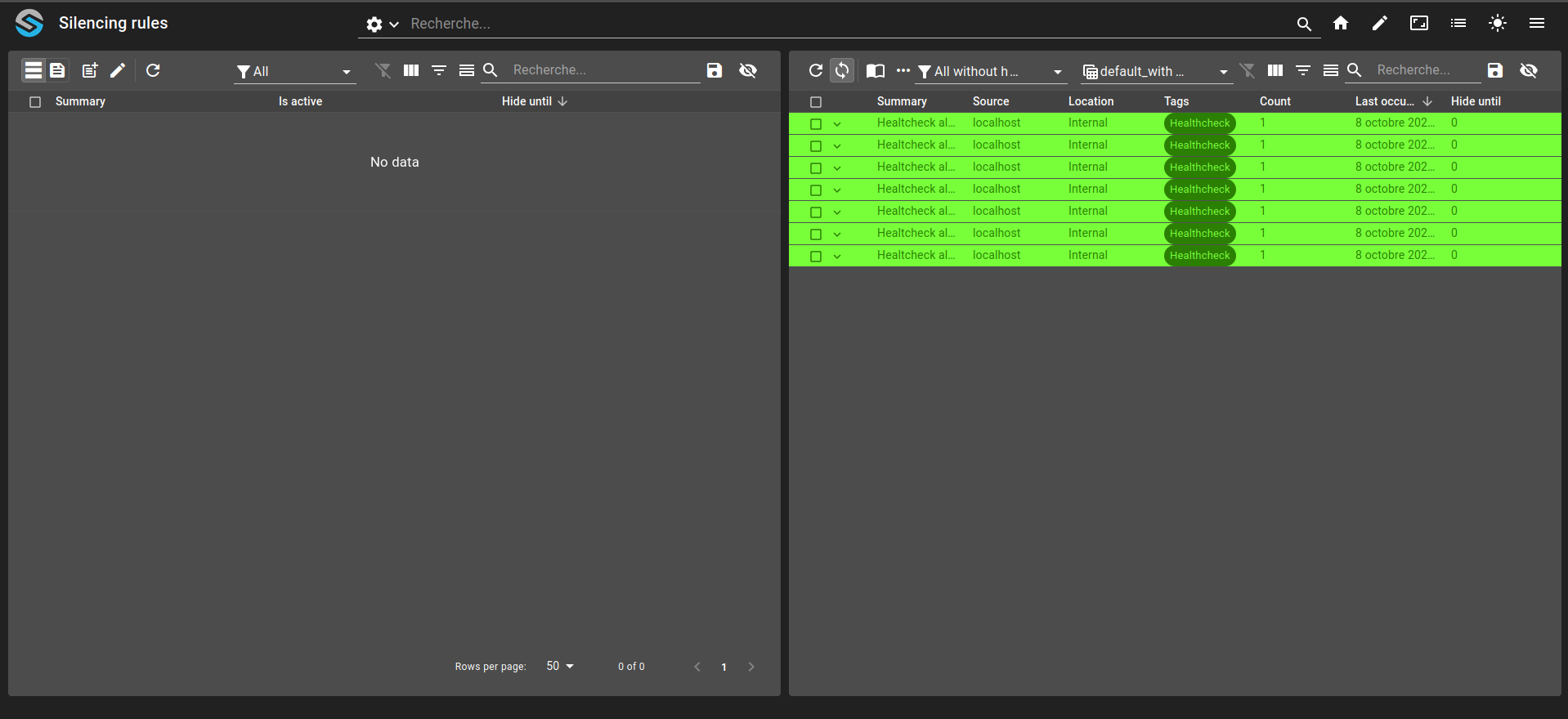
Now, go into creation mode in the Collection Table and create a filter by using the filter builder:
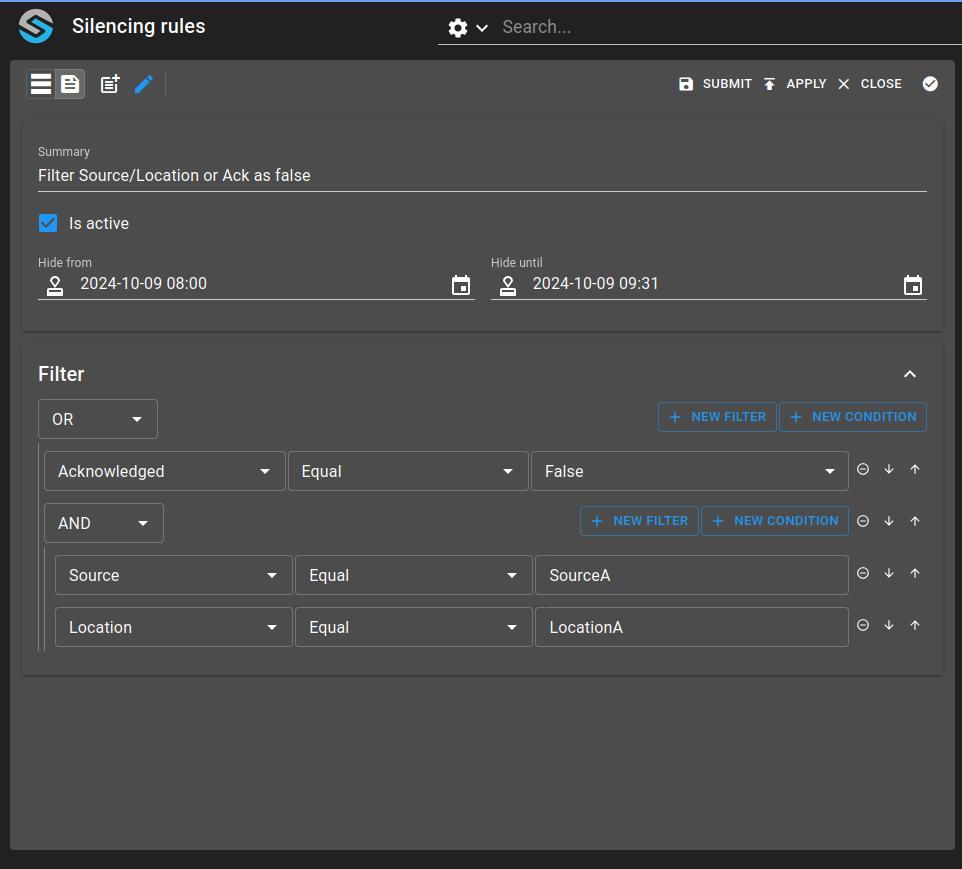
Looking at the Alarm Table, you should now see only the alarms that will not match the rule. You can switch the table to a filter with the flag ignoreHideUntil set as true to see the hideUntil value of the alarm that should be equal to the value you set in the rule.
