Alarm Table
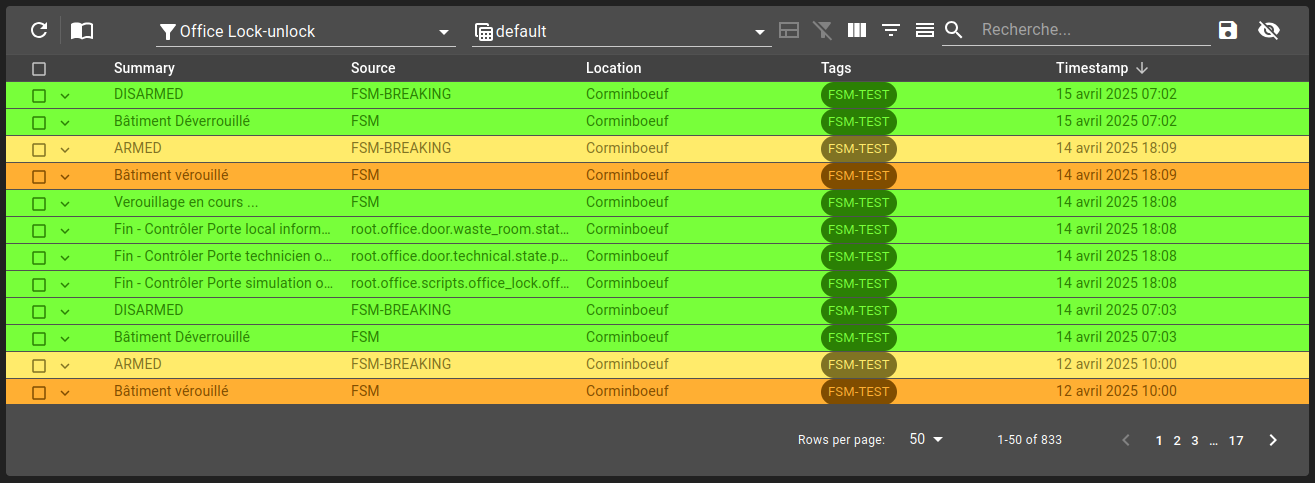
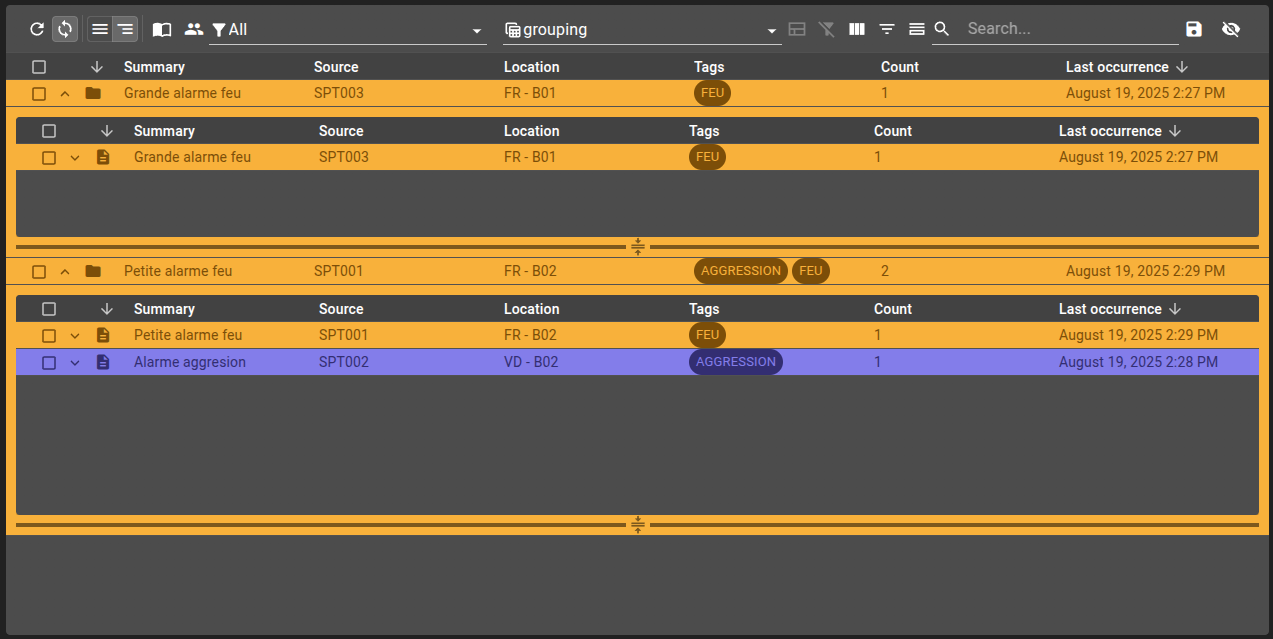
The alarm table widget allows showing alarms with specified filters and view in a dashboard. It displays columns based on view.
The table can present the alarms in two different hierarchies:
All (left): each alarm is shown at the same level, no matter if the alarm is a group or not. This hierarchy doesn’t allow to see an alarm of a group
Grouped (right): each alarm present at the root level of the table is either a standalone alarm or a group alarm. If the alarm is a group, you can expand it to display another table with the alarms of the group
Capabilities
Generic features for tables
Capability |
Support |
Comment |
|---|---|---|
Customize menu |
|
|
Choice data to display (filter) |
|
Filter can be used to choose the data displayed to a user. See menus and toolbar |
Define a default filter by table |
|
A unique default filter can be set for each view. See Default filter |
Define a default filter by user or group of user |
|
The filter cannot be set by user or group of user, only by dashboard. But the local storage can be used to store the filter for a user. |
Set views or filter by URL parameters |
|
The filter can be set by URL parameters, which allows creating links from other widgets or dashboards. See URL parameters |


List of configuration files
Filename |
Short description |
Format |
Link to documentation |
|---|---|---|---|
dashboard.view#AlarmTable |
Defines the AlarmTable widget global settings |
json |
List of examples
Short description |
Link to documentation |
|---|---|
Visualize list of alarms |
|
Define grouping menu to interact with groups from an alarm table |
Local storage
When local storage is activated, the following parameters are stored:
Columns width
Column states (shown or not)
Show/hide column names
Show/hide summary
Show/hide filter
Current filter
Grouped hierarchy and sub-table
Warning
 This feature is currently in beta. It may change in a future version without prior notice. See the Beta Features page for the full list of beta features and their planned release. If you’re using this feature, we encourage you to share your feedback to help with the evaluation process.
When the table is set on the Grouped hierarchy, some aspect behave differently depending on the table configuration.
Expanding the row
By either double-click or using the arrow icon on the start, you can expand the row and various information, depending on the selected view configuration or on the current hierarchy.
The grouped hierarchy displays a sub-table when you expand the row. That second table show every alarm that belongs to the group of the row alarm.
Journal
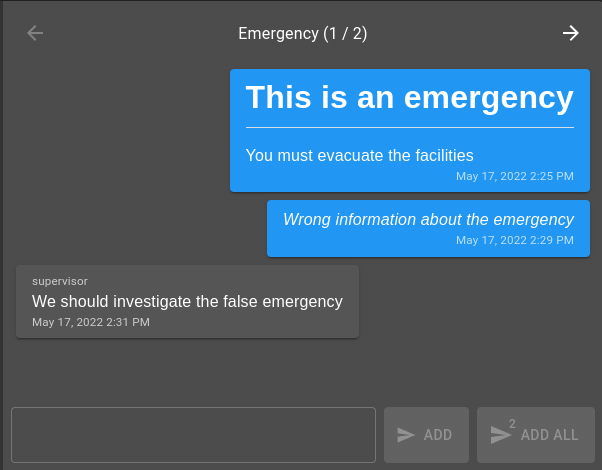
Alarm journal tracks user interactions as well as free-form writing. It supports GitHub Flavoured Markdown text formatting.
User can enter the journal for only the current alarm as well as all selected alarms.
A shortcut can be used to add an alarm while typing using control + enter. Adding to all alarms can be done with control + shift + enter.
Toolbar
The alarm toolbar contains different actions:
Refresh
On the refresh icon click, you can refresh manually the table. The button next to it allows you to toggle the auto refresh option, making the table refresh automatically.
Journal
You can open the journal when one or more alarms are selected.
Change table structure
Three options can change the structure of the table:
Show/hide column: display the names of the columns at the top of the table, as well as an option to select/unselect all the rows.
Show/hide filter: display filters options for each column, depending on the type of value.
Show/hide summary: display a summary at the bottom of the table (ie: rows, count, sum of a column,…).
Search
You can search in the table by searching for a text (column with text value) or for a tag. Like filters and views, search can be parameterized from the url, using property search (i.e. https://<onsphere-host>/home/root#D2H2STZ3-search=high). This can be disabled with disableTableUrlHistory set as true.
Export
The export button can export multiples rows into an excel file. Either export every row or export only the ones selected.
Show/Hide column
You can show or hide a particular column with the Show Column Chooser. These will also change depending on the view.
Clear filters
Remove all current filters and reset the default ones.
URL parameters
This widget handle URL parameters. These are the available parameters:
filter: change the active filter (ItemId)view: change the active view (ItemId)search: set the search term (string)currentPage: current page (number)
Set disableUrlHistory to true in the widget settings to stop this widget reading and writing these parameters. See Disabling the parameters.
Widget context
Operations
Alarm live/history table support following operation:
updateFilter(id: string)with filteridin parameter updates the table filterupdateView(id: string)with viewidin parameter updates the table viewappendSort(columnName: string, direction: AlarmViewSortDirection)with column name and direction (ascordesc, emptied toggles it) in parameter appends to the current sortingapplySort(columnName: string, direction: AlarmViewSortDirection)with column name and direction (ascordesc, emptied toggles it) in parameter overrides the current sortingclearSort(columnName: string)with column name in parameter clears the column sortingclearSorts()clears the table sortingappendFilter(columnName: string, value?: string, operation?: string)with column name, value (empty clears filter) and operation (see below) in parameters appends to the current filteringapplyFilter(columnName: string, value?: string, operation?: string)with column name, value (empty clears filter) and operation (see below) in parameters overrides to the current filteringclearFilter(columnName: string)clears filter for given column nameclearFilters()clears all filtersgetFilters()retrieve all the filter currently appliedsetFilters(filters: Filter[])set the filters by directly passing a list of filters. Could be used in tandem withgetFilters()to easily copy filters from one table to anotherapplySearch(value?: string)applies table search (among all fields) withvalueparameters (empty clears it)clearSearch()clears table search
Built-in filter operations are:
contains (default)
notContains
startsWith
endsWith
equal
notEqual
greaterThan
greaterThanOrEqual
lessThan
lessThanOrEqual
between
dayEqual
Context
The widget context can be access from menus in order to fetch these different values from the alarm table. Alarms objects are dependant on view used.
alarmsall: all rows (list)clicked: clicked row (object)selected: selected rows (list)column: column with name and title (object)value: value of the cell
view: current view id of the tablefilter: current filter id of the tablecolumnFilter: current filters on the table (list)columnOrder: list of all columns names in orderhiddenColumnNames: list of hidden columns