Composer
osp-composer is a VScode plugin providing guidance to configure OnSphere. Usage of the composer is not mandatory but strongly recommended.
The installation guide will help you getting started with the composer.
Index
Type |
Functionality |
link |
|---|---|---|
Commands |
patch to version |
see documentation |
Commands |
copy onsphere path |
see documentation |
Commands |
goto ItemId |
see documentation |
Commands |
Validate configuration |
see documentation |
Commands |
Validate all templates envs |
see documentation |
Template playbook execute.all |
template.playbook.execute.all |
see documentation |
Template playbook execute |
template.playbook.execute |
see documentation |
Template playbook clean |
template.playbook.clean |
see documentation |
Tools |
Template previewer |
see documentation |
Toolbox |
A panel to encrypt/decrypt password (other option will be added in the future) |
see documentation |
Facility - Language server |
Validation of json configuration files from schema |
N.A. |
Facility - Language server |
Autocompletion of ItemId |
see documentation |
Facility |
clickable link on ItemId |
see documentation |
Facility |
Displayed documentation |
The current documentation is displayed when the mouse is over a keyword |
Facility - File autogenerated are read-only |
Block manual edition of template generated files. |
N.A. |
Javascript auto-complexion (composer) |
|

Logger
The composer base behavior is logging to output in the OSP Composer. The error messages are displayed as popup.

Commands
Note
To launch the command palette, you can use either of the following :
Press Ctrl+Shift+p
Click on
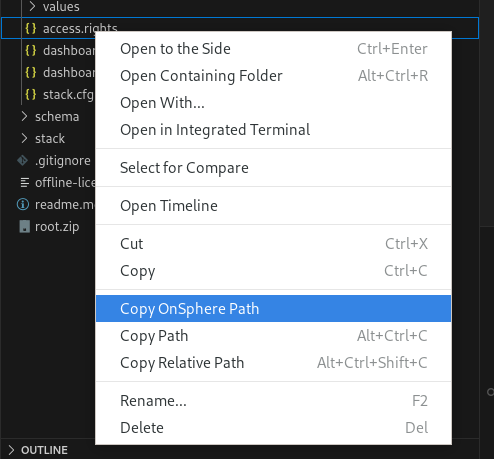
Copy onsphere path
References for the configuration are separated by ., the composer gives you a contextual option to copy them :
Patch from older configuration
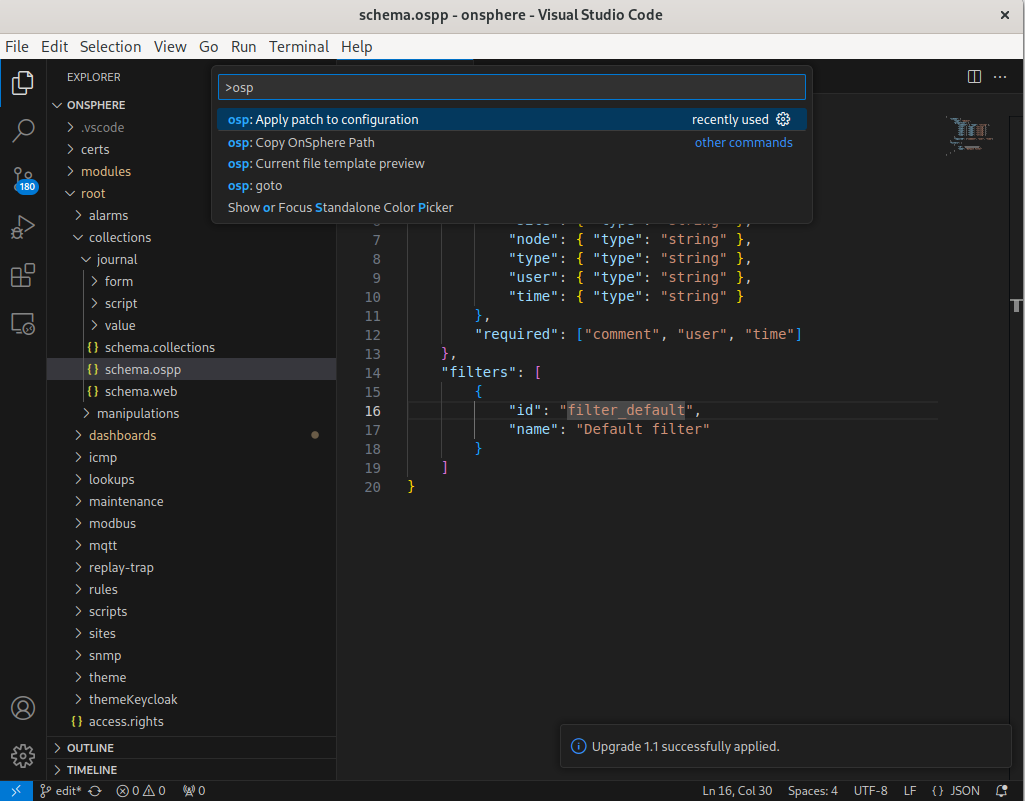
When a new version of OnSphere is released, patches are created to upgrade the configuration. To apply them :
Open the configuration
Apply patch and select the patch to apply
Patches must be applied in the right order (1.1.0 then 1.1.1 and so on).
Goto
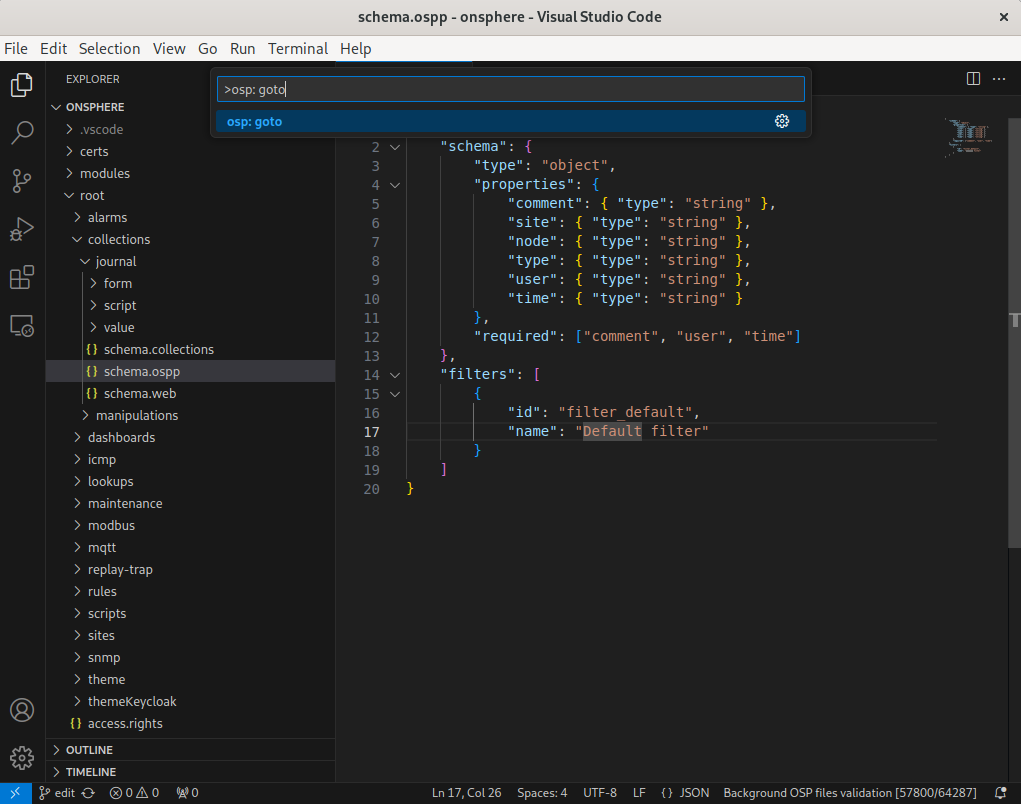
This command allows navigating to a file from its OnSphere ID.
Type goto
Select the id with
.separation example exampleroot.test
There are 3 behaviors on this command :
Shows an error if the id is incorrect or doesn’t exist
Opens the file if there is only one inside the folder
Shows a quick selection of files if there are more than one
Validate Configuration
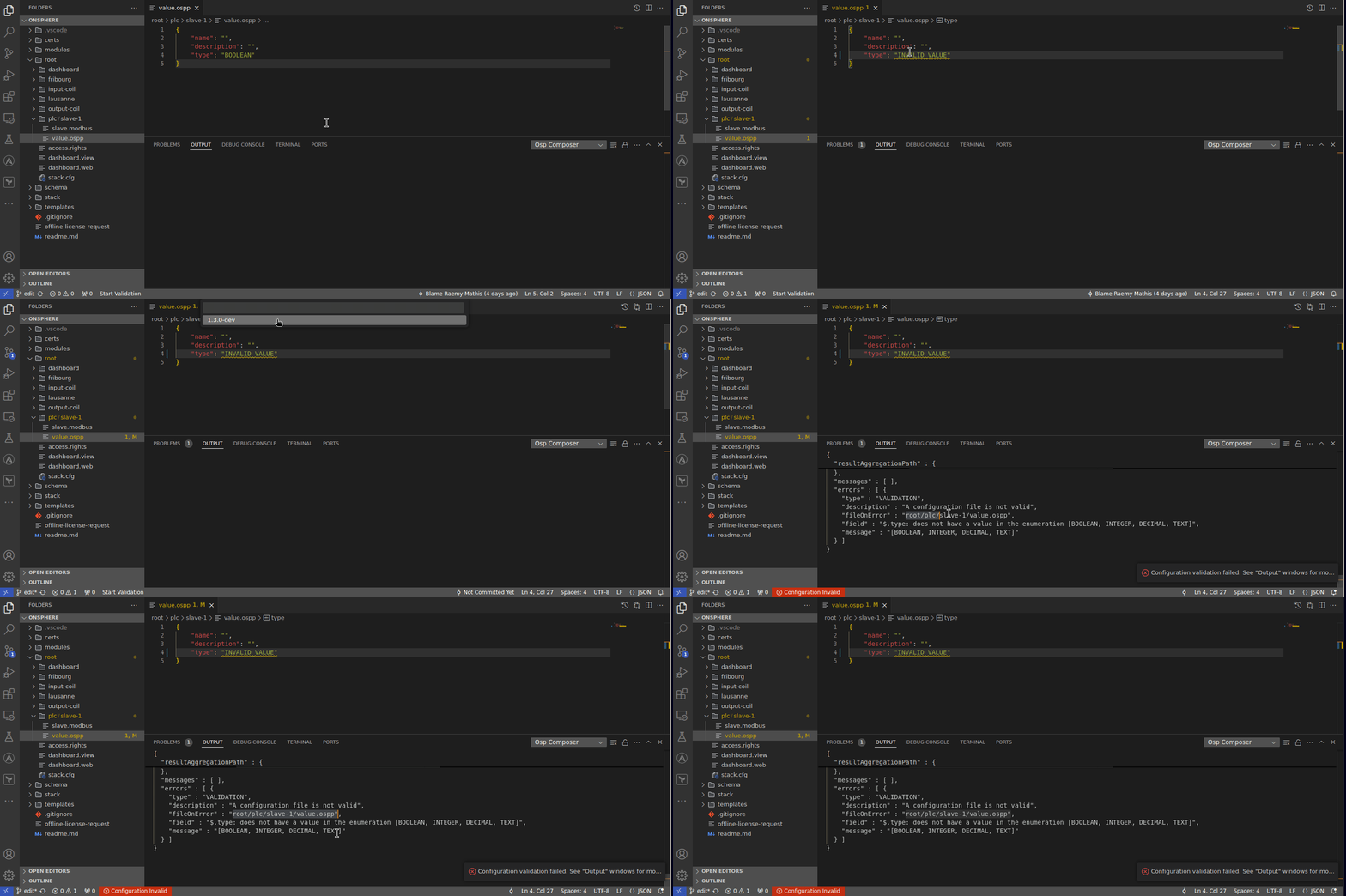
This command allow integrators to run a fully complete validation without applying it. On top of that, integrators can now validate their configurations without access to a running OnSphere instance.
Unlike language-server validation, this command run a fully complete validation. When you start a validation, the composer will try to determine in what version is your current configuration. It will then suggest this version but let you choose another version.
Selecting a different version might be particularly useful for a version upgrade.
On top of that, you a new status bar button is available to facilitate access to this command.
Example of validation that fail:
Note
This command use a docker container to run validation. You can change default registry for validator image by editing composers settings.
You need to be logged in Docker for the Nexus in order to use the validator.
$ docker login nexus.onsphere.ch
Validate templates envs
This command runs template generation for an environment, then validates its configuration, repeating the process for every template environment.
Templates execute all
Warning
 This feature is currently in beta. It may change in a future version without prior notice. See the Beta Features page for the full list of beta features and their planned release. If you’re using this feature, we encourage you to share your feedback to help with the evaluation process.
This command execute all templates playbooks. Based on all the files present inside the folder /templates/playbooks/*.json.
Note
This command execute a template cleaning before refreshing templates.
Type template.playbook.execute.all
Press enter
See the usage for detail about the feature himself
QuickPick shows all available environments for playbooks with multiple environments.
Playbooks are executed for all environments whose name matches the user selection.
If there is multiples environment with matching name then all environments are executed
If there is no matching-name nothing is done
Template playbook execute
This command execute a template playbook. The list is automatically generated based on the contains of the file /templates/playbooks/*.json,
Type template.playbook.execute
Select the playbook to execute
Press enter
See the usage for detail about the feature himself
Template playbook clean
See Supported Directories for folders supported
Type template.playbook.clean
Select the playbook to execute
Press enter
Warning
The cleanup function will clean all empty folders. Even if the folder is not auto-generated.
Facility
Autocompletion modules/root
The composer allows completion of modules and root path, triggered when either modules. or root. is entered.
Clickable osp-path
Osp-path are clickable and will focus the first file (by alphabetical order) inside the osp-path.
File auto-generation
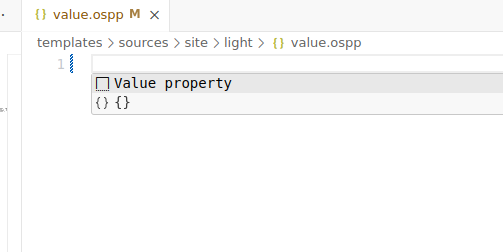
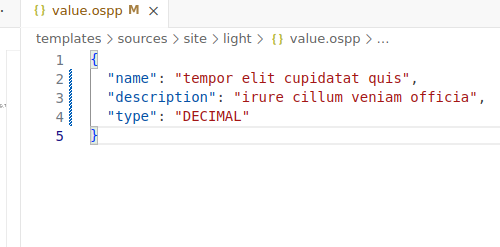
When a file is completely empty, user automatically create a fake JSON object that match all requirements of json-schema.
For example, if you create a file named value.ospp and you want to create a valid fake object, you can hit ctrl + space and it will create a random object that match requirement.
Tools
Template previewer
The composer provides a previewer for helping templates edition. The previewer can be enabled by the command osp: current file template preview. Its usage is described here
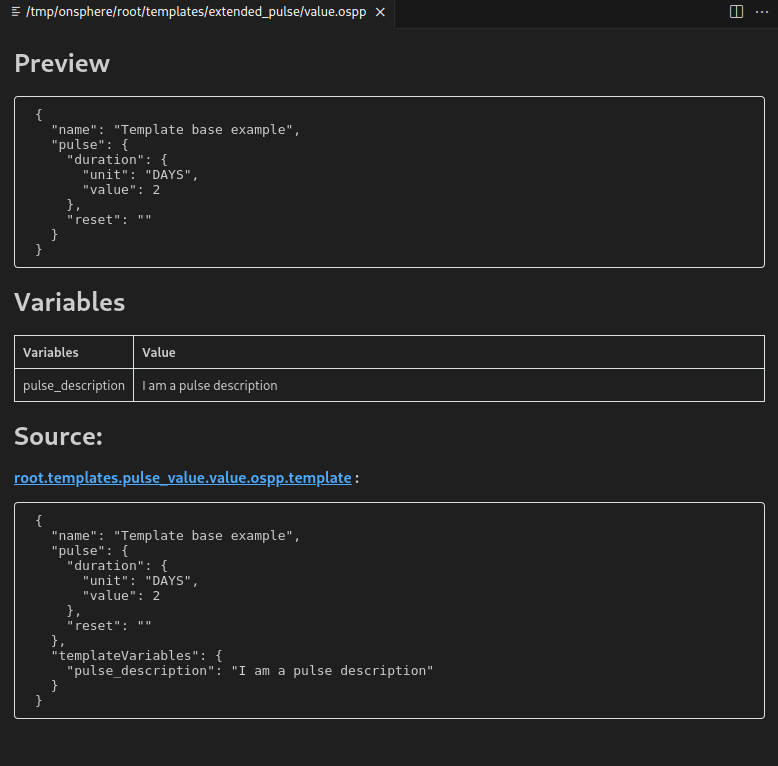
The previewer open a dedicated windows displaying :
The preview of the result of the template process
The variables available from templates
The different sources used for generating the result with clickable link
VSCode Settings
The composer has settings that allow you to customize corresponding to usage. The following table show all settings available :
Id |
Description |
Example |
Default |
|---|---|---|---|
composer.dockerRegistry |
Docker registry to use to pull images |
nexus.onsphere.ch |
nexus.onsphere.ch |
Hint
To edit those settings click on . Then search composer to list all available settings.
Toolbox
Password encryption
Encrypted Toolbox Usage
Launch the toolbox using the command Ctrl+Shift+P, then select:
osp: Toolbox
This will open the following panel:
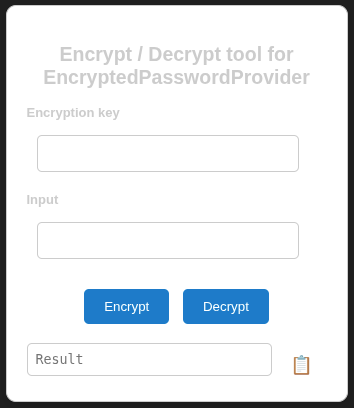
The
Encryption keyfield contains the secret key shared between the user and the orchestrator.The
Inputfield is used to enter the password to encrypt or decrypt.
The Result field displays either the base64-encoded password or the decrypted password, depending on the selected action.
Environment and Validation Configuration
Warning
This feature is currently in beta. It may change in a future version without prior notice. See the Beta Features page for the full list of beta features and their planned release. If you’re using this feature, we encourage you to share your feedback to help with the evaluation process.
The composer supports repository-level configuration to define environment and validation settings for the current stack. These settings are defined using configuration files located in the .onsphere directory at the root of the repository.
Configuration Files
Two configuration files are supported:
repository.conf: Defines the configuration associated with the current stack and the environment.
preferences.conf: Defines user preferences and can override specific settings from repository.conf.
Repository configuration
The file .onsphere/repository.conf contains the configuration associated with the current stack and the environment. It defines environment and validation parameters that apply to the stack.
User preferences
The file .onsphere/preferences.conf allows users to override specific settings from .onsphere/repository.conf with personal preferences. This mechanism allows adapting the behavior of the composer locally without modifying the repository configuration.
Warning
This file is intended for user preferences and should not be committed to the repository.
Environment
The environment configuration defines which stack environment should be used when executing playbooks.
It provides two capabilities:
Define a default environment name used by templates
Control whether this environment is automatically selected or only suggested to the user
Validation
The validation configuration allows adjusting the behavior of the configuration validator. It provides options to control the verbosity of logs and the orchestration mode used by the stack.
Auto-complexion
Since version 2.1.0, the dispatcher includes a TypeScript types file that describes the available built-in controllers. This enhances integration and scripting by providing improved developer guidance.
As the codebase is written in JavaScript rather than TypeScript, type checking acts as a helper and is not fully strict. However, these type definitions enable auto-completion and inline documentation directly within scripts, making development more efficient and intuitive.
The tsconfig.onsphere.json file is intentionally set to a permissive configuration avoiding to force user to describe every types for javascript. While it can be customized, any changes will be overwritten when a stack upgrade is performed.
{
    "compilerOptions": {
        "target": "es6",
        "module": "nodenext",
        "moduleResolution": "nodenext",
        "allowJs": true,
        "checkJs": true,
        "noImplicitAny": false,
        "strict": false,
        "typeRoots": [
            "./types",
            "./types-custom",
            "./node_modules/@types"
        ]
    },
    "include": ["**/*"]
}
The tsconfig.json file import tsconfig.onsphere.json to allow the user to override the default configuration.
{
    "extends": "./tsconfig.onsphere.json",
}