Visualize reports

🟢 Beginner

dashboard report

This example shows how to visualize existing reports on a dashboard.

  • Create a menu with download and open actions for CSV and PDF report types.

  • Add a ReportList widget to a dashboard, wired to the report menu.

  • Add a PDFViewer widget alongside the list to display the selected report.

  • Generate reports from an alarm table and observe the ReportList update automatically.

git checkout origin/osp-alarms-configuration .
git checkout origin/osp-web-configuration .
git checkout origin/osp-reports-configuration .
git checkout origin/example-dashboard-reports-viewer .

Steps

1. Create a menu for the ReportList

This menu has two actions:

  • download: using this action, we can request a download of the selected report

  • open: opens the report in a new tab instead of directly downloading it

For the download action we need to set it twice, once for the CSV reports and once for the PDF ones. The reason is that we set a different content depending on the type of reports. You can find more details about this in the module documentation.

root/reports/osp/menus/menu.web

{
    "moduleId": [
      "modules.web.web-1"
    ],
    "name": "Reports menu",
    "description": "All standard reports operations",
    "menus": [
      {
        "label": "Download",
        "icon": "file_download",
        "context": [
          {
            "type": "ReportsList",
            "action": "root.reports.osp.actions.download",
            "condition": "${reports.selected}.length === 0 && ${reports.clicked.templateFormat} !== 'pdf'",
            "input": {
              "documentId": {
                "extract": "reports.clicked.documentId",
                "as": "string"
              }
            },
            "output": [
              {
                "operation": "download",
                "input": {
                  "content": {
                    "extract": "result.content.parsed",
                    "as": "string"
                  },
                  "format": {
                    "extract": "result.content.format",
                    "as": "string"
                  },
                  "filename": {
                    "extract": "result.content.name",
                    "as": "string"
                  }
                }
              }
            ]
          }
        ]
      },
      {
        "label": "Download",
        "icon": "file_download",
        "context": [
          {
            "type": "ReportsList",
            "action": "root.reports.osp.actions.download",
            "condition": "${reports.selected}.length === 0 && ${reports.clicked.templateFormat} === 'pdf'",
            "input": {
              "documentId": {
                "extract": "reports.clicked.documentId",
                "as": "string"
              }
            },
            "output": [
              {
                "operation": "download",
                "input": {
                  "content": {
                    "extract": "result.content.report",
                    "as": "string"
                  },
                  "format": {
                    "extract": "result.content.format",
                    "as": "string"
                  },
                  "filename": {
                    "extract": "result.content.name",
                    "as": "string"
                  }
                }
              }
            ]
          }
        ]
      },
      {
        "label": "Open",
        "icon": "open_in_new",
        "context": [
          {
            "type": "ReportsList",
            "action": "root.reports.osp.actions.download",
            "condition": "${reports.selected}.length === 0 && ${reports.clicked.templateFormat} === 'pdf'",
            "input": {
              "documentId": {
                "extract": "reports.clicked.documentId",
                "as": "string"
              }
            },
            "output": [
              {
                "operation": "open",
                "input": {
                  "content": {
                    "extract": "result.content.report",
                    "as": "string"
                  },
                  "format": {
                    "extract": "result.content.format",
                    "as": "string"
                  },
                  "filename": {
                    "extract": "result.content.name",
                    "as": "string"
                  }
                }
              }
            ]
          }
        ]
      }
    ]
  }
  

2. Add a ReportList and PDFViewer inside a dashboard

We can now create a ReportList with default settings and add to it the created menu. Alongside the list, we add a PDFViewer, also with default settings.

We took the alarm table defined in this other example to generate new reports and see the reports list actualize.

root/dashboards/reports-viewer/dashboard.view

{
  "configuration": [
    {
      "type": "AlarmTable",
      "id": "aQEoDuEk",
      "title": "",
      "options": {
        "userPreference": "LOCAL_STORAGE"
      },
      "menuReferences": [
        "root.alarms.menus.reports"
      ],
      "maxMenuHeight": 300,
      "alarmWidgetSettings": {
        "defaultFilter": "root.alarms.filters.all",
        "defaultView": "root.alarms.views.default",
        "resizeMode": "nextColumn",
        "disableFilterUpdate": false,
        "disableToolbar": false,
        "enableAutomaticRefresh": true,
        "disableToolbarTableRefresh": false,
        "disableToolbarTableAutoRefresh": false,
        "disableToolbarJournal": false,
        "disableToolbarColumnShowHide": false,
        "disableToolbarFilterShowHide": false,
        "disableToolbarSummaryShowHide": false,
        "disableToolbarSearch": false,
        "disableToolbarColumnChooser": false,
        "disableToolbarClearFilter": false
      }
    },
    {
      "type": "ReportsList",
      "id": "hrrT9pGM",
      "title": "",
      "menuReferences": [
        "root.reports.osp.menus"
      ],
      "reportsListWidgetSettings": {
        "templateSelect": {
          "type": "ReportsTemplate",
          "multiple": true,
          "limitTags": 1,
          "icon": "picture_as_pdf"
        }
      }
    },
    {
      "type": "PdfViewer",
      "id": "hrrT3JoM",
      "title": "",
      "pdfViewerWidgetSettings": {
        "content": "",
        "display": "one"
      }
    }
  ],
  "layout": {
    "lg": [
      {
        "w": 6,
        "h": 4,
        "x": 0,
        "y": 0,
        "i": "aQEoDuEk"
      },
      {
        "w": 2,
        "h": 4,
        "x": 6,
        "y": 0,
        "i": "hrrT9pGM"
      },
      {
        "w": 4,
        "h": 4,
        "x": 8,
        "y": 0,
        "i": "hrrT3JoM"
      }
    ]
  },
  "breakpoints": {
    "lg": 1200,
    "md": 996,
    "sm": 768,
    "xs": 480,
    "xxs": 0
  },
  "cols": {
    "lg": 12,
    "md": 10,
    "sm": 6,
    "xs": 4,
    "xxs": 2
  },
  "rowHeight": 150
}

3. Generate reports and visualize them on the PDFViewer

Once a report is generated, the ReportList widget is automatically updated. Upon choosing a report, the PDFViewer will load it.
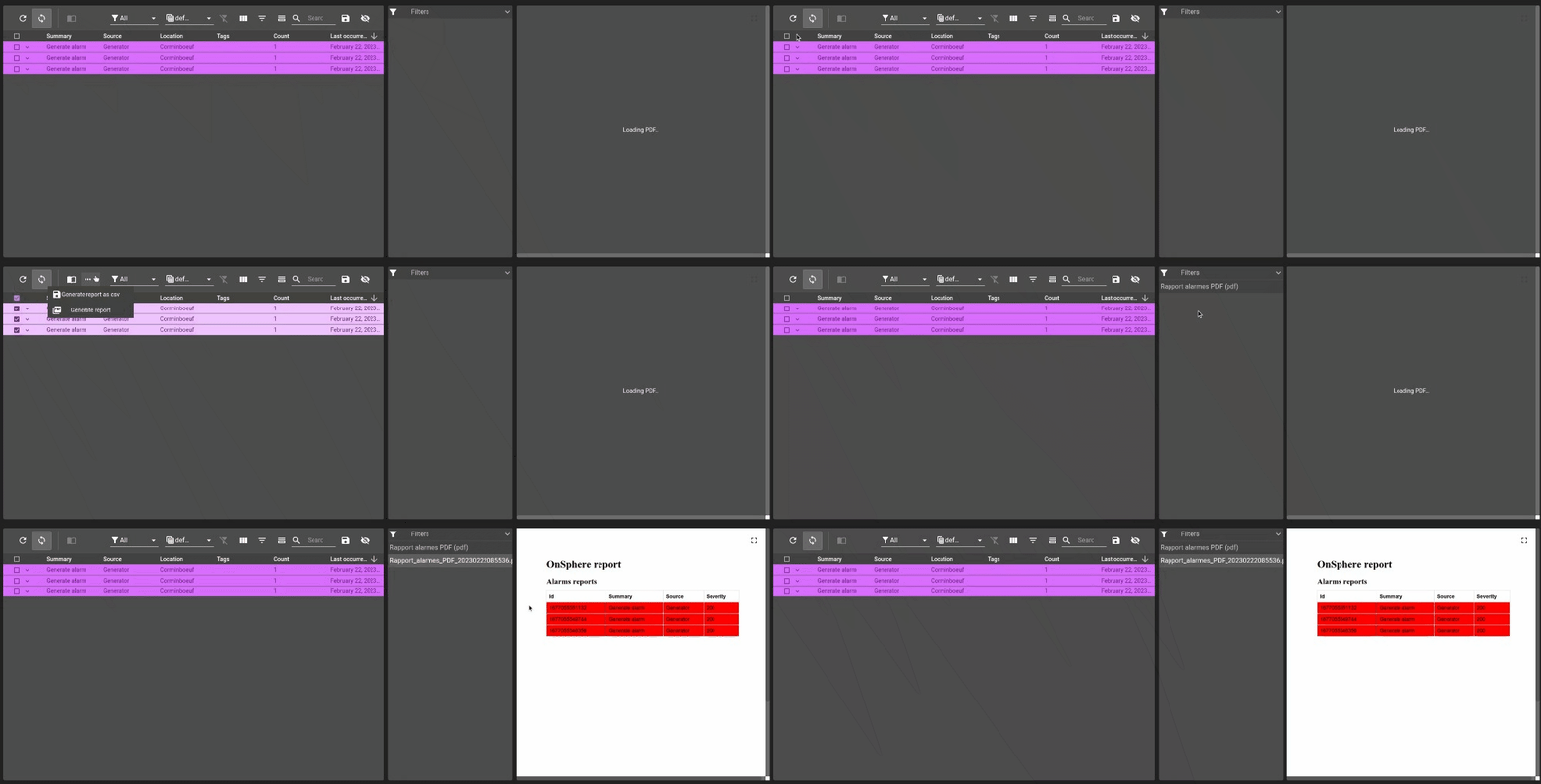
../_images/example-reports-visualize.gif

Add this example in your configuration

You can directly use the following command to add this example into your configuration :

git checkout origin/example-dashboard-reports-viewer .