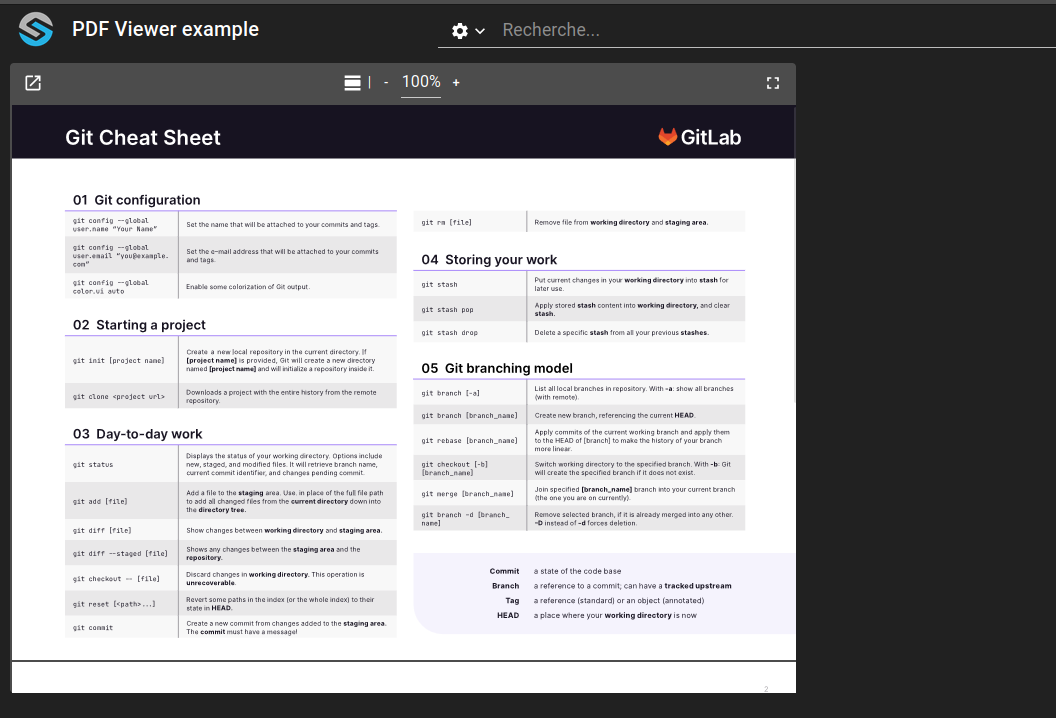
Display PDF from configuration in a PDFViewer widget
This example shows how to use a PDF Viewer widget to display a PDF that is present in your stack configuration.
Declare the PDF file as a web module resource in
module.resourcesto expose it to the frontend.Reference the resource destination path as the widget content in
dashboard.view.Load the dashboard to verify that the PDF viewer widget displays the configured file.
git checkout origin/osp-web-configuration .
git checkout origin/example-dashboard-pdf-from-configuration .
Steps
1. Declare the PDF in the web module resources
In order for the PDF Viewer widget to be able to load the PDF, it needs to be defined as a module web resource. Define it as the following, the destination path will be used later for the widget configuration.
modules/web/web-1/module.resources
{
    "resources":
    [
        {
            "source":"root/pdf/example.pdf",
            "destination":"osp/resources/pdfs/example.pdf"
        }
    ]
}
2. Create a dashboard with the widget
As mentioned before, we use the destination path of the resource as the content of the widget. This will make the widget load the associated resource.
root/dashboard/dashboard.view
{
    "configuration": [
        {
            "pdfViewerWidgetSettings": {
                "content": "osp/resources/pdfs/example.pdf",
                "display": "all"
            },
            "id": "C_EV8pgK",
            "type": "PdfViewer",
            "title": ""
        }
    ],
    "layout": {
        "lg": [
            {
                "w": 5,
                "h": 4,
                "x": 0,
                "y": 0,
                "i": "C_EV8pgK"
            }
        ]
    },
    "breakpoints": {
        "lg": 1200,
        "md": 996,
        "sm": 768,
        "xs": 480,
        "xxs": 0
    },
    "cols": {
        "lg": 12,
        "md": 10,
        "sm": 6,
        "xs": 4,
        "xxs": 2
    },
    "rowHeight": 150
}
3. Navigate to the dashboard
Upon loading the dashboard you should see the widget with the example pdf loaded.