Collection table for deleted entries with restore menu

🟑 Intermediate

collection dashboard script

In this tutorial, we will define a filter to display deleted entries from a collection and add a menu to restore them.

  • Define two filters in schema.collections: one with scope ONLY_ACTIVE and one with scope ONLY_INACTIVE to separate live from deleted entries.

  • Create a delete menu with a condition checking the current table filter (ONLY_ACTIVE) and a script using collections.delete.

  • Create a restore menu with a condition checking the current table filter (ONLY_INACTIVE) and a script using collections.restore.

  • Link both menus to the same CollectionTable dashboard.

git checkout origin/osp-web-configuration .
git checkout origin/osp-collections-configuration .
git checkout origin/osp-scripts-configuration .
git checkout origin/example-dashboard-collections-with-restore .

Steps

1. Setup the collection with filters

We need to define at least two filters, one for active/not deleted entries and the other for inactive/deleted entries. To specify that difference, we set one of the filters with a scope of ONLY_INACTIVE. The filter with this scope will allow to list every entry that has been deactivated. The other filter, using the default scope ONLY_ACTIVE, will be used to show active entries.

Your schema filters should look like this:

root/__feature/restore_collections/collection/schema.collections

18    "filters": [
19        {
20            "id": "all_active",
21            "query": {} 
22        },
23        {
24            "id": "all_inactive",
25            "query": {},
26            "scope": "ONLY_INACTIVE"
27        }
28    ]

Like we said in the description of this example, the content of the collection schema isn’t important for what we want to achieve. You can define the rest of the schema as you want to.

2. Define the menus for the delete/restore operations

Next, we are going to create two scripts, one to delete an entry and one to restore it, that we are going to use with two menus.

Delete

Note

Another example already shows how to implement a delete menu into a collection table. Therefore, we will not be explaining everything thoroughly here. Don’t hesitate to look at that example if you want more details.

First, we write the script that will delete the entries of the collection. We use the delete method of the collections library by passing the schema and the entry id.

root/__feature/restore_collections/menus/delete/detached.scripts

{
    "moduleId": "modules.scripts.scripts-1",
    "accessedValues": [],
    "scheduledExecutions": [],
    "sourceFile": "root/__feature/restore_collections/menus/delete/delete-collection.js"
}

root/__feature/restore_collections/menus/delete/delete-collection.js

main()

function main() {
    trigger.parameters.forEach(element => {
        collections.delete(element.schema, element.documentId); 
    });
}

Next, we define a menu with a particular condition that will ensure that the elements transmitted to the script are entries of the collection that have not been deleted already. To check that, we verify the current filter used by the table, which must correspond to the ONLY_ACTIVE filter.

root/__feature/restore_collections/menus/delete/menu/menu.web

{
  "moduleId": [
      "modules.web.web-1"
  ],
  "name": "Collection menu",
  "description": "All standard collections operations",
  "menus": [
      {
        "label": "Delete",
        "icon": "delete",
        "context": [
          {
            "type": "CollectionTable",
            "action": "root.__feature.restore_collections.actions.run_script",
            "condition":"${rows.selected}.length === 0 && ${filter} === 'all_active'",
            "scopes": ["Click"],
            "input": {
              "scriptId": {
                "expression": "'root.__feature.restore_collections.menus.delete'"
              },
              "arguments": {
                "expression": "[{'schema': ${schema}, 'documentId': ${rows.clicked._id}, 'user': ${user.username}}]"
              },
              "validation": {
                "prompt": {
                  "type": "INPUT",
                  "inputType": "confirmation",
                  "labels": {
                      "title": "Confirm",
                      "message": "Confirm the suppression",
                      "save": "Confirm",
                      "cancel": "Cancel"
                  }
                }
              }
            }
          },
          {
            "type": "CollectionTable",
            "action": "root.__feature.restore_collections.actions.run_script",
            "condition":"${rows.selected}.length > 0 && ${filter} === 'all_active'",
            "input": {
              "scriptId": {
                "expression": "'root.__feature.restore_collections.menus.delete'"
              },
              "arguments": {
                "expression": "${rows.selected}.map(row => { return {'schema': ${schema}, 'documentId': row._id, 'user': ${user.username}} })"
              },
              "validation": {
                "prompt": {
                  "type": "INPUT",
                  "inputType": "confirmation",
                  "labels": {
                      "title": "Confirm",
                      "message": "Confirm the suppression",
                      "save": "Confirm",
                      "cancel": "Cancel"
                  }
                }
              }
            }
          }
        ]
      }
  ]
}

Restore

Like for the delete operation, start by writing the script. This time, we make use of the restore method of the collections library, still by passing the schema and the entry id.

root/__feature/restore_collections/menus/restore/detached.scripts

{
    "moduleId": "modules.scripts.scripts-1",
    "accessedValues": [],
    "scheduledExecutions": [],
    "sourceFile": "root/__feature/restore_collections/menus/delete/delete-collection.js"
}

root/__feature/restore_collections/menus/restore/restore-collection.js

main()

function main() {
    trigger.parameters.forEach(element => {
        collections.restore(element.schema, element.documentId); 
    });
}

Next, we define a menu with a condition that will ensure that the elements transmitted to the script are entries of the collection that have been deleted already. To check that, we verify the current filter used by the table, which must correspond to the ONLY_INACTIVE filter.

root/__feature/restore_collections/menus/restore/menu/menu.web

{
    "moduleId": [
        "modules.web.web-1"
    ],
    "name": "Collection menu",
    "description": "All standard collections operations",
    "menus": [
        {
          "label": "Restore",
          "icon": "restore_from_trash",
          "context": [
            {
              "type": "CollectionTable",
              "action": "root.__feature.restore_collections.actions.run_script",
              "condition":"${rows.selected}.length === 0 && ${filter} === 'all_inactive'",
              "scopes": ["Click"],
              "input": {
                "scriptId": {
                  "expression": "'root.__feature.restore_collections.menus.restore'"
                },
                "arguments": {
                  "expression": "[{'schema': ${schema}, 'documentId': ${rows.clicked._id}, 'user': ${user.username}}]"
                }
              }
            },
            {
              "type": "CollectionTable",
              "action": "root.__feature.restore_collections.actions.run_script",
              "condition":"${rows.selected}.length > 0 && ${filter} === 'all_inactive'",
              "input": {
                "scriptId": {
                  "expression": "'root.__feature.restore_collections.menus.restore'"
                },
                "arguments": {
                  "expression": "${rows.selected}.map(row => { return {'schema': ${schema}, 'documentId': row._id, 'user': ${user.username}} })"
                }
              }
            }
          ]
        }
    ]
  }

3. Define a dashboard with a collection table

We just need a simple dashboard with a collection table that includes both filters and both menus too.

root/__feature/restore_collections/dashboard/dashboard.view

{
  "configuration": [
    {
      "type": "CollectionTable",
      "id": "8Wsl2JXU",
      "title": "",
      "menuReferences": [
        "root.__feature.restore_collections.menus.delete.menu",
        "root.__feature.restore_collections.menus.restore.menu"
      ],
      "collectionTableWidgetSettings": {
        "defaultSchemas": [
          "root.__feature.restore_collections.collection"
        ],
        "defaultView": "1",
        "defaultFilter": "all_active",
        "includeFilters": [
          "all_active",
          "all_inactive"
        ],
        "multiple": false,
        "disableUrlHistory": false,
        "rowDetailHeight": 250,
        "disableDisplayTypes": [],
        "defaultDisplayType": "table",
        "disableFormPicker": false,
        "disableFormCreate": false,
        "disableFormEdit": false,
        "disableFormHistory": false,
        "pageSize": 50,
        "pageSizes": [
          50,
          100,
          200
        ],
        "resizeMode": "widget",
        "disableToolbarTableRefresh": false,
        "disableSchemaUpdate": false,
        "disableViewUpdate": false,
        "disableFilterUpdate": false,
        "disableToolbar": false,
        "disableToolbarMenu": false,
        "disableSidePanel": false,
        "disableToolbarExport": false,
        "disableToolbarColumnShowHide": false,
        "disableToolbarFilterShowHide": false,
        "disableToolbarSummaryShowHide": false,
        "disableToolbarSearch": false,
        "disableToolbarColumnChooser": false,
        "disableToolbarClearFilter": false
      }
    }
  ],
  "layout": {
    "lg": [
      {
        "w": 12,
        "h": 5,
        "x": 0,
        "y": 0,
        "i": "8Wsl2JXU"
      }
    ]
  },
  "breakpoints": {
    "lg": 1200,
    "md": 996,
    "sm": 768,
    "xs": 480,
    "xxs": 0
  },
  "cols": {
    "lg": 12,
    "md": 10,
    "sm": 6,
    "xs": 4,
    "xxs": 2
  },
  "rowHeight": 150
}

4. Test the feature using the table

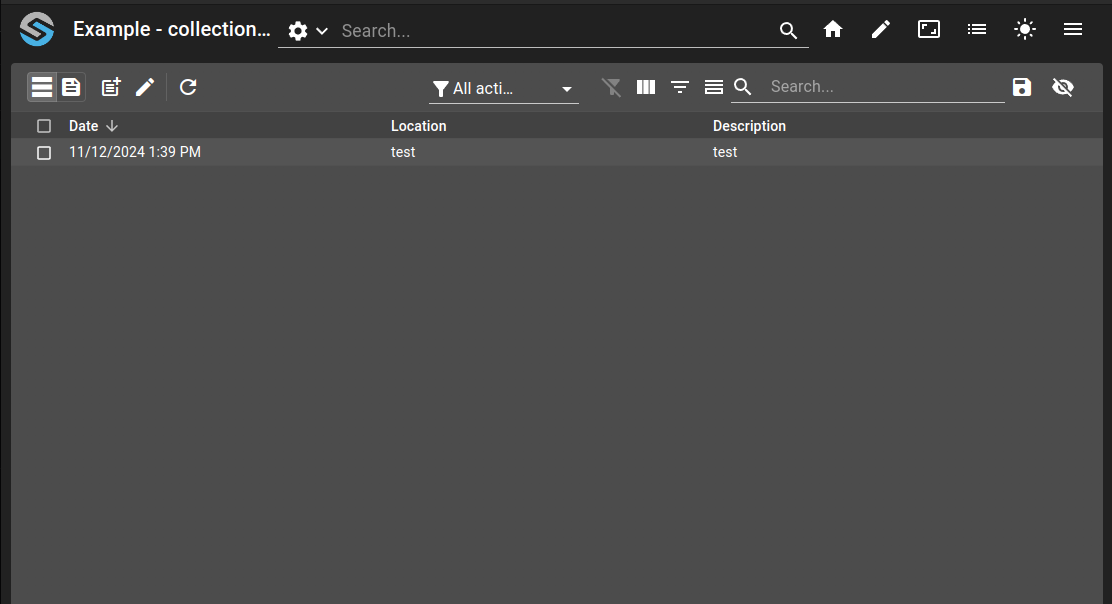
Start by creating a new entry. Upon saving, you should see it when using the ONLY_ACTIVE filter.
../_images/osp-collections-restore-create.png

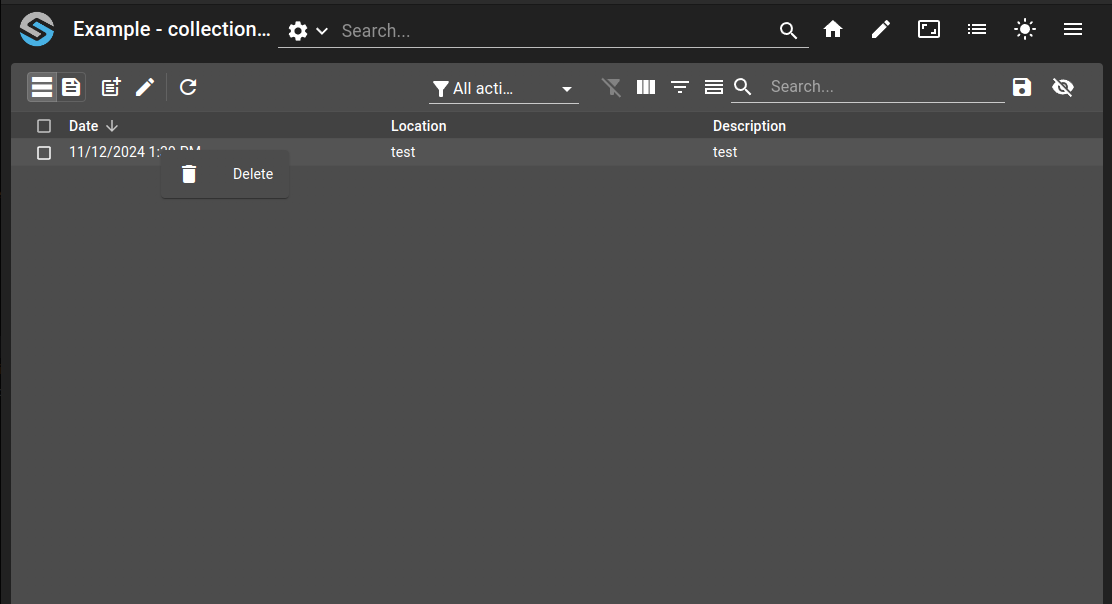
Then, use the delete menu (right-click on the line) to remove that entry. Upon confirming, it should be removed from the list.
../_images/osp-collections-restore-delete.png

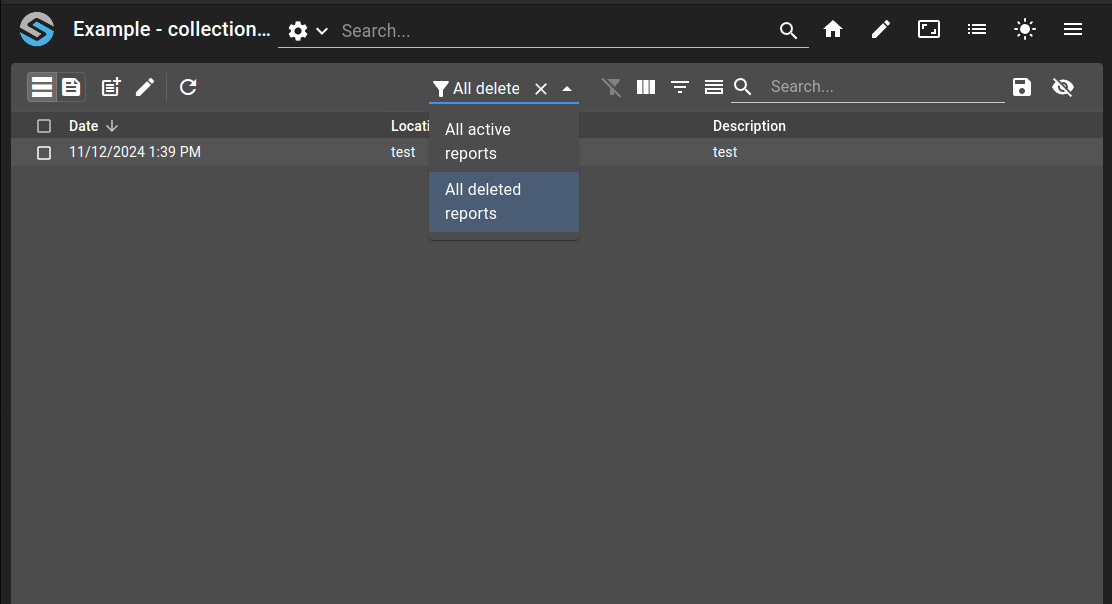
Switch to the ONLY_INACTIVE filter and you should see the previously deleted entry.
../_images/osp-collections-restore-filter-delete.png

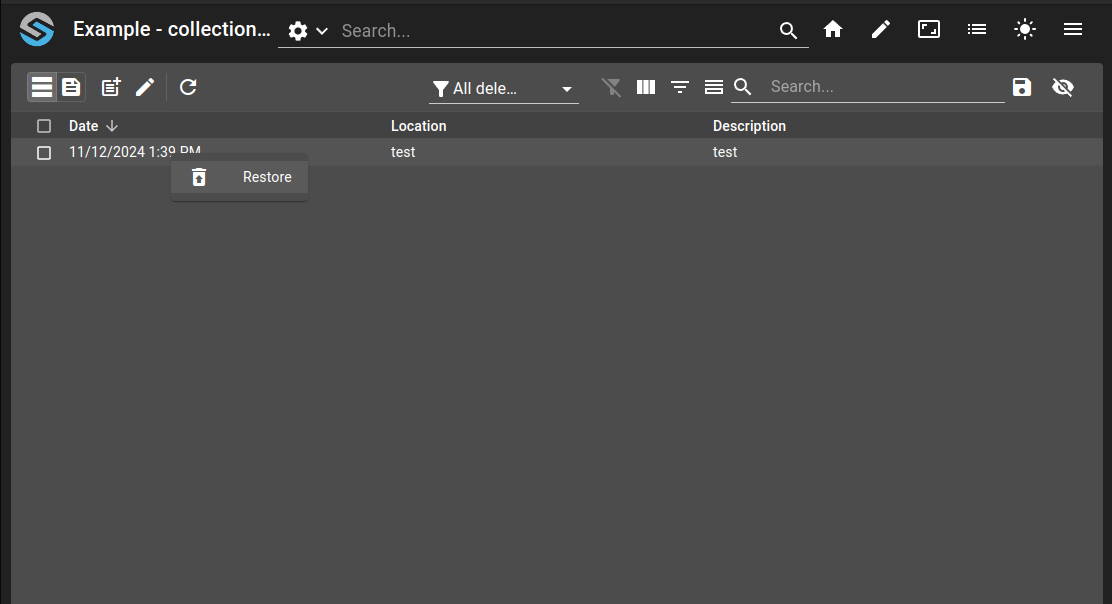
Use the restore menu to restore that entry. It should disappear from this view.
../_images/osp-collections-restore-restore.png

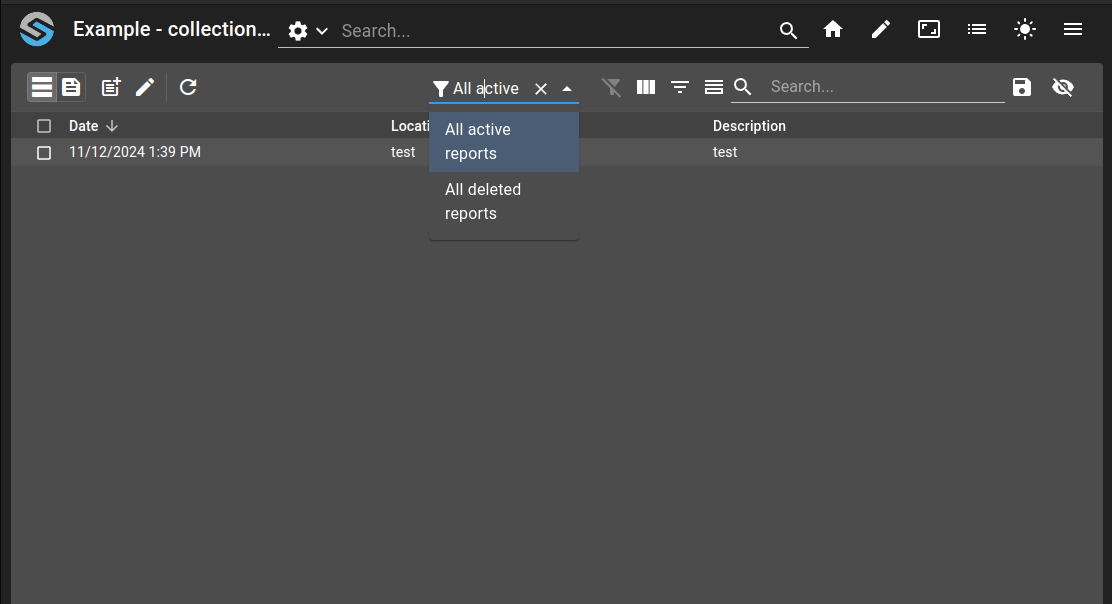
Return to the ONLY_ACTIVE filter to see the restored entry.
../_images/osp-collections-restore-final.png