Gmail provider
This example explains how to configure Gmail as a notification provider using an application-specific password and TLS encryption.
Generate a Gmail application-specific password (requires two-step verification).
Configure the provider with SMTP/TLS settings and the application password.
Expose the provider connection status as a dashboard value.
git checkout origin/osp-communications-configuration .
git checkout origin/example-communications-configure-gmail-provider .
Structure
![@startuml
skinparam backgroundColor transparent
package "modules" as modules {
node ospcoms as "osp-communications"
}
package "root" as root {
package "providerGmail" as provider {
[providers.coms] as provComs
[value.ospp] as valueSMS
}
[dashboard.view] as dash
}
ospcoms -[#black]-> provComs : **Own**
valueSMS -[#black]-> dash : **Give provider status**
@enduml](../_images/plantuml-0d783732104dfdd79bc44fa925d893b0f44ce16e.png)
Steps
1. Go to your gmail account and activate an application password
The application passwords are used to let the user login via username/password without giving the user real password.
Warning
Creating an app password has some pre-requisites such as activating two-step verification in your Gmail account.
On your home page go to Manage your account.
In the appeared window on the left panel click on Security and then Scroll down.
Navigate the App passwords and sign into your Gmail account again when asked.
The next step is to select the type of app you want to create a password for and click Generate. (You can add a custom name for example OnSphereCommunications) !
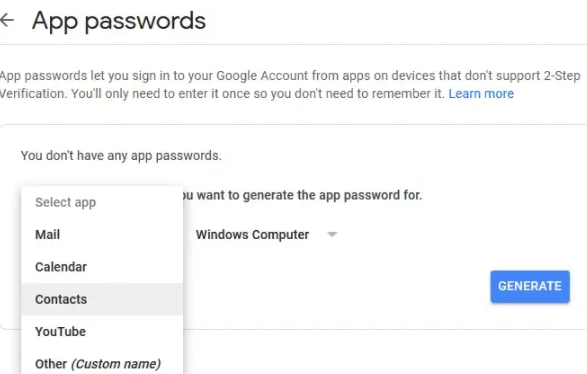
Your app password is created. You can copy it somewhere safe and click Done. This password will be needed for the provider configuration.
2. Configure the provider to use TLS and the application password
root/providerGmail/provider.coms
{
    "moduleId": "modules.communications.communications-1",
    "providerType": "EMAIL",
    "sendingProtocol": {
        "type": "SMTP",
        "smtpHostServer": "smtp.gmail.com",
        "port": 587
    },
    "authenticationConfiguration": {
        "securityType": "TLS",
        "type": "PASSWORD",
        "username": "${YOUR_GMAIL_ADDRESS}",
        "passwordProvider": {
            "password": "${YOUR_GMAIL_APPLICATION_PAS}",
            "type": "PLAINTEXT"
        }
    }
}
root/providerGmail/value.ospp
{
    "name": "Gmail Provider Value",
    "description": "",
    "type": "BOOLEAN"
}