Synchronize user with LDAP
This example explains how to configure LDAP user federation in OnSphere with certificate support and automatic synchronization. No downloadable configuration example is provided for this page — follow the steps below manually.
Add the LDAP certificate (self-signed or CA-signed) to the Keycloak module configuration.
Configure the LDAP provider via the Keycloak administration console or the
federations.keycloakfile.Enable automatic user synchronization using the
Sync Settingsoptions.Map LDAP attributes to Keycloak user fields and configure group mappers for rights management.
git checkout origin/osp-keycloak-configuration .
Steps
1. Add the certificate
LDAP using a not-self signed certificate
Open the
/modules/keycloak/keycloak-1/module.keycloakfile
LDAP using a self signed certificate
On the configuration create the
certs/externalfolder if it doesn’t exist.Add the CA certificate as PEM into
certs/external.
Push the new configuration.
Restart the
Keycloakmodule.
2. Configure the server
With the keycloak front-end (Recommended because it simplify the test)
Access the Keycloak administration console https://{stack_ip}:{stack_port}/auth/admin (for example https://stack-1.onsphere.local:5000/auth/admin).
Login to Keycloak administration console using administration user and password configured when the stack was deployed (see System security).
Go the
User Federationmenu.Select
Ldapin theAdd providermenu.Fill in the required field.
Note
The
Test the connectionbutton only tests if the server is reachable, the certificates are not used. This is a simple ping. TheTest authenticationbutton creates a full connection with the server using provided certificate and checks if the user can be authenticated.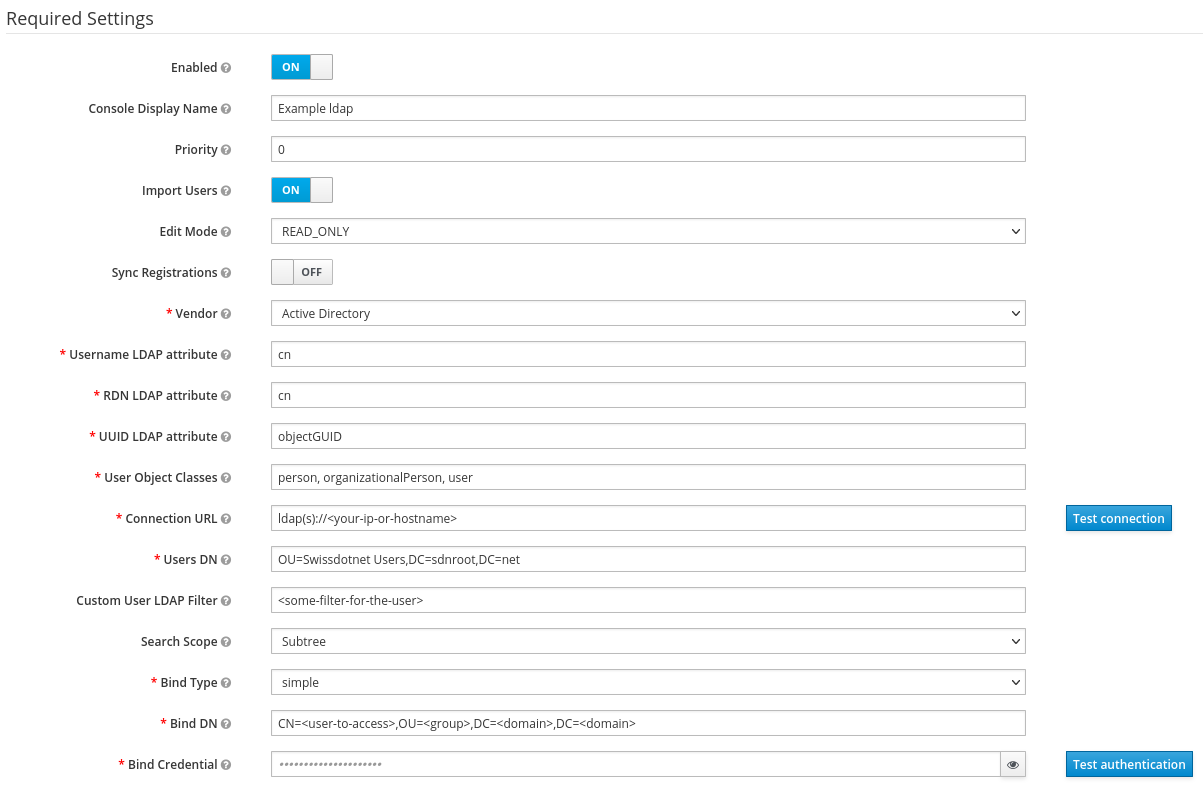
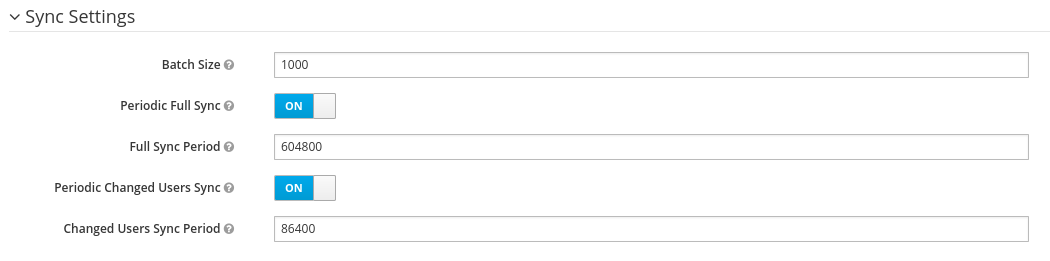
The option under
Sync Settingscan be used to enable the automatic synchronization of users.
Click
SaveA new
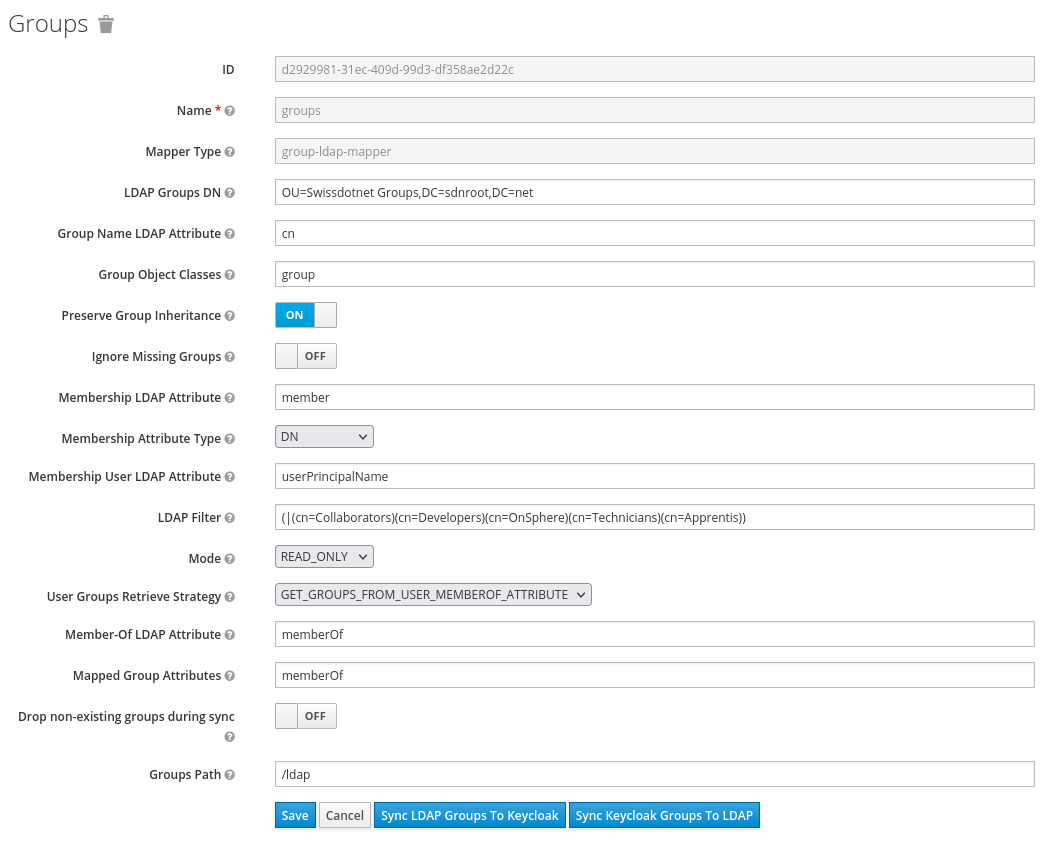
Mapperstab has appeared a the top of the page. The mappers are used to fill in the attribute of the Keycloak users.
Warning
The default
LDAP attributeused by the mapper might not be the one used by your LDAP. If you plan to use the group defined on the LDAP for rights, you need to create agroup-ldap-mapper. If you define aGroups Path, the group must be created first.
Once everything is working properly, you can export the configuration and integrate it to OnSphere configuration.
Go to the
Exportmenu on the left and clickExportOn the downloaded file search for
org.keycloak.storage.UserStorageProviderCopy the federations.
Open or create the
/modules/keycloak/keycloak-1/federations.keycloakfileAdd the following content if missing
{
  "federations": []
}
Add the copied federation to the list.
Remove all
idto avoid any conflict.
With the configuration file
Copy osp-keycloak complete federation file.
Add it’s content to the
/modules/keycloak/keycloak-1/federations.keycloakfileUpdate the file base on your LDAP configuration
Push the configuration
Check Keycloak logs to see if there are any errors.
If necessary modify the configuration to fix the errors.
Access the Keycloak administration console https://{stack_ip}:{stack_port}/auth/admin (for example https://stack-1.onsphere.local:5000/auth/admin).
Login to Keycloak administration console using administration user and password configured when the stack was deployed (see System security).
Check if the groups and user are properly created.