Managing rights from collections
This example illustrates how to implement rights management on the frontend, enabling direct user rights management. This can be easily achieved by using a Collections along with the Enrich keycloak token.
Define custom rights (
rights-management,dynamic-access) inmodule.rightsand assign them to Keycloak groups and users.Store per-user dynamic rights in a dedicated collection accessible only to the supervisor role.
Write a Keycloak authorization script that reads the collection at login time and injects rights into the token.
Verify that dashboards become accessible or hidden based on the rights dynamically assigned from the collection.
git checkout origin/osp-web-configuration .
git checkout origin/osp-collections-configuration .
git checkout origin/osp-cli-configuration .
git checkout origin/osp-variables-configuration .
git checkout origin/example-insert-rights-from-collections .
Steps
1. Define the rights and user
We will create the new following rights inside module.rights.
rights-management: Limit the access to the right management dashboard. The name is not fixed and can be chosen freely or merge with another exist rights.dynamic-access: Right given dynamically. This is only an example and you can create as many as need to handle you use-case.
modules/rights/rights/module.rights
{
  "messagingConfiguration": {
    "clientId": "osp-rights",
    "host": "rabbit"
  },
  "groups": [
    {
      "name": "all",
      "description": "Access all value",
      "externalLink": [
        "data-access",
        "configuration-management"
      ]
    },
    {
      "name": "rights-management",
      "description": "Access the right management dashboard",
      "externalLink": [
        "rights-management"
      ]
    },
    {
      "name": "dynamic-access",
      "description": "Access define dynamicaly from a collection",
      "externalLink": []
    }
  ]
}
This is form the base to manage the rights from a collection.
1. Define the user and group
The group rights-management will be added to groups.keycloak and to the user supervisor to manage the dynamic rights. The user user1 and user2 will be also created and used to demonstrate the application of the rights.
modules/keycloak/keycloak-1/groups.keycloak
62        {
63          "attributes": {},
64          "clientRoles": {},
65          "name": "rights-management",
66          "path": "/internal/rights-management",
67          "realmRoles": [],
68          "subGroups": []
69        }
modules/keycloak/keycloak-1/users.keycloak
58    {
59      "enabled": true,
60      "groups": [
61        "/internal/data-access",
62        "/internal/user"
63      ],
64      "username": "user1",
65      "email": "user1@localhost",
66      "firstName": "user1",
67      "lastName": "user1",
68      "credentials": [
69        {
70          "type": "password",
71          "value": "onsphere",
72          "initial": true
73        }
74      ]
75    },
76    {
77      "enabled": true,
78      "groups": [
79        "/internal/data-access",
80        "/internal/user"
81      ],
82      "username": "user2",
83      "email": "user2@localhost",
84      "firstName": "user2",
85      "lastName": "user2",
86      "credentials": [
87        {
88          "type": "password",
89          "value": "onsphere",
90          "initial": true
91        }
92      ]
93    }
3. Create the collection to handle the rights
The rights will be store inside a collection named rights-management. This part will only be visible by the supervisor.
The rights are managed as a list.
root/rights/access.rights
{
    "moduleId": "modules.rights.rights",
    "write": {
        "override": [
            "rights-management"
        ]
    },
    "read": {
        "override": [
            "rights-management"
        ]
    }
}
root/rights/schema/schema.ospp
{
    "schema": {
        "type": "object",
        "properties": {
            "email": {
                "type": "string",
                "title": "User email"
            },
            "rights": {
                "type": "array",
                "uniqueItems": true,
                "items": {
                    "type": "string"
                },
                "title": "Rights list"
            }
        }
    },
    "filters": [
        {
            "id": "all",
            "name": "All"
        }
    ],
    "uniqueFields": ["email"]
}
root/rights/schema/schema.collections
{
    "moduleId": "modules.collections.collections-1",
    "collectionName": "management",
    "indexes": [
        {
            "name": "email",
            "index": {
                "email": 1
            },
            "unique": true
        },
        {
            "name": "rights",
            "index": {
                "rights": 1
            }
        }
    ],
    "filters": [
        {
            "id": "all",
            "query": {}
        }
    ],
    "noDuplicatesFields": [
        "rights"
    ]
}
root/rights/schema/schema.web
{
    "moduleId": "modules.web.web-1",
    "name": "Rights management",
    "views": [
        {
            "id": "1",
            "name": "Default",
            "reorderable": true,
            "isDefault": true,
            "sort": [
                {
                    "field": "email",
                    "direction": "desc"
                }
            ],
            "columns": [
                {
                    "name": "Email",
                    "field": "email",
                    "position": 0,
                    "render": "STRING"
                },
                {
                    "name": "Rights",
                    "field": "rights",
                    "position": 1,
                    "render": "TAGS"
                }
            ]
        }
    ]
}
root/rights/form/form.web
{
    "moduleId": [
        "modules.web.web-1"
    ],
    "name": "Gestion des droits",
    "description": "",
    "bindings": {},
    "rights": [],
    "schema": "root.rights.schema",
    "ui": {
        "type": "VerticalLayout",
        "elements": [
            {
                "type": "Control",
                "scope": "#/properties/email",
                "label": "Email"
            },
            {
                "type": "Control",
                "scope": "#/properties/rights",
                "label": "Rights"
            }
        ]
    },
    "submit": {
        "destination": "Request",
        "type": "Deferred"
    }
}
root/rights/editor/dashboard.web
{
    "moduleId": "modules.web.web-1",
    "title": "Rights editor",
    "description": "Edit the rights for the user",
    "tags": []
}
root/rights/editor/dashboard.view
 3    {
 4      "collectionTableWidgetSettings": {
 5        "defaultSchemas": [
 6          "root.rights.schema"
 7        ],
 8        "defaultView": "1",
 9        "defaultFilter": "all",
10        "includeSchemas": [
11          "root.rights.schema"
12        ],
13        "includeForms": [
14          "root.rights.form"
15        ],
4. Create a dashboard only accessible by dynamic-access
The following dashboard show the text Victory to the user able to access it.
root/limited/access.rights
{
    "moduleId": "modules.rights.rights",
    "write": {
        "override": [
            "dynamic-access"
        ]
    },
    "read": {
        "override": [
            "dynamic-access"
        ]
    }
}
root/limited/dashboard.web
{
    "moduleId": "modules.web.web-1",
    "title": "Limited dashboard",
    "description": "Accessible only by member of dynamic-access",
    "tags": []
}
root/limited/dashboard.view
 3    {
 4      "textWidgetSettings": {
 5        "text": "Victory"
 6      },
 7      "id": "vNFhL7oI",
 8      "type": "Text",
 9      "title": ""
10    }
5. Create the script to handle the rights from collection
We will create the authorization script that will be called when a user log in. It will search the collection for the user with it’s email and apply the rights found on top to the one define by the group membership.
modules/keycloak/keycloak-1/authorization.keycloak
{
  "sourceFile": "modules/keycloak/keycloak-1/authorization.js"
}
Note
The script is not required to be inside the same folder as the authorization.keycloak file.
modules/keycloak/keycloak-1/authorization.js
main();

function main() {
  if (!tokenRequest.email) {
    log.warn(
      "No email available for token [{}] and user [{}]",
      tokenRequest.tokenId,
      tokenRequest.userId
    );
    return false;
  }

  const filter = buildFilter(tokenRequest.email);
  const result = collections.getWithCustomFilter(
    "root.rights.schema",
    filter
  );

  if (!result.success) {
    log.warn(
      "Fail to get rights for user [{}] with error [{}]",
      tokenRequest.email,
      result.message
    );
    return false;
  }

  const rights = result.content?.rights;
  if (rights) {
    for (right of rights) {
      authorization.add(right);
    }
  }

  return true;
}

function buildFilter(email) {
  const filter = {
    email: email,
  };

  return JSON.stringify(filter);
}
5. Log in and explore the dashboard
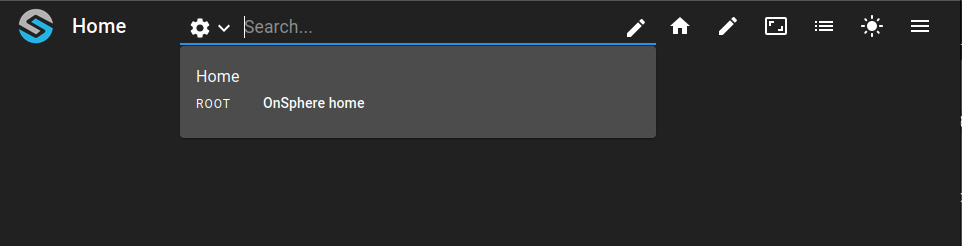
When log in as user1 or user2, you will only be able to see the home dashboard.
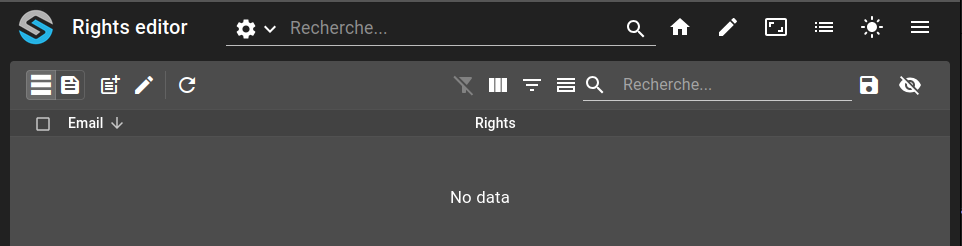
The user supervisor will only see the rights editor.
6. Add rights to a user
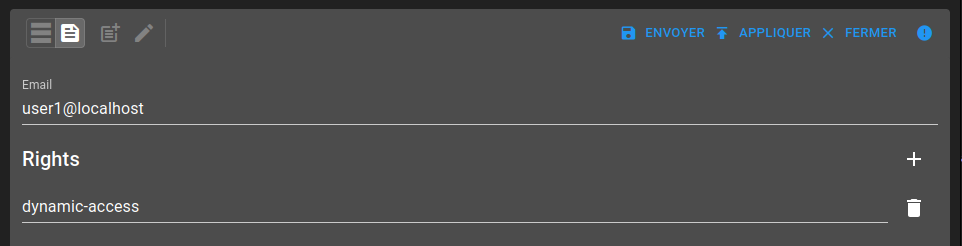
As supervisor, we will add the rights dynamic-access to user1.
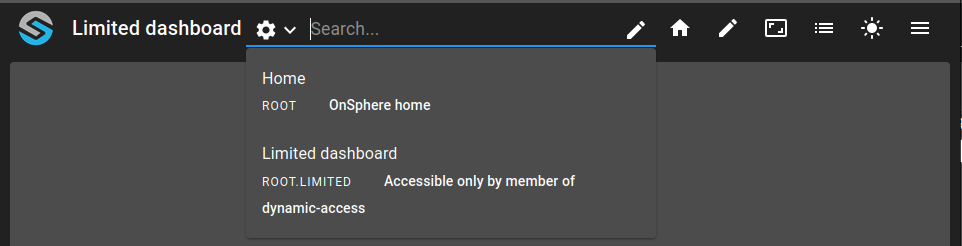
When log in with the user1 the available dashboard will change and it can access the limited one.