Warning
 This feature is currently in beta. It may change in a future version without prior notice. See the Beta Features page for the full list of beta features and their planned release. If you’re using this feature, we encourage you to share your feedback to help with the evaluation process.
Discovery
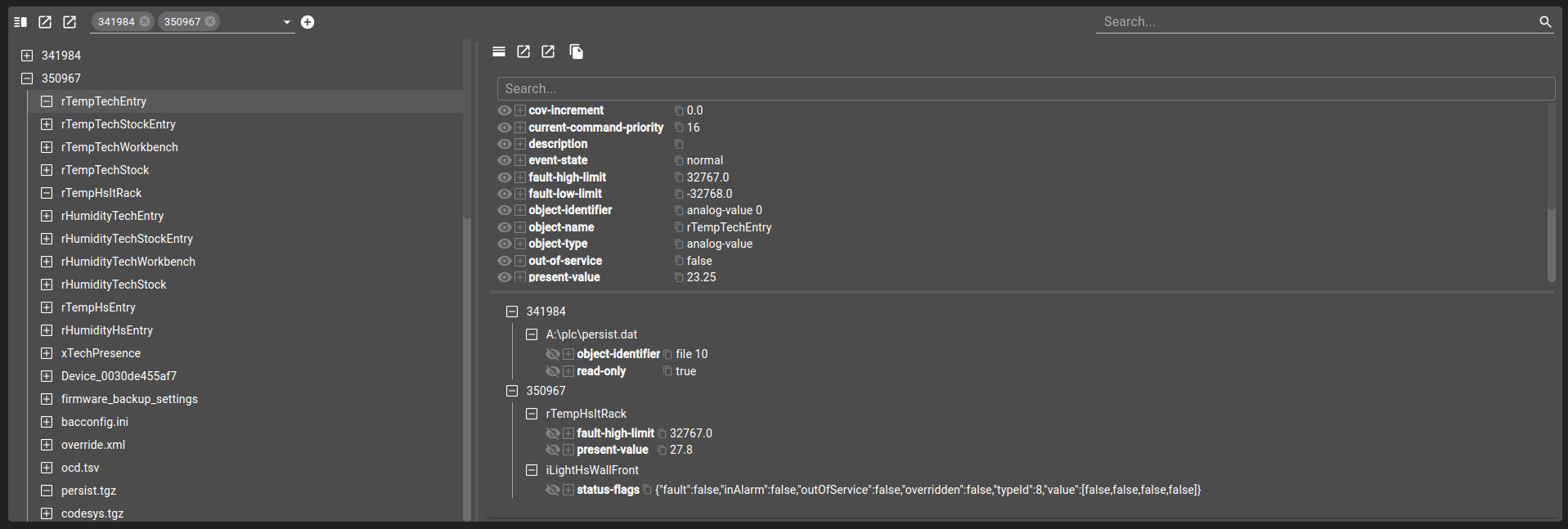
Discovery widgets can be used to retrieve and display the properties of object structured devices that are accessible within your network. This widget will allow you to inspect a device objects and properties as well as being able to export them.
Warning
Currently, only BACnet devices can be retrieved with this widget, but we plan to add compatibility with OPC-UA as well in a future release.
The widget works based of a list of selected devices ids. Upon the first loading, the widget will be empty, as no discover request of all devices is done upon the network. To start interacting with a device, you have to select it from the toolbar selector or use the add icon next to it to search for an unknown device. Devices available in the selector are based of the devices already present in your configuration.
This widget is separated in three sections:
List of configuration files
Filename |
Short description |
Format |
Link to documentation |
|---|---|---|---|
dashboard.view#DiscoveryWidget |
Defines the Discovery widget global settings |
json |
List of examples
Short description |
Link to documentation |
|---|---|
Discovery bacnet devices |
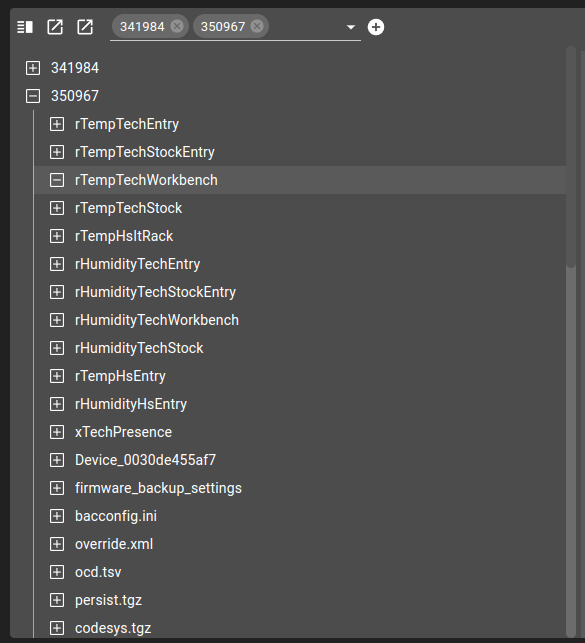
Device List
This section shows the different selected devices with their sub-devices, if any exist.
Clicking on a device will expand/collapse the sub-devices and update the properties table to show the properties of the device.
Properties Table
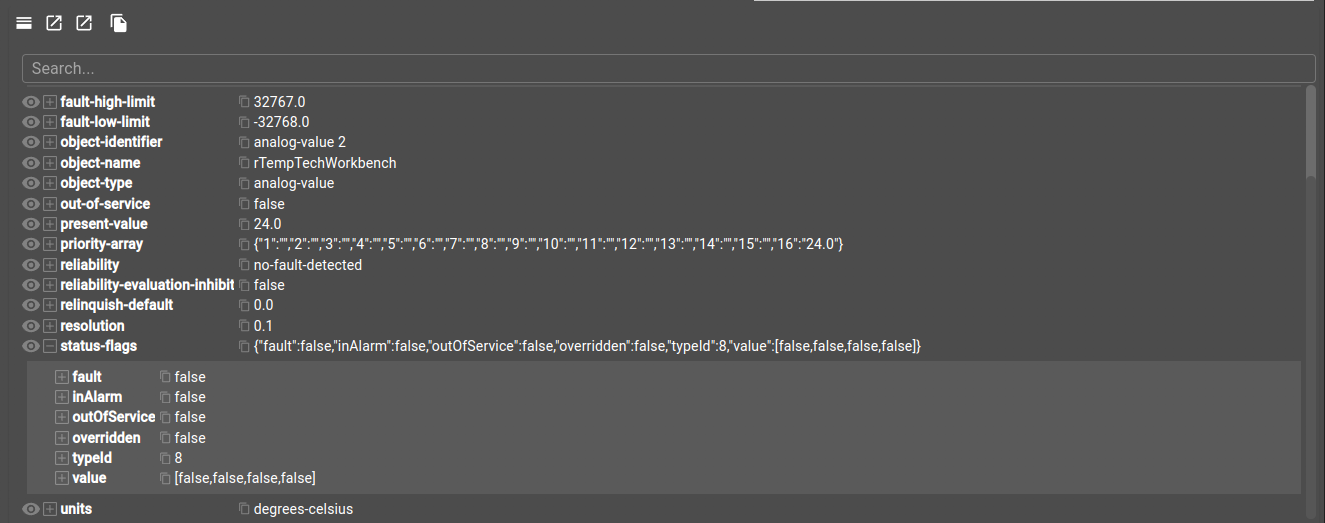
This section displays a table with every property found in the selected device from the device list.
At the top, you have access to a copy icon allowing you to copy to the clipboard the content of the current device, as a JSON string. Below, you also have access to a search bar to filter the table of properties presented below. The properties table is composed of multiple rows, one for each property of the device. A property is displayed with a key and a value. Depending on the type of the value, you can expand the row to display a more complex view of the property. The eye icon present at the beginning of each row wil allow you to add or remove the property from the watch list.
Watch List
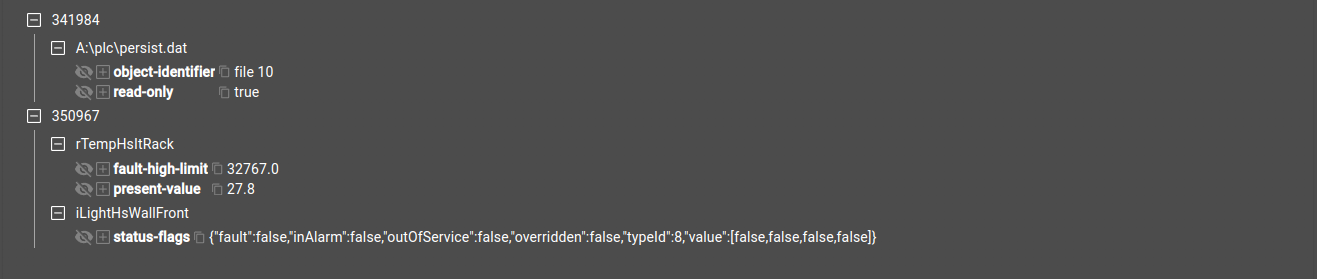
The watch list allows you to select any property from any device and display all of them in the same place. Doing so allows you to move from one device to another and still have the properties displayed. This can be useful when attempting to compare properties of different devices.
Warning
The watch list is a static list that doesn’t refresh automatically. However, this is a feature that is planned to be added in a future release.
Toolbar
The toolbar contains two major elements.
Device picker
A selector allow you to select the devices from those that are already present in your configuration. If you want to add a device, use the add icon next to it to fetch a device by its id.
Search bar
Searching filters devices to only show devices where at least one of the properties key or value match the search term. This will also reduce the devices list and the properties table to only show devices/properties that match the search.
URL parameters
This widget handle URL parameters. These are the available parameters:
path: attempt to load the device with the given path (string)
search: set the search term (string)
Set disableUrlHistory to true in the widget settings to stop this widget reading and writing these parameters. See Disabling the parameters.
Widget Context
The widget context can be accessed from menus to fetch these different values from the widget:
devicesall: all devices currently displayed (list)current: current selected device (object)currentPath: current device path (list of ids)