Tables
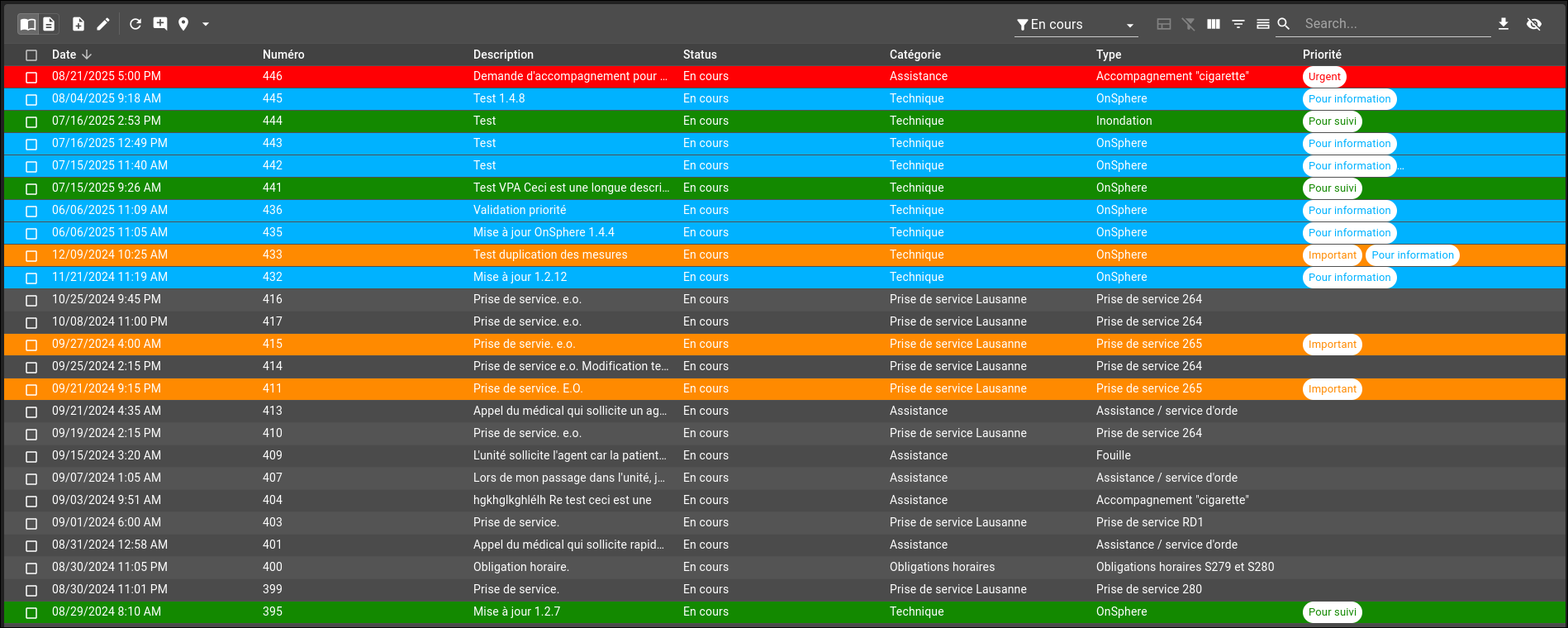
Example of a table in OnSphere
Table widgets are a type of widget that allow to display and interact with data in a table view. They come in three different flavours.
Index
General concepts
Selection
Rows can be selected the following ways:
Click
On row click with a single click, toggle single row selection, reset previous selection.
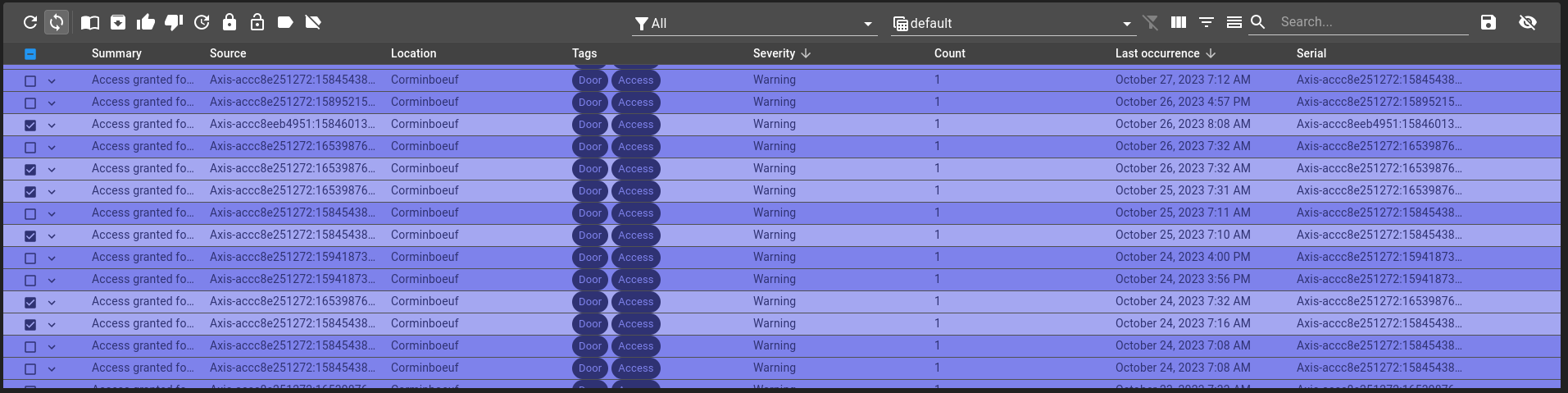
Selection before clicking
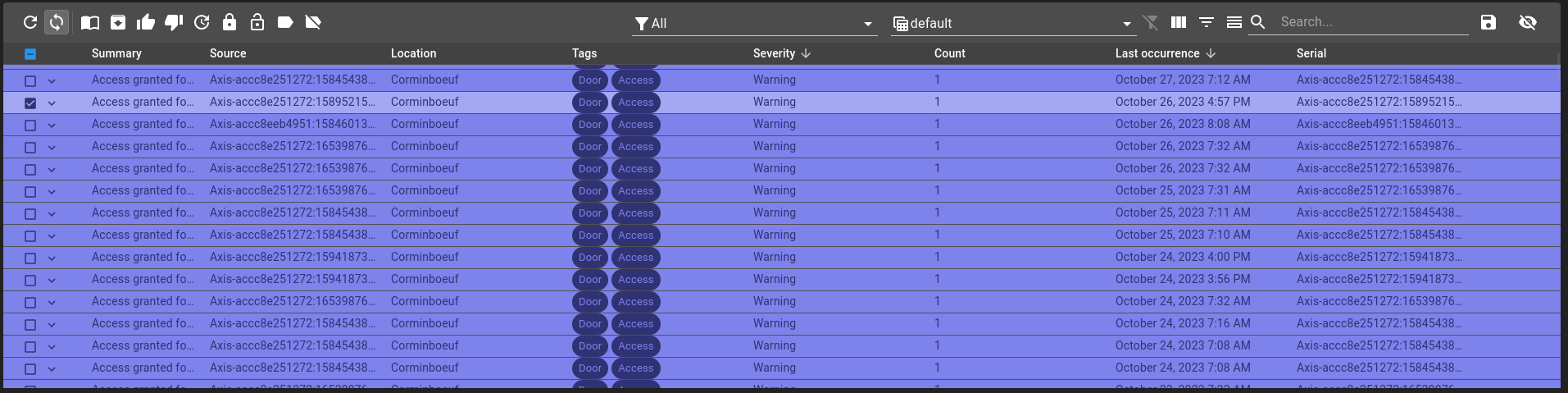
Selection after clicking
Ctrl + click
On row click with a single click holding control key, toggle selected row, keeping other selection.
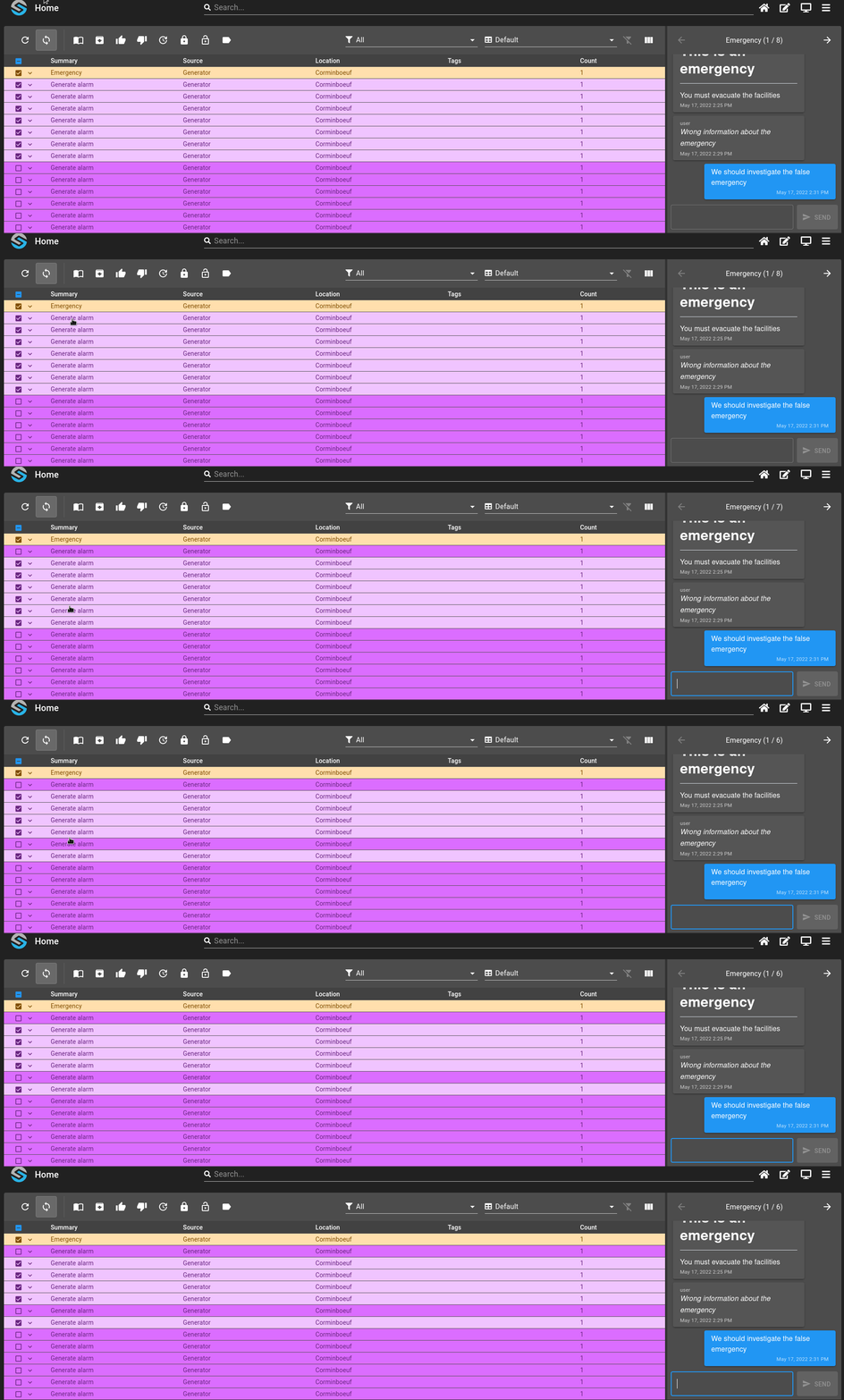
Shift + click
On row click with two click holding shift key, selects all rows between begging and end rows, keeping other selection.
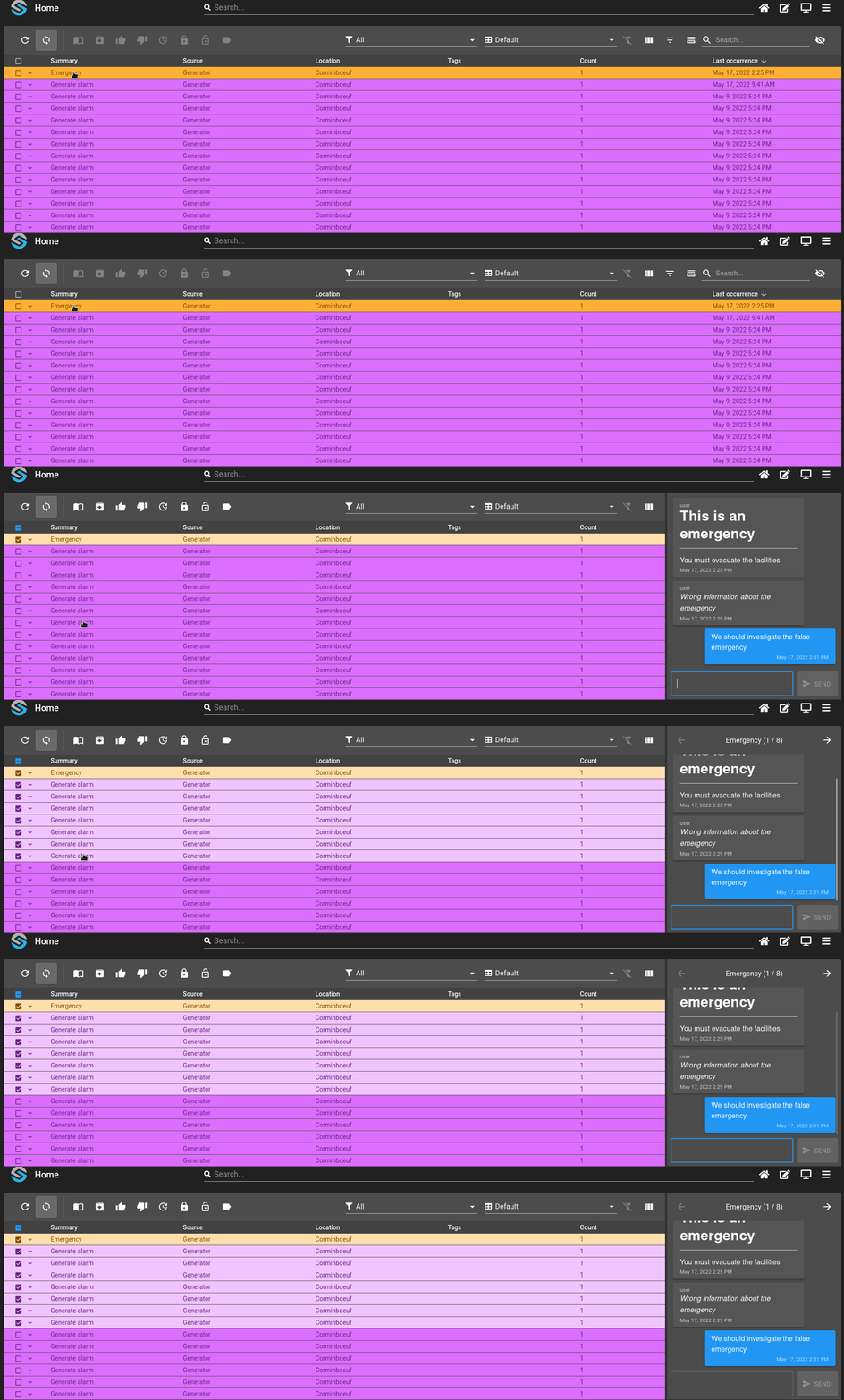
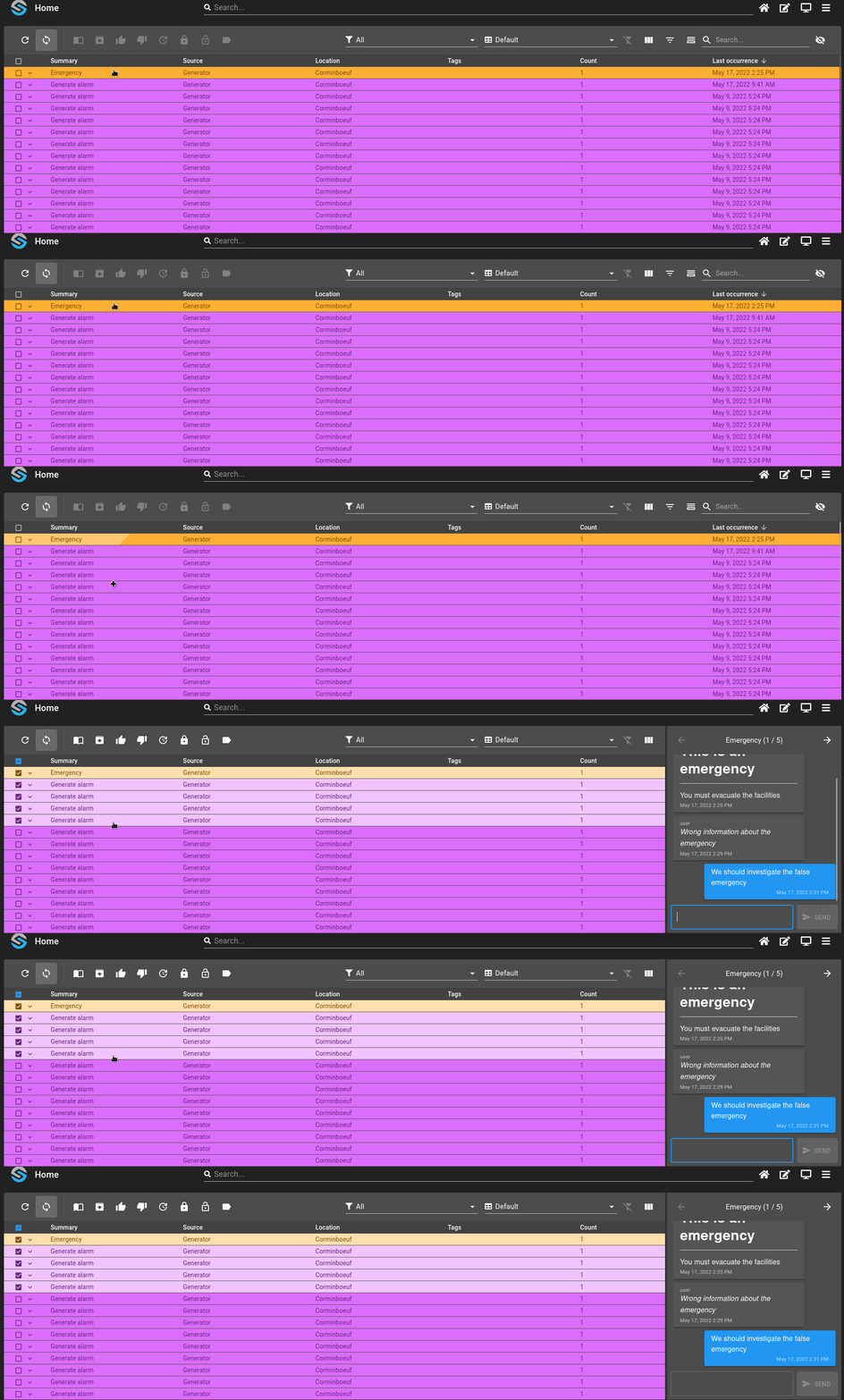
Drag-and-drop
On row click holding and releasing, selects all rows between beginning and end rows.
Toolbar
The table toolbar contains different actions, some unique to a table type and some are present in both:
Icons customizations
Icons used for toolbar features can be customized in the widget options. Some features have two different states and will therefore require two inputs.
Icons are text-based content that are retrieved from the Google fonts library.
In addition to the icon name, you can define the icon style by separating the name and the style with the charcter :.
For example: filter_alt:outlined.
Available styles are:
outlinedfilledroundsharptwo-tone
Refresh
On the refresh icon click, you can refresh manually the table.
Change table structure
Three options can change the structure of the table:
Show/hide column: display the names of the columns at the top of the table, as well as an option to select/unselect all the rows.
Show/hide filter: display filters options for each column, depending on the type of value.
Show/hide summary: display a summary at the bottom of the table (ie: rows, count, sum of a column,…).
Search
You can search in the table by searching for a text (column with text value) or for a tag.
Export
The export button can export multiples rows into an excel file. Either export every row or export only the ones selected.
Show/Hide column
You can show or hide a particular column with the Show Column Chooser. These will also change depending on the view.
Clear filters
Remove all current filters and reset the default ones.