Media widget
Widget Capabilities
Capability |
Support |
Comment |
|---|---|---|
Using form as a dashboard widget |
|
See Media widget |
Play/Pause the video on the widget |
|
You can play or pause a video at will. |
Display the video in fullscreen mode |
|
You can display the video in fullscreen. |
Go forward/backward on the video |
|
It is possible to scroll through the video bar and go forward or backward on the video (the more buffering the more you can navigate time wise in the video). |
Select the video quality of the video |
|
This feature is currently not supported. In case of interest please contact us at info@sdn.ch |
Choose between a list of available streams |
|
A dropdown menu on the widget let you choose between the list of available streams. |
Volume control |
|
Adjust the volume of the video if there is sound available. |
Fallback image when stream unavailable |
|
This feature is currently not supported. In case of interest please contact us at info@sdn.ch |
Using PTZ directly in the widget |
|
See PTZ controller. |
Hide the menu containing the list of the stream. |
|
This feature is currently not supported. In case of interest please contact us at info@sdn.ch |
Display multiple streams in the same widget. |
|
This feature is currently not supported. In case of interest please contact us at info@sdn.ch |
Configure stream name and description. |
|
This feature is currently not supported. In case of interest please contact us at info@sdn.ch |


Media Capabilities
Capability |
Support |
Comment |
|---|---|---|
Client of Ant Media server |
|
OnSphere use an Ant Media server (API version |
Ant Media server |
|
OnSphere embed a self hosted for Ant Media see self hosted Ant Media Server. |
Browser compatibility and codec - HLS support is mandatory |
|
The frontend uses only HLS protocol to display stream, this protocol defines the current codec to be H.264 or H.265 depending on the input stream. The transcoding is performed by Ant Media server. Be sure to check the browser compatibility browser support HLS or media source extension media source compatibility list |
Video source ingestion support |
|
In the table below there is a list of the available codec ingestion support, see ingestion codec support |
Access self hosted Ant Media front-end |
|
If you want to access the front-end page of Ant Media you have to expose the port in your stack. See how to access Ant Media front-end |
Ant media server application settings |
|
Modification of the application settings for Ant Media server are only enabled using the admin interface of the server, see application settings. For example buffering settings are set from there. |
Persist self-hosted Ant Media server data |
|
To persist data of a self-hosted Ant Media server see this section |
Ant media server connection monitoring |
|
OnSphere monitor the state of the server using polling every 3 seconds. see server connectivity monitoring |
Stream connection monitoring |
|
OnSphere monitor the state of the stream using polling every 3 seconds. see stream connectivity monitoring |
Create stream based on configuration |
|
OnSphere use Ant Media server streams who are configured by see stream settings. |
Create stream dynamically |
|
This feature is currently not supported. In case of interest please contact us at info@sdn.ch |
Use stream already externally declared in Ant Media |
|
OnSphere currently only support stream managed by himself. If you declare a stream already existing in the configuration of the server it will try to delete it and recreate it with OnSphere specific settings. |
Use video source stream with RTSP url |
|
The video source passed to the Ant Media server can come as a RTSP url. This url can be constructed or raw see this section |
Use video source stream from OnVif |
|
The video source passed to the Ant Media server can come from OnVif, see this section |
Stream buffering |
|
Buffering is supported by design using HLS. See see HLS settings |
Enable/disable stream between Ant Media and user browser based on OnSphere interaction |
|
This is handled by interacting with the stream selector see dynamic stream configuration. Using action to start, stop, add a stream to a selector or remove a stream from a selector, see action from front-end and see callback usage. |
Enable/disable stream between Ant Media and video source based on OnSphere interaction |
|
This is handled by interacting with the stream selector see dynamic stream configuration. |
Select the stream source used by a media widget |
|
The stream source can either be shared among all users—so if one user changes it, everyone sees the updated source, or it can be set up independently for each browser tab. In other words, the selection can be synchronized across all users or remain unique per tab, depending on the configuration. See the see stream selector. |
Share the same video source for multiples users - One to many stream |
|
A single video stream is received by the video server and subsequently transmitted to all consumers, resulting in reduced bandwidth usage. |
Stream from source to Ant Media server - always on |
|
This brings higher resource consumption but can provide buffering for the video at all time, see stream settings |
Stream from source to Ant Media server - on consumer need |
|
This has lower resource consumption but can lead to time to establish the stream, see stream settings |
PTZ |
|
|
Recording |
|
Recording can be called by custom script, this need to implement the api see the swagger API to implement the route. |
Conferencing |
|
This feature is currently not supported. In case of interest please contact us at info@sdn.ch |
Sound support |
|
This feature is currently not supported. In case of interest please contact us at info@sdn.ch |

List of configuration files
Filename |
Short description |
Format |
Link to documentation |
|---|---|---|---|
dashboard.view#MediaPlayerWidget |
Defines the MediaPlayerWidget widget global settings |
json |
Overview
This widget’s goal is to display a media player in a dashboard. It is used to display HLS streams. It takes a list of streams to display them.
Features
Media widget displays a video stream on the dashboard. A media widget can host a single stream. There is no PTZ controller by default, if necessary add a PTZ widget.
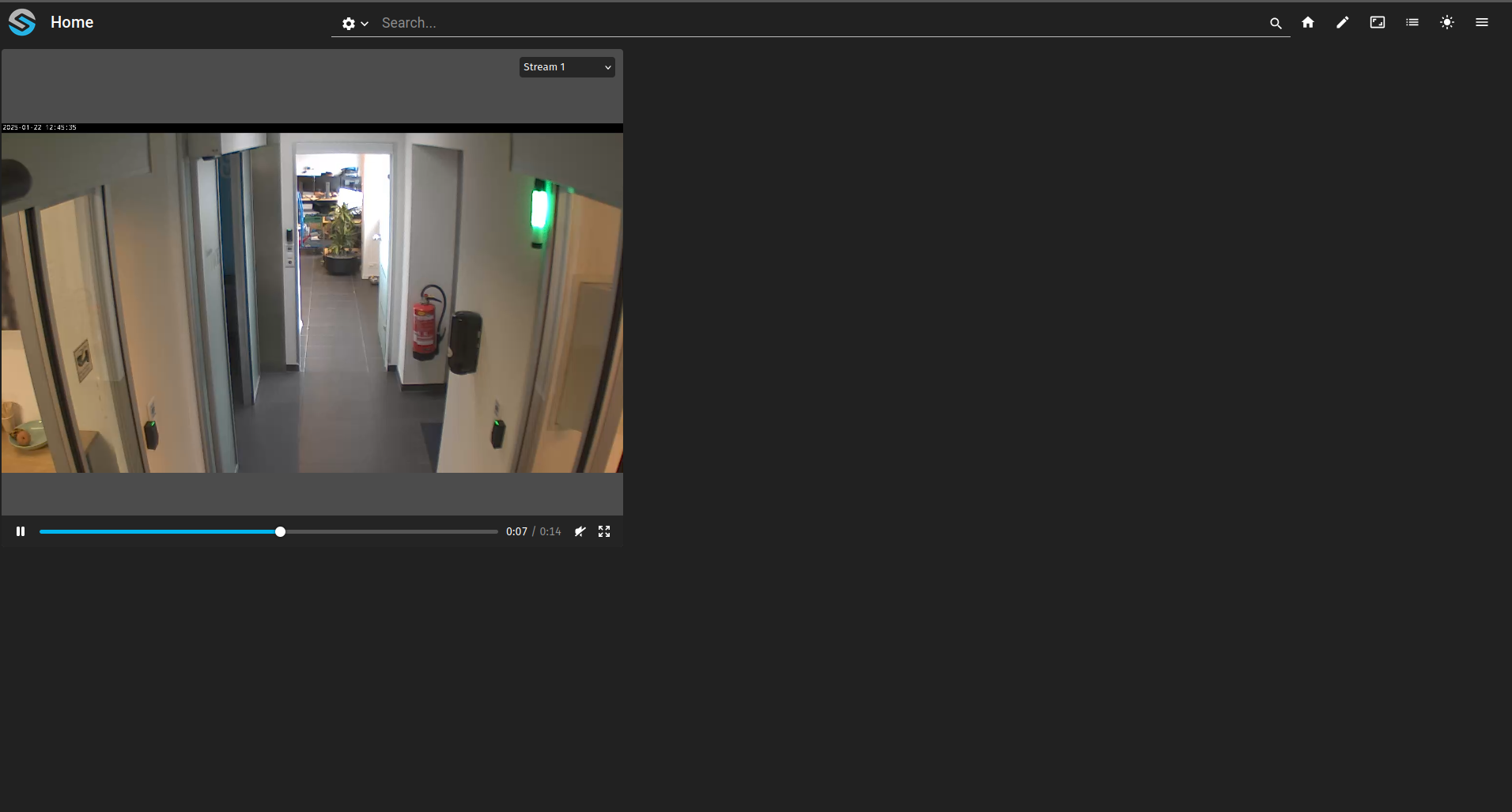
If the linked stream-selector contains multiple streams you will be able to choose from a stream using the dropdown menu (the menu is hidden when there is a single stream).
Configuration
"configuration": [
  {
    "mediaPlayerWidgetSettings": {
      "streamSelectorId": "root.stream-selector"
    },
    "id": "L8t1lmuo",
    "type": "Media",
    "title": ""
  }
]
type: Must be MediastreamSelectorId: The item ID of the stream-selector.media listing the streams displayable by this widget
Behavior
The widget is a viewer of the streams of its selector, and being viewed is what drives the life cycle of a stream (see the module documentation) :
When the widget is displayed (dashboard opened), it requests the streams of its selector and registers itself as a viewer. Every stream that is not broadcasting yet — and not alwaysOn — is started on demand by the osp-media module.
A stream needs a few seconds to start (source connection + generation of the first HLS segments). During that time the player is black : it retries automatically every ~5 seconds and the video starts by itself as soon as the stream is available. No manual refresh is needed.
When the widget stops being displayed (dashboard switch, tab closed), the viewer is unregistered. If it was the last viewer of a non
alwaysOnstream, the broadcast is stopped after a grace period of ~15 seconds. Coming back within the grace period therefore resumes the video immediately, without a stop/start cycle.Every open widget/browser tab counts as one viewer. The broadcast keeps running as long as at least one viewer remains.
The video starts muted (browser autoplay policies require it). If the browser still blocks the automatic playback, a click on the play button is required (a warning is logged in the browser console in this case).
With a
Sessiontype selector each browser tab selects its stream independently ; with aSharedselector the selection is common to every tab (see Dynamic stream configuration).
Limitations
A single stream is displayed at a time. Use several widgets to display several streams simultaneously.
HLS induces an inherent latency of several seconds (playlist and segment sizes). It can be tuned at the application level, see Configure and manage buffering.
The on demand start adds a delay of a few seconds when opening a dashboard. Use alwaysOn on the stream to remove it (at the cost of permanent bandwidth/CPU usage).
LiveStream(pushed) sources can not be started by OnSphere : the video is only available while the source publishes (see Limitations).No PTZ control in this widget, add a PTZ widget next to it if needed.
Troubleshooting
What you see |
Why |
What to do |
|---|---|---|
Black player when opening the dashboard, video starts after a few seconds |
The stream is starting on demand ( |
Nothing, this is the normal on demand behavior. Use |
Black player that never starts |
The stream can not broadcast : source unreachable, wrong credentials, unsupported codec, or |
Check the stream state value and its reason, then the module logs (see Errors and troubleshooting). Check the codec against the supported list. |
|
The stream-selector linked to the widget contains no stream. |
Add default streams in the selector configuration, or feed it dynamically (see Dynamic stream configuration). |
The broadcast stops (visible in the Ant Media panel) shortly after the dashboard was closed |
Expected : the broadcast of a non |
Use |
Video freezes or stutters |
HLS buffering / network load between the browser and the Ant Media server. |
Tune the segment settings, see Configure and manage buffering. |
Video muted |
Browsers only allow automatic playback of muted videos. |
Unmute manually in the player controls. |