Journal
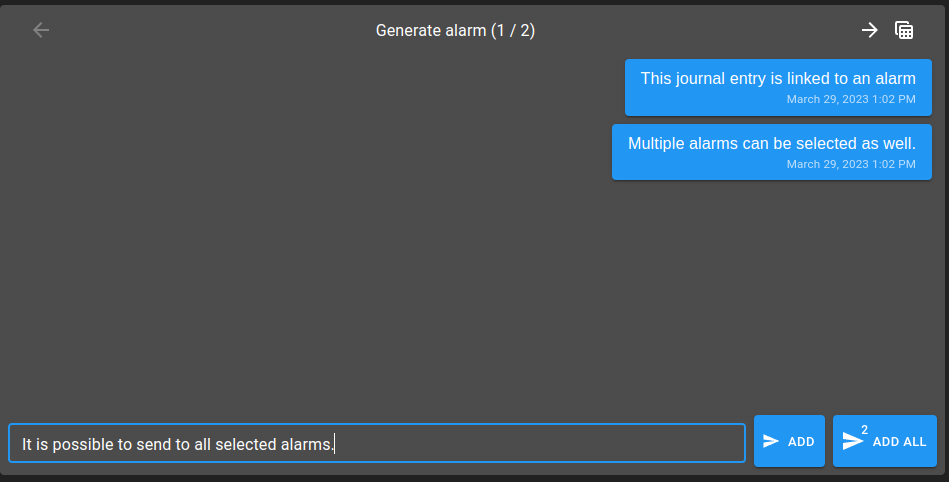
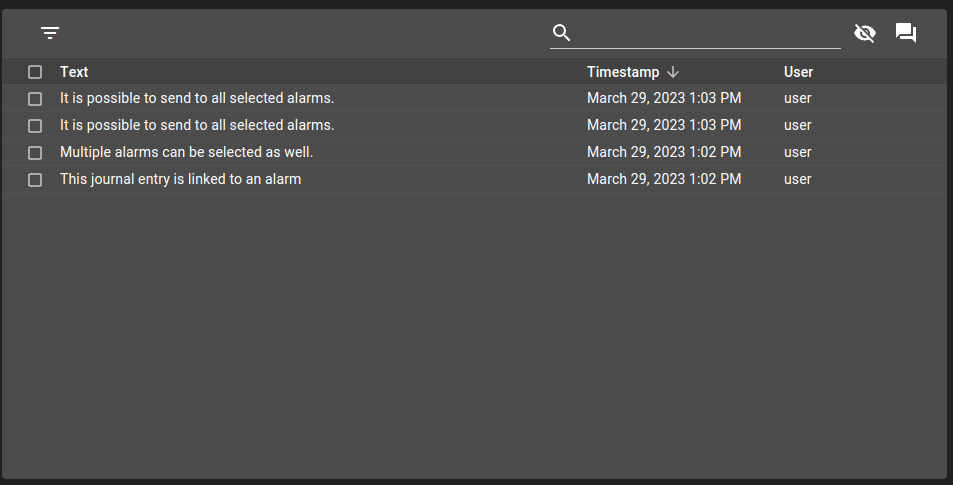
A journal is a chronological log attached to a record. Each entry records who wrote it, when, and it can carry file attachments. Journals are used to trace user interactions (for example an acknowledgement or a maintenance note on an alarm) and to let operators annotate a record over time.
The journal is a single capability exposed through three surfaces:
Inside an alarm table. The alarm table and alarm history table widgets show the journal of the selected alarm in a side panel. On a live table the journal is editable; on a history table it is read-only.
Inside a collection table. A
JOURNALrender column adds a journal side panel to a collection table, where the entries are stored on the collection document itself. This is where the input form, table view and timeline formatter can be overridden — see Journal on a collection table.As a standalone widget. The
Journaldashboard widget detaches the journal panel from a table and renders it on its own, linked back to the table withviewAs— see Detached journal widget.
The same journal can also be embedded as a form component scoped to a journal array property.
Capabilities
Journal features
Capability |
Support |
Comment |
|---|---|---|
Show the journal as a chat timeline |
|
Default display mode. See Display modes. |
Show the journal as a table |
|
Rows expose the journal properties as columns. See Display modes. |
Let users switch between timeline and table at runtime |
|
Enabled unless |
Format the timeline text with an expression |
|
Use |
Define the journal table columns and sort |
|
Use |
Show a per-row summary above the journal |
|
Use |
Show the journal panel when several rows are selected |
|
Use |
Display the author from a user-preference attribute |
|
Use |
Track who created or edited each entry (edit history) |
|
The |
Add a free-text entry (GitHub Flavoured Markdown) |
|
Type a message and submit with Ctrl+Enter. See Adding and editing entries and Alarm Table. |
Let the user set the entry timestamp |
|
Set |
Restrict who can edit entries |
|
|
Conditionally allow adding or editing entries |
|
Evaluate |
Capture structured entries with a custom input form |
|
Use |
Prefill form fields from live values |
|
Uses the form |
Populate form fields from a collection (dropdowns / lookups) |
|
Collection-backed fields fetch their options through the collections module. See Custom input form and Customize the input and table of a form journal component. |
Add an entry to every selected row at once |
|
Submit with Ctrl+Shift+Enter. See Alarm Table. |
Force a journal entry from a menu action or script |
|
Call |
Attach a journal to a collection-table row |
|
Add a |
Store journal entries inside the collection document |
|
Entries are an array field written by document diffs. See Journal on a collection table and Collection table with row detailed view. |
Expand a collection-table row to show its journal |
|
Set |
Use |
|
The override (form / tableView / timeline formatter) is only honoured for CollectionTable views. See Limitations. |
Attach files to an entry by drag and drop |
|
Requires |
Attach files to an entry with a file picker |
|
Requires |
Restrict allowed file types and size |
|
Configure |
Preview and download attachments (image, PDF, video, …) |
|
Click a thumbnail to open the preview modal. See Attachments. |
Show attachments on an alarm history table journal |
|
Attachments are dropped on the history path (the history entry carries no attachment list). See Limitations. |
Limit the number of attachments per entry |
|
No per-entry count limit is enforced. See Limitations. |
Automatically delete orphaned files when an entry or alarm is removed |
|
The entry only stores file identifiers; deleting it does not remove the stored files. See Limitations. |
Detach the journal into its own dashboard widget |
|
Use a |
Bind the detached widget to a live alarm table (editable) |
|
Point |
Bind the detached widget to an alarm history table |
|
Point |
Validate that |
|
The referenced widget id is not checked at configuration time. See Limitations. |
Toggle table-mode toolbar buttons and column resize mode |
|
Use the |



List of configuration files
Filename |
Short description |
Format |
Link to documentation |
|---|---|---|---|
dashboard.view#JournalWidget |
Defines the standalone |
json |
|
view.web ( |
Adds a journal side panel to an alarm or collection table, with input method, edit mode,
attachments ( |
json |
|
upload.ospp |
Declares the upload configuration referenced by |
json |
List of examples
Short description |
Link to documentation |
|---|---|
Customize the input and table of a journal with a collection-backed form |
|
Store and expand a journal on a collection table row |
|
Force a journal entry from an alarm menu action |
|
Upload files as attachments on alarms |
|
Write to the journal during a maintenance workflow |
Display modes
A journal is rendered in one of two display modes, selected with the type setting:
Timeline(default): entries are shown as a chat-like conversation, newest activity in context, with the message text rendered as Markdown.Table: entries are shown as rows, one column per journal property. In table mode the toolbar buttons (search, export, column chooser, filter, summary, clear) can be toggled with thedisableToolbar*flags, and column resizing is controlled byresizeMode— see the JournalWidget settings.
Users can switch between the two modes at runtime unless disableTypeSwitch is set.
Adding and editing entries
By default an entry is a single Markdown message. The input behaviour is controlled per journal:
inputMethod:Messagelets the user type only a message;TimestampMessagealso lets the user choose the entry timestamp.editMode:alllets a user edit any entry,selfrestricts editing to the user’s own entries, andnonemakes entries immutable once written.enabledAddEditEntryExpression: an expression evaluated to decide, at runtime, whether the user may add or edit an entry (for example only while an alarm is active).
From an alarm table the entry is added to the current alarm with Ctrl+Enter, or to all selected alarms with Ctrl+Shift+Enter.
Linked examples
Entry data model
A journal entry is a JSON object. Some fields are written on every entry; the rest are optional:
Field |
Type |
Description |
|---|---|---|
|
string |
Unique identifier of the entry. Always written. |
|
string |
Author of the entry (or the name resolved from |
|
number |
Creation time of the entry. Always written. |
|
string |
The entry message, in GitHub Flavoured Markdown. With a custom input form the form fields take the place of this single message. |
|
string[] |
Identifiers of the uploaded files. Optional — see Attachments. |
|
string |
Visual status of the entry: |
|
object[] |
Edit-history trail of the entry: one element per change, |
Note
meta is optional and is filled in automatically by the front-end when an entry is
created or edited — you never write it yourself. It is only produced and displayed for journals
on a collection table or in a
form; alarm journals do not track it, and it is absent from
the alarm JournalEntry on the back end.
When you add a JOURNAL render to a collection table, declare the journal as an array property
in the collection schema.ospp following the shape above. Declaring meta (and id /
user / timestamp) only matters if your schema is strict (additionalProperties: false);
otherwise the automatically-written fields would be rejected on validation. With a permissive
schema you may declare only the fields you actually display.
Custom input form
Instead of the default single-message box, a journal entry can be captured through a full
form, letting you add structured fields (a category, a severity, a reference number …) to
every entry. Set journalSettingsOverride.form to the id of a form configuration.
When a form is used:
the form schema and layout come from the referenced form configuration;
the form
bindingsprefill fields from the current live values;form fields can be collection-backed — their dropdown options are read from a collection through the collections module (a read-only lookup; it does not store the entry);
on submit, the form’s field values become the properties of the stored journal entry.
Linked examples
Journal on a collection table
Adding a JOURNAL render column to a collection table view
gives each row its own journal side panel. Unlike the alarm journal, the entries are stored on the
collection document itself, as an array field that is mutated through document diffs
(PUSH / PULL).
On collection-table views the journalSettingsOverride object lets you tailor the journal:
form: the form used to insert or update an entry (see Custom input form);tableView: the columns and sort used by theTabledisplay, so custom entry fields can be shown as columns;timelineTextFormatter: an expression that formats the text shown for each entry in theTimelinedisplay.
Note
journalSettingsOverride is only honoured for CollectionTable-related views. On an alarm
table it is ignored — see Limitations.
Linked examples
Attachments
A journal entry can carry file attachments. Attachments are enabled by setting uploadId on the
JOURNAL render column to the id of an upload configuration.
The upload.ospp configuration declares:
authorizedContentTypes(required): the MIME types accepted (for exampleimage/png,application/pdf);maxSize: the maximum size per file in bytes (defaults to 5 MB);storageConfiguration: thehostandportof the storage service (defaults toosp-storage:8443).
Once uploadId is set, the user can add files by drag and drop onto the journal or through
the file picker (the paper-clip in the input row). Each file is uploaded, validated against the
allowed types and size, and stored by the storage service; the entry keeps only the resulting file
identifiers. Attachments are shown as thumbnails and can be opened in a preview modal (image, PDF,
video, …) or downloaded. Access to an attachment is governed by the read/write rights on the
uploadId item, and the content type is re-checked on download.
Linked examples
Panel behaviour and summary
summaryFormatterExpression: an expression evaluated to render a summary line above the journal side panel (for example a count or a status).displayWithMultipleRows: whether to keep showing the journal side panel when several rows are selected or shown at once.usernameAttribute: the user-preference attribute used to display the author’s name instead of the raw user id.
Detached journal widget
The standalone Journal dashboard widget renders a journal panel on its own, instead of inside a
table’s side panel. It is bound to a table with the required viewAs setting, which holds the
widget id of the alarm table it mirrors:
the widget subscribes to the same data as the referenced table;
if
viewAspoints at an AlarmTable, the journal is editable;if it points at an AlarmHistoryTable, the journal is read-only (entries cannot be added).
The widget’s own type (Timeline / Table) and its table-mode toolbar flags are described
in the JournalWidget settings.
Limitations
journalSettingsOverride(customform,tableViewandtimelineTextFormatter) is only applied on CollectionTable-related views; it is ignored elsewhere.Journals shown from an alarm history table are read-only, and their attachments are not delivered — the history entry carries no attachment list.
There is no limit on the number of attachments per entry, and no size limit across an entry (only a per-file
maxSize).Removing a journal entry (or its alarm) does not delete the stored attachment files; the entry holds only file identifiers, so orphaned files are not cleaned up automatically.
The
viewAstarget of a detached widget is not validated at configuration time; a wrong or missing widget id fails silently at runtime.