Error display
Concept
When something cannot be displayed, only the failing part of the interface is replaced by an error message. Everything around it stays usable: the other widgets of the dashboard keep refreshing, the other elements of a form keep accepting input.
An error message names what failed and offers to display it again. When a technical error is available, an Error details toggle shows it with a button that copies it to the clipboard, ready to attach to a support request.
Two situations lead to such a message:
the interface could not display the element. This usually comes from a configuration that does not match what the element expects.
the element reports a problem itself, for example a schematic whose file cannot be read.
Scopes
Each scope reports on its own, and the smallest scope around the failure is the one that takes the error.
Scope |
What the message replaces |
How to display it again |
|---|---|---|
Form element |
the element, inside the form |
the retry icon of the element |
Column content |
the content of the cell |
the cell displays again when its value changes |
Form of a collection table |
the form panel, the table stays displayed |
close the form to go back to the table |
Dialog |
the content of the dialog |
Close, then open it again |
Widget |
the widget, inside its own area |
Try again |
Page |
the whole interface |
Try again, Reload, or a navigation to another dashboard |
Widget error
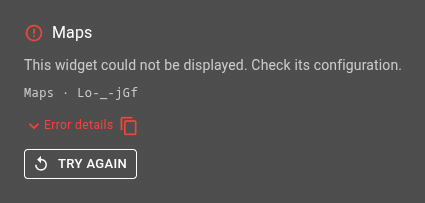
A widget replaced by its error panel
The panel takes the place of the widget and keeps its size. It displays:
the title of the widget, or its type when the widget has no title
what happened: the message reported by the widget, or an invitation to check its configuration
the type and the id of the widget, to locate it in the configuration
Error details, when there are technical details to show
Try again
Try again displays the widget from scratch. It solves a temporary cause, a request that failed for instance. When the cause is in the configuration, the same error comes back until the configuration is corrected.
A widget too small for this layout gets a compact version: the error icon, the name and the message on a single line, and the retry as an icon. The type and the id are then in the tooltip of the error icon.
Widgets reporting their own errors
Some widgets detect a problem by themselves and write their own message in the panel instead of the generic one:
Schematic: the schema or the stylesheet cannot be read
Ptz Controller: no value carries the PTZ command
Video Player: the widget settings or the video id is missing
These messages come without technical details. The message itself says what to fix.
Form element error

A form element replaced by its error field
An element of a form that cannot be displayed becomes a read-only field in error. The field names the type of the element and carries a retry icon. The other elements of the form keep working and the values already entered are kept.
This applies wherever the form is displayed: in a form widget, in a dialog, or in the panel of a collection table.
Element options in error
Options that do not match what the element expects are caught before any display. The field then invites you to look at the options, with one icon to read what is wrong with them and one to copy it.
An alarms filter builder reports its view this way when the view does not exist or has no live column.
Form of a collection table
When the form of a collection table cannot be displayed, the panel that hosts it is replaced by an error banner with its Error details. The table itself, its filters and its rows stay usable. Close the form to go back to the table.
Column content
A cell whose content cannot be displayed shows an error icon and a short message in place of the value. The rest of the row and the other rows are not affected. The cell displays again by itself as soon as its value changes.
Dialog
A dialog whose content cannot be displayed keeps its frame and displays the error with its Error details and a Close button. Opening the dialog again on another content displays that content normally.
Page
An error that no other scope caught replaces the whole interface. The page then offers:
Try again to render the interface once more
Reload to start from a fresh session
Navigating to another dashboard also clears this error.
Error details
Error details is present on every message that has a technical error behind it. Expanded, it displays the error and its stack. The icon next to the toggle copies that text to the clipboard.
When the configuration gives no explanation for the error, send those details to your administrator.