Warning
 This feature is currently in beta. It may change in a future version without prior notice. See the Beta Features page for the full list of beta features and their planned release. If you’re using this feature, we encourage you to share your feedback to help with the evaluation process.
Media
Media Capabilities
Capability |
Support |
Comment |
|---|---|---|
Client of Ant Media server |
|
OnSphere use an Ant Media server (API version |
Ant Media server |
|
OnSphere embed a self hosted for Ant Media see self hosted Ant Media Server. |
Browser compatibility and codec - HLS support is mandatory |
|
The frontend uses only HLS protocol to display stream, this protocol defines the current codec to be H.264 or H.265 depending on the input stream. The transcoding is performed by Ant Media server. Be sure to check the browser compatibility browser support HLS or media source extension media source compatibility list |
Video source ingestion support |
|
In the table below there is a list of the available codec ingestion support, see ingestion codec support |
Access self hosted Ant Media front-end |
|
If you want to access the front-end page of Ant Media you have to expose the port in your stack. See how to access Ant Media front-end |
Ant media server application settings |
|
Modification of the application settings for Ant Media server are only enabled using the admin interface of the server, see application settings. For example buffering settings are set from there. |
Persist self-hosted Ant Media server data |
|
To persist data of a self-hosted Ant Media server see this section |
Ant media server connection monitoring |
|
OnSphere monitor the state of the server using polling every 3 seconds. see server connectivity monitoring |
Stream connection monitoring |
|
OnSphere monitor the state of the stream using polling every 3 seconds. see stream connectivity monitoring |
Create stream based on configuration |
|
OnSphere use Ant Media server streams who are configured by see stream settings. |
Create stream dynamically |
|
This feature is currently not supported. In case of interest please contact us at info@sdn.ch |
Use stream already externally declared in Ant Media |
|
OnSphere currently only support stream managed by himself. If you declare a stream already existing in the configuration of the server it will try to delete it and recreate it with OnSphere specific settings. |
Use video source stream with RTSP url |
|
The video source passed to the Ant Media server can come as a RTSP url. This url can be constructed or raw see this section |
Use video source stream from OnVif |
|
The video source passed to the Ant Media server can come from OnVif, see this section |
Stream buffering |
|
Buffering is supported by design using HLS. See see HLS settings |
Enable/disable stream between Ant Media and user browser based on OnSphere interaction |
|
This is handled by interacting with the stream selector see dynamic stream configuration. Using action to start, stop, add a stream to a selector or remove a stream from a selector, see action from front-end and see callback usage. |
Enable/disable stream between Ant Media and video source based on OnSphere interaction |
|
This is handled by interacting with the stream selector see dynamic stream configuration. |
Select the stream source used by a media widget |
|
The stream source can either be shared among all users—so if one user changes it, everyone sees the updated source, or it can be set up independently for each browser tab. In other words, the selection can be synchronized across all users or remain unique per tab, depending on the configuration. See the see stream selector. |
Share the same video source for multiples users - One to many stream |
|
A single video stream is received by the video server and subsequently transmitted to all consumers, resulting in reduced bandwidth usage. |
Stream from source to Ant Media server - always on |
|
This brings higher resource consumption but can provide buffering for the video at all time, see stream settings |
Stream from source to Ant Media server - on consumer need |
|
This has lower resource consumption but can lead to time to establish the stream, see stream settings |
PTZ |
|
|
Recording |
|
Recording can be called by custom script, this need to implement the api see the swagger API to implement the route. |
Conferencing |
|
This feature is currently not supported. In case of interest please contact us at info@sdn.ch |
Sound support |
|
This feature is currently not supported. In case of interest please contact us at info@sdn.ch |



Input stream codec support |
Support |
Comment |
|---|---|---|
H.264 |
|
By default this the codec that Ant Media server waits for. |
H.265 / HEVC |
|
Can be activated in the advanced settings of the server, see this topic to access advanced settings |
VP8 |
|
Can be activated in the advanced settings of the server see this topic to access advanced settings |
This table is based on this source and this source.
Widget Capabilities
Capability |
Support |
Comment |
|---|---|---|
Using form as a dashboard widget |
|
See Media widget |
Play/Pause the video on the widget |
|
You can play or pause a video at will. |
Display the video in fullscreen mode |
|
You can display the video in fullscreen. |
Go forward/backward on the video |
|
It is possible to scroll through the video bar and go forward or backward on the video (the more buffering the more you can navigate time wise in the video). |
Select the video quality of the video |
|
This feature is currently not supported. In case of interest please contact us at info@sdn.ch |
Choose between a list of available streams |
|
A dropdown menu on the widget let you choose between the list of available streams. |
Volume control |
|
Adjust the volume of the video if there is sound available. |
Fallback image when stream unavailable |
|
This feature is currently not supported. In case of interest please contact us at info@sdn.ch |
Using PTZ directly in the widget |
|
See PTZ controller. |
Hide the menu containing the list of the stream. |
|
This feature is currently not supported. In case of interest please contact us at info@sdn.ch |
Display multiple streams in the same widget. |
|
This feature is currently not supported. In case of interest please contact us at info@sdn.ch |
Configure stream name and description. |
|
This feature is currently not supported. In case of interest please contact us at info@sdn.ch |
Examples
For an complete configuration example refer to the following example :
External resources
Concept
Overview
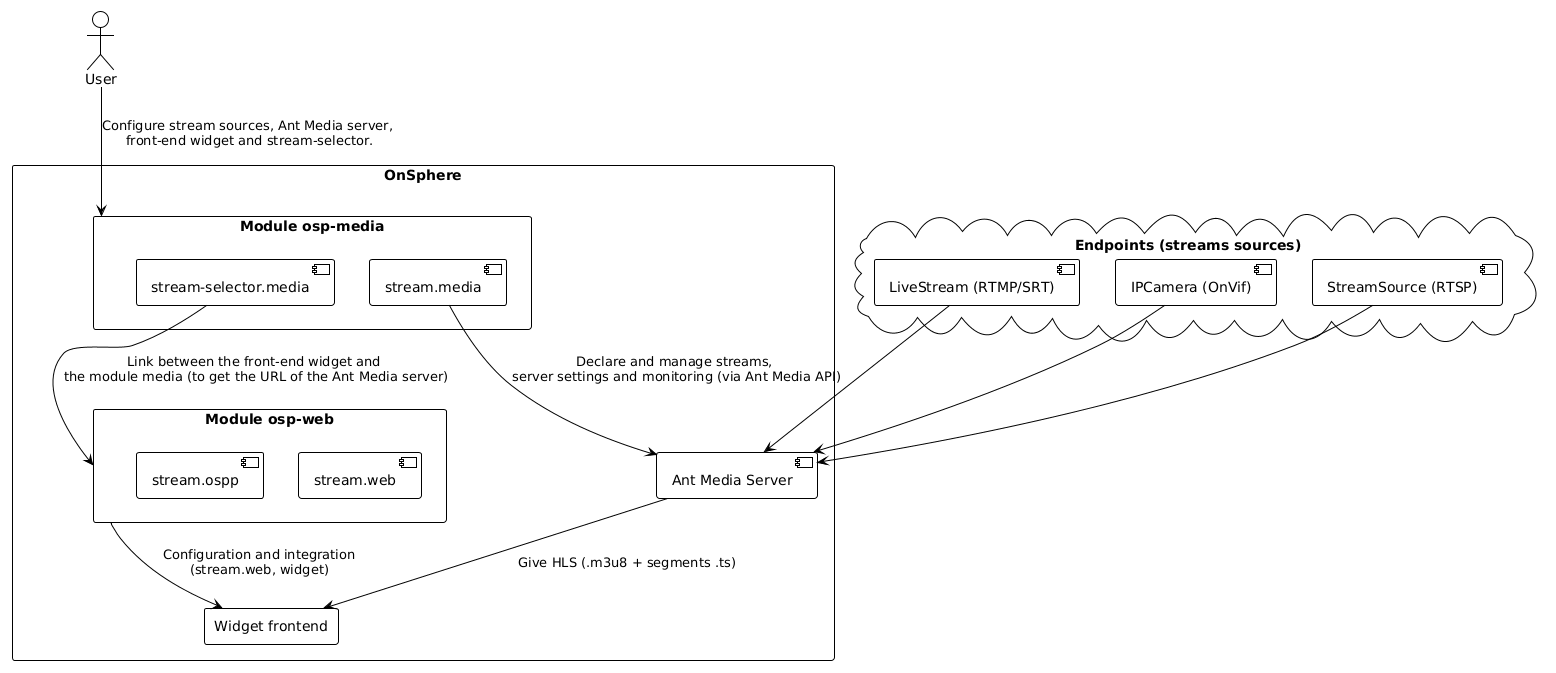
To handle video streaming in OnSphere you need :
The module osp-media.
The module osp-web and module osp-frontend.
An Ant Media Server.
The module osp-media defines which cameras and streams should be managed by the Ant Media Server. Ant Media then ingests these video sources (e.g., IP cameras, RTMP streams, ONVIF cameras) and transcodes them to HLS. Ant Media server can be configured either locally or remotely.
The osp-media module communicates with Ant Media via its API to create streams and then relays the necessary information (such as endpoint addresses and stream IDs) to the frontend.
Warning
- When deploying an Ant Media Server, it must access those ports:
TCP 1935 for RTMP.
TCP 9999 for JMX RMI (resource monitoring).
TCP 5080 access to the Ant Media front-end interface.
TCP 5554 for RTSP.
General operating diagram
HLS streaming
HLS stands for HTTP Live Streaming it uses http/s ports to receive a video. This video is cut in segments (.ts files) that are declared in a manifest file for reconstruction (.m3u8 file). The web client will get the manifest first and then the segments declared in the manifest.
Configure OSP dedicated Ant Media server
Concept
Normally you will use this kind of server, that comes with the OnSphere stack, because the client normally does not have his own Ant Media server locally. When pushing the osp-media module you have the possibility to add a dedicated Ant Media server.
Within Ant Media, an Application is a logical entity responsible for handling media streams. Each application is a dedicated workspace that manages the ingestion, processing, and distribution of video or audio. You can run multiple applications on the same Ant Media Server for different streaming purpose camera, lives and so on.
A Stream is a continuous flow of media data (video or audio) that is either being ingested into Ant Media or delivered to viewers. Streams belong to specific applications and may represent live camera feeds, pre-recorded videos, or other types of media. Ant Media supports a variety of protocols for streams (e.g., WebRTC, RTMP) and can broadcast them to multiple viewers or record them for later use.
Usage
To deploy a dedicated Ant Media server you need to add the branch origin/osp-media-antmedia-configuration . in your configuration. Then you will need to configure the antmedia-server.media file.
When deploying a dedicated (local) server a default admin user will be created using the email and password you set in the connection settings to the server file. Also when configuring a self hosted Ant Media the settings will be changed to accept API request on the application from everyone able to reach the Ant Media server deployed in the stack.
Afterward you will be able to access the server specific settings by accessing the front page using http://stack addresses:port. The port is either 5080 or 5443 if you manually enable SSL on the server. (Note if you use port 5443 you need to specify https).
Note
The network part of the Ant Media module.service is very important because it will let the front-end and the backend communicate with it (here is the official docker documentation about that). By default we set the self-hosted Ant Media server accessible via the alias backend-antmedia for backend and frontend networks. See this to expose antmedia front-end. Of course to be able to join the camera on the client network you need to let it access it via the
To persist data of Ant Media server you need to bind it to a volume. The data that needs to be stored are located at the following path /usr/local/antmedia/. You can use the official documentation as a reference. To use a volume in OnSphere see the following section
Examples
Accessing Ant Media server front-end
Concept
Accessing Ant Media server front-end let’s the user configure and see streams. It also enable the access to advanced settings possibility like described here.
When using an external Ant Media server, see with the manager of the service.
Usage
To enable the access to the front-end of a self-hosted Ant Media server change the module.service file of the Ant Media module. In this file add the following entry :
ports:
- 5080:5080
Using an external Ant Media server
Concept
This is a rare use case where the client has already an Ant Media server to connect to.
Warning
The supported version of the server API is the 2.11.3. If the API routes are similar in your version it might be working but we can not guarantee all functionality and stability.
Warning
OnSphere have to be able to access the Ant Media server Management API not only its API.
Usage
To connect to an external Ant Media server you need to check with the owner of this server that the OnSphere stack IP can access the API of the Ant Media application (as a reminder the application is where the streams are declared) you want to use.
If you have all the access the only thing you will need is to have an account with enough rights to access the Ant Media server management API. Once you do set the connection settings to the server file and you are good to go.
Warning
Deploying to an external Ant Media server means that the owner of the server have to let OnSphere communicate with the server API.
Examples
There are no specific example for this but refer to the following example to see how to connect Setup a local Ant Media server connection and stream
Third party interoperability
Concept
This is only a concern when using an external Ant Media Server. Inside the configuration of a antmedia-server.media, specify if the server is external.
Using the server as external means that some of the classic work flow of stream creation and applications will not be applied as they would normally with a self-hosted server. Those are the changes :
If a stream with the same id already exists in the application, OnSphere adopts it as is when its configuration matches the OnSphere one. It only deletes and recreates it when the configuration differs (see the stream life cycle).
OnSphere will maybe not be able to change Application settings on the server. In that case stream operations can be rejected with
403 Forbiddenerrors (see Errors and troubleshooting).
Default Ant Media server application configuration
The osp-media module applies the application settings right after every successful login (initial connection and every reconnection), before any stream operation. This guarantees that the application REST API is reachable before streams are checked, created or started.
Ip filtering :
The following settings is changed so that we can handle the connectivity inside the stack.
"ipFilterEnabled": false
Server connectivity monitoring
Concept
The connection state between the Ant Media server and the Media module can be read as a BOOLEAN value from the antmedia-server.media in the OnSphere hierarchy. If the connection is not working, the state will be set to false together with a reason message.
The module monitors the server with a single periodic task (every ~5 seconds) :
While disconnected, it retries to login. After every successful login the application settings are applied before anything else, then the server state switches to true and the streams of this server are checked (see the stream life cycle).
While connected, it checks that the server still answers. A lost connection switches the state to false (reason
Health check detected outage.) and marks every stream of the server as disconnected.An expired API session is renewed transparently, it does not produce a disconnected/connected transition (and therefore does not re-trigger the stream creation flow).
Usage
This can be used for example to trigger an alarm if a server is unavailable, as this will prevent all subsequent values from being read correctly.
Examples
Stream monitoring
Concept
The connection state of a stream (for example a camera) and the Ant Media server can be read as a BOOLEAN value from the stream.media in the OnSphere hierarchy. A stream will be created in the given application. OnSphere is able to give you the status of the stream.
If it is broadcasting the linked value will be true. In every other case it will be false, together with a reason message describing why (see Errors and troubleshooting for the list of reasons).
While the server is connected, the module polls the real broadcast status of every stream on the Ant Media server every ~5 seconds. This means :
Actions done outside of OnSphere (starting or stopping a broadcast by hand in the Ant Media panel, a publisher connecting or disconnecting) are reflected in the stream state within ~5 seconds.
A broadcast that has been deleted on the server is detected and recreated automatically.
A stream that should be broadcasting (
alwaysOn, watched by a widget or explicitly started) but is not gets restarted automatically, with a ~30 seconds backoff between attempts.During the startup of a broadcast the Ant Media server reports the
PREPARINGstatus : the stream state shortly dips to false with the reasonAnt media reports stream status [PREPARING].before switching to true. This is expected and no restart is attempted in that phase.
Usage
This can be used for example to trigger an alarm if the stream is unavailable, as this will prevent the frontend widget to get the HLS stream.
Note
The stream state reflects the broadcast status on the Ant Media server. It does not reflect the delivery of the video to a given browser : a network problem between a client and the server does not show up in this value.
Examples
Display stream on frontend
Concept
A stream is a video stream who can come from multiples sources. Here are the supported endpoint (an endpoint is a stream data source) types :
LiveStream for example
RTMP/SRTIPCamera also called
OnVifStreamSource mainly
RTSP
LiveStream is ingested by Ant Media Server (it is the stream source that decide when video is sent). IP Camera and Stream Source is pulled by Ant Media Server. For example, the following IP Camera let us access its video using RTSP : rtsp://username:password@X.X.X.X/axis-media/media.amp?videocodec=h264.
Once the streams are configured, a stream-selector.media is required.
The stream-selector.media is the link between a stream and the front-end widget where the streams will be playable. Inside a stream-selector.media will be declared containing a default list of stream ids that will be displayed by front-end widget.
Usage
Create a stream.media file containing the connection information that will be passed to Ant Media server.
Create a stream.ospp file linking the module osp-media with the module osp-web.
Create a stream.web file containing the frontend information for the module osp-web and the module osp-frontend.
Create a stream-selector.media file containing the desired default streams to display in a dashboard.
Add the widget in the desired dashboard.
When creating a stream, specify the source address and the type of source (e.g., a camera or a publishing stream from an external tool like OBS). If the stream is not broadcasting when requested, the module osp-media will attempt to start it. Once the stream is active, it appears in the widget’s dropdown menu on the frontend.
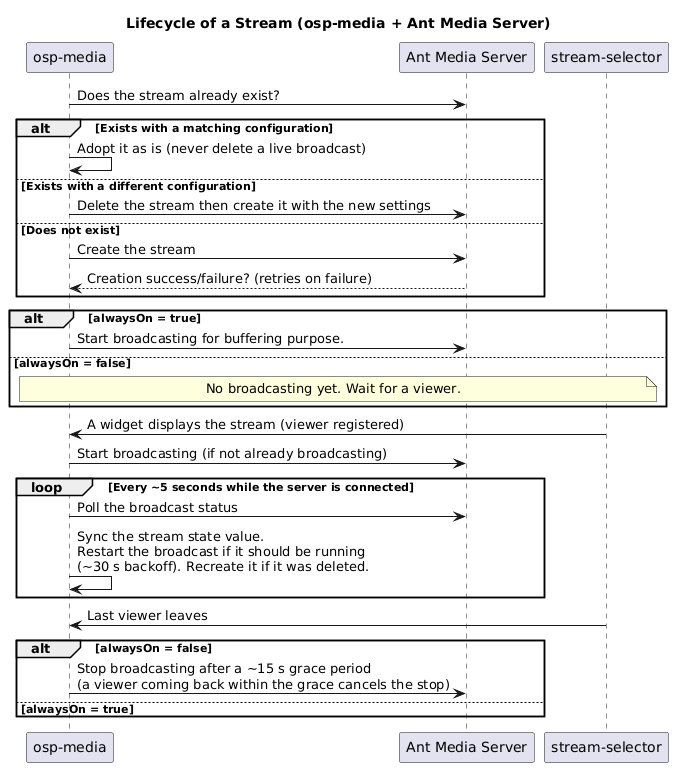
A stream can be configured with the alwaysOn parameter. This parameter allows you to determine if the stream needs to always be running between the video source (eg. the camera) or be shutdown when not consumed (the shutdown happens ~15 seconds after the last viewer left, see the life cycle below).
It is important to understand that alwaysOn is not used if the stream source is a LiveStream : a LiveStream broadcast is pushed by its source, OnSphere can not start or stop it.
Warning
If the stream already exists on the Ant Media server, the osp-media module compares its configuration (name, type, stream URL, ip address, username) with the OnSphere one :
If the configuration matches, the existing broadcast is adopted as is. A broadcast that is currently live is never destroyed by a reconnection or a module restart.
If the configuration differs, the existing stream is deleted and recreated with the new settings.
The password can not be compared (the Ant Media server does not return it). A configuration change limited to the password is therefore not detected : delete the broadcast by hand in the Ant Media panel to force its recreation.
Below you can see the life cycle of a stream :
Below is an overview of the three stream types you can also refer to the official documentation:
LiveStream
When declaring a stream.media with the type LiveStream, it indicates a stream that will be fed directly by its source (e.g., a camera or encoder) sending video to the server. This type is best used in scenarios where the source actively pushes its data to the server (as opposed to the server pulling the stream).
IPCamera
When declaring a stream.media with the type IPCamera, serves to register an ONVIF camera via the API. Knowing the RTSP address of the ONVIF device, it’s possible to pass it through a StreamSource.
StreamSource
When declaring a stream.media with the type StreamSource, is used to specify a URL-based stream (for example:
rtsp://username:password@X.X.X.X/axis-media/media.amp?videocodec=h264).
StreamSource URL is provided in two ways:
RAW: Supply the complete camera/stream URL directly.RTSP: Provide an object containing the address (e.g., rtsp://username:password@X.X.X.X/axis-media/media.amp?videocodec=h264) while securing credentials via a password provider (such as Docker secrets). This allows for flexible handling of stream credentials and ensures better security practices.
Examples
Control stream from action
Concept
Using the OnSphere actions it is possible to configure in the front-end the following interaction with the video streams :
Starta given stream using its itemId.Stopa given stream using its itemId.Adda given stream using its itemId (to add it from being displayed in a selector for example).Removea given stream from a selector (to stop it from being displayed in a selector for example).
Usage
Action allow to evaluate and run an action.ospp. In the options property, you can define an action context by setting :
action: item id of the action to run.input: define the data passed to the action. Context provided by the form contains aformobject that contains the data of the form.output: define actions or operations to call when the action is finished.
Examples
Control stream from callback
Concept
As in the above section, actions can be applied to interact with the video streams but this time using the callback directly from the module. output media file.
Usage
Action on a value change for example alarms.
Examples
Configure and manage buffering
Concept
HLS is by design handling buffering. Alongside Ant Media server there are a lot of settings to juggle with to handle the buffering and the network load (size of the video chunks sent and the frequency at which they are sent). Here is the complete list of capabilities for HLS using Ant Media server (in those AppSettings there are other capabilities that may be interesting for configuration).
Note
HLS settings are configured at Application level (it means that a list of streams declared in the same application have the same HLS settings).
Usage
To change the HLS settings access an Application settings. Change the application settings from basic to advanced to modify very specific settings.
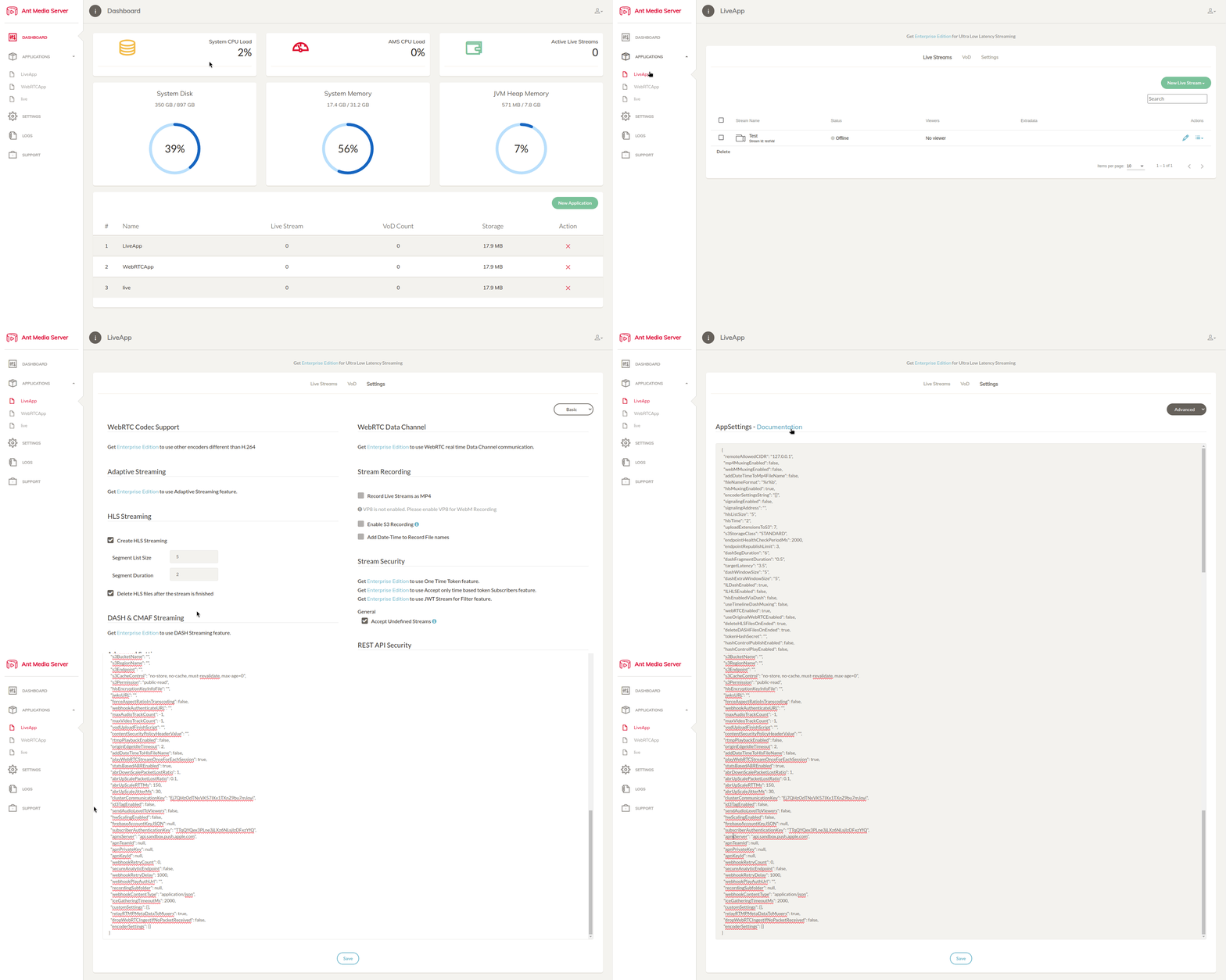
HLS configuration tips :
When deciding the length of the segments and the number of the segments when using HLS here is a small rule :
The M3U8 playlist should ideally contain 3 to 5 segments to ensure smooth transitions while not overloading the player.
If each segment is 6 seconds, the playlist duration would be 18 to 30 seconds.
At a 2 Mbps bitrate, a 6-second segment will be around 1.5 MB.
Configuration for HLS Manifest Modifier :
Set the below settings from application settings –> advanced settings (as described above) through the web panel of the Ant Media server.
"hlsflags": "+append_list+delete_segments": ensures old segments are deleted but the playlist grows.
"hlsPlayListType":"event": keep all ts files references in m3u8 file. (it will keep the .ts files even if using "hlsflags": "+delete_segments")
"deleteHLSFilesOnEnded":false : keep all .ts files on the disk after the stream finishes.
"deleteHLSFilesOnEnded": true : this parameters tells the Ant Media Server to remove old .ts segments when the stream ends.
"startStreamFetcherAutomatically": true : to start the stream automatically if the server reboot.
Advanced usage : HLS files location using Ant Media server
The manifest and segmented files (.m3u8 and .ts) are generated inside the following directory (first connect to the docker container) :
/usr/local/antmedia/webapps/{streamApp}/streams/{streamId}
Examples
Dynamic stream configuration
Concept
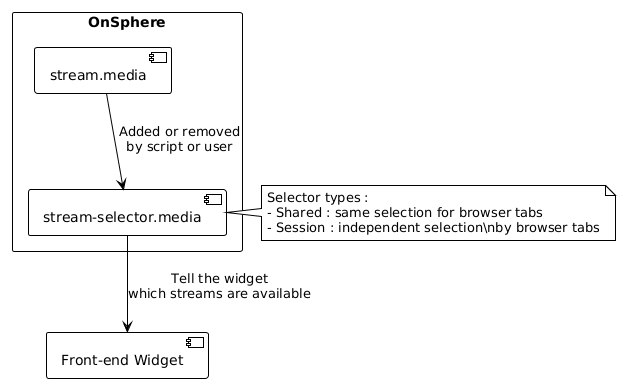
Dynamic streams are enabled by interaction with the stream-selector. You can add or delete streams from a stream-selector.
If the stream is added inside the selector it will then be accessible in the widget linked to that stream-selector. This means that you can use an empty stream-selector to feed it with streams dynamically, reacting on an event (for example an alarm).
There are two type of stream-selector.media:
Shared
Session
Session stream-selector
A session-based stream selector, on the other hand, allows each session to manage its own stream independently. In this mode, you can open the same dashboard in two browser tabs and select different streams in each one, without affecting the other session’s choice.
Operating diagram
Module behavior in common situations
The table below summarizes how the osp-media module reacts in the situations encountered in day to day operation. The timings are approximate : the monitoring/polling period is ~5 seconds, the automatic restart backoff is ~30 seconds and the stop grace period is ~15 seconds.
Situation |
Behavior |
|---|---|
The stack starts while the Ant Media server is not ready yet |
The login fails and is retried every ~5 seconds ( |
A user opens a dashboard containing a media widget |
The widget registers itself as a viewer of the streams of its selector. Every stream that is not broadcasting (and not |
The user switches dashboard and comes back quickly (< ~15 s) |
The broadcast is not stopped : the stop is deferred by a grace period so quick navigation does not interrupt the stream. The video resumes immediately. |
The last viewer leaves for good |
For a non |
Someone stops the broadcast by hand in the Ant Media panel while a widget displays it |
The status poller detects it within ~5 seconds (state value false), and because viewers are still present the module restarts the broadcast automatically within ~30 seconds. Viewer demand wins over a manual stop. |
Someone starts a broadcast by hand in the Ant Media panel while no widget displays it |
The state value switches to true within ~5 seconds. OnSphere does not stop it : a manual start without viewers is left alone. |
The broadcast is deleted on the Ant Media server |
The status poller detects the deletion (state value false with reason |
The connection to the Ant Media server is lost |
The server state value switches to false ( |
The Ant Media API session expires |
The session is renewed transparently. No disconnection is reported and the streams are not touched. |
The stream configuration changed and the module restarts |
The existing broadcast is compared with the new configuration : recreated if it differs, adopted if it matches. Warning : a change limited to the password is not detectable (see the stream life cycle). |
The camera / source is unreachable |
The start attempt fails and is retried up to 10 times every ~10 seconds ( |
Limitations
Status granularity : the server and the streams are monitored every ~5 seconds. External changes (manual actions in the Ant Media panel, publisher disconnection) are reflected in the OnSphere values with up to ~5 seconds of delay.
``LiveStream`` sources can not be controlled : a pushed broadcast (RTMP/SRT) only exists while its source publishes. OnSphere can not start it (on demand start, automatic restart and
alwaysOnhave no effect on it) nor bring it back after the publisher stopped.Password changes are invisible to the adopt policy : the Ant Media server does not return the stream password, so a configuration change limited to the password does not trigger the recreation of the broadcast. Delete the broadcast by hand in the Ant Media panel.
On demand startup delay : a non
alwaysOnstream only starts when a viewer opens it. Count a few seconds (PREPARING+ HLS segments generation) before the video shows up. UsealwaysOnto remove this delay, at the cost of permanent bandwidth/CPU usage.Stream state ≠ video delivery : the stream value reflects the broadcast status on the server, not the actual delivery to a given browser.
Supported API version : the Ant Media server API
2.11.3(see Using an external Ant Media server). Other versions may work but are not guaranteed.External servers : OnSphere needs access to the management API. If the application settings can not be changed (rights, IP filtering), stream operations may be rejected with
403 Forbidden.No hot reload : configuration changes (streams, selectors, servers) require a restart of the osp-media module.
Errors and troubleshooting
The stream and server values carry a reason message when they are false. The table below lists the messages found in the module logs and in the state reasons, what they mean and what to do.
Message |
Meaning / module reaction |
What to do |
|---|---|---|
|
The Ant Media server does not answer or is still starting. The module retries every ~5 seconds. |
Nothing if the stack is starting. Otherwise check that the server runs and that the connection settings (antmedia-server.media) are correct. |
|
The connection with the server was lost. Automatic reconnection is in progress, running broadcasts will be adopted back once reconnected. |
Check the network / the server health if it does not come back. |
|
Normal after creation for a non |
Nothing. |
|
The broadcast is starting (source connection, first segments). Expected transient state, no restart is attempted. |
Wait a few seconds. |
|
The broadcast stopped or failed on the server (manual stop, source lost…). If a viewer is present or |
Check the source if the state keeps flapping. |
|
The broadcast was deleted on the server. The module recreates it automatically. |
Nothing. |
|
Ant Media refused to start the broadcast. Retried up to 10 times every ~10 seconds. Typical causes : source unreachable, wrong credentials, or the stream is a |
Check the source URL/credentials, check the source is reachable from the Ant Media server. |
|
The start retry chain gave up. While demand exists (viewer or |
Fix the source, the module will hook it back automatically. |
|
The application REST API rejected the request. On a self-hosted server the settings ( |
For an external server : ask the owner to allow the OnSphere IP on the application API (see Using an external Ant Media server). |
|
The OnSphere configuration changed : the broadcast is recreated with the new settings. |
Nothing, informational. |
|
The deletion of an existing broadcast with a different configuration failed. The stream keeps its old settings on the server. |
Delete the broadcast by hand in the Ant Media panel and restart the module. |
|
Normal : the last viewer left more than ~15 seconds ago, the broadcast is stopped to free resources. |
Nothing. Use |