Authentication
Capabilities
Capability |
Support |
Comment |
|---|---|---|
Restrict actions or views by users |
|
Authentication (this chapter) and authorization are two distinct processes: the first identifies who the user is, while the second determines the actions they are permitted to perform. |
Unlimited authentication duration |
|
Typically used for non-interactive display purposes, such as unsupervised presentations on a wall. See token duration. |
Using SSO |
|
See Single sign-on or SSO chapter |

Concept
Authentication is done by Keycloak while users resources access is managed by osp-rights
The concept of keycloak lay on some concepts :
Realms: A realm is an isolated authentication space containing its own users, clients, roles, and security configurations. Multiple realms can be hosted on a single Keycloak server for different environments or applications.
Roles: These are permissions or attributes assigned to users. They can be global (realm roles) or specific to an application (client roles).
Groups: Groups allow you to organize users to assign roles or specific configurations in bulk. Role inheritance through groups simplifies permission management.
User: A user is an individual identity within a realm that can authenticate and access applications. Users can be assigned roles directly or through groups, and they can have specific attributes and credentials.
Hint
In OnSphere we differentiate external group who are defined in keycloak or federation and internal group who are used in the OnSphere configuration.
The keycloak admin page is available https://{stack-hostname}/auth/admin and the osp-web is required.
Keycloak default configuration
Default users
User |
Default password |
Configuration clone |
Keycloak user management |
Dashboard access |
|---|---|---|---|---|
administrator |
onsphere |
yes |
yes |
no |
supervisor |
onsphere |
no |
yes |
yes |
user |
onsphere |
no |
no |
yes |
Default keycloak groups
By default, five external groups are defined on keycloak
Group |
Description |
Roles |
|---|---|---|
administrator |
This group has all the right of the group above. |
User-management Configuration-management |
configuration-management |
Give access to the configuration with |
Configuration-management |
data-access |
Give access to the data. (By default grant access for all values. See Define rights for more information.) |
None |
user |
Give the access to the account and profile management panel for the user. |
view-profile manage-account |
user-management |
Give access to the users management page. |
User-management |
Hint
This 5 groups can be freely edited and must probably be, at least the default password must be changed.
Default roles
See official documentation about realms role.
Role name |
Sub-role |
|
|---|---|---|
Configuration-management |
Typically, the default configuration is sufficient, but in certain scenarios, it is necessary to separate realms to distinguish between administrative access and Git access. |
configuration-access manage-realm view-realm |
User-management |
In Keycloak, only administrators should have the “manage-users” role. This high-privilege role must be restricted to prevent unauthorized access and ensure only trusted administrators can manage users. |
view-users query-groups query-users manage-users |
Authenticating
Authentication is done by Keycloak, usually when users try to log-in through the Login page, but other means are also available.
Webhooks apiKey
When using webhooks authentication is done using an API Key. Process to authenticate on webhook using API Key is described in Webhooks documentation.
URL authentication
An authentication based on credentials passed inside the URL can be configured and enabled for a user or group. This enable a user to connect into OnSphere without having to go through a login form.
You need to add the credentials in base64 following the format user:password. You add this information as a authentication parameter.
The url becomes : <stack-ip>:<front-end-port>/home/root?authentication=SGVsbG8gdGhlcmUgIQ==
Note
Uses “The Base64 Alphabet” as specified in Table 1 of RFC 4648 and RFC 2045 for encoding and decoding operation
Hint
When using linux echo binary to feed the user:password to base64, don’t forget the -n.
echo -n "user:password" | base64
If given credentials are correct and the user has the rights to use this authentication method, you will be directly redirected to the dashboard specified in the URL. Otherwise, there can be different outcomes :
If the user doesn’t have the rights, you are redirected to the login form
If the user has the rights but the credentials are invalid, you are redirected to the login form.
Keycloak configuration
Roles
You need to have a realm role defined as url_auth. The users or groups that want this authentication need to have that role assigned to them.
Adding authentication flow
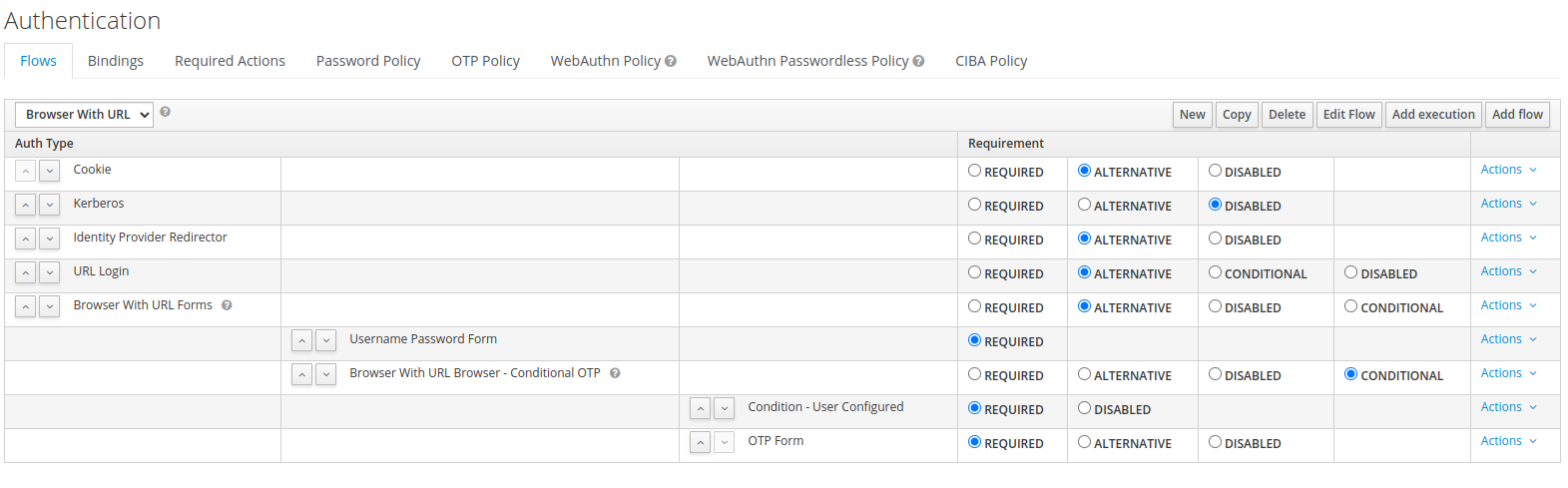
You need to add a step into the browser authentication flow, but you can’t modify the default one. To do so :
Select the Browser flow and make a copy
Add an execution with the provider URL Login
Move the URL Login step before the Forms
Enable the URL Login step by making it Alternative
In the bindings tab, replace the browser flow with the one just created
Your authentication flow should look like :
SSO authentication
SSO authentication takes place on the same page as normal login. When SSO is configured, a new button appears below the login form.
Clicking it takes the user to their organization’s login page. If they’re already logged in, they’re immediately redirected to the application. Otherwise, the user is prompted to log in.
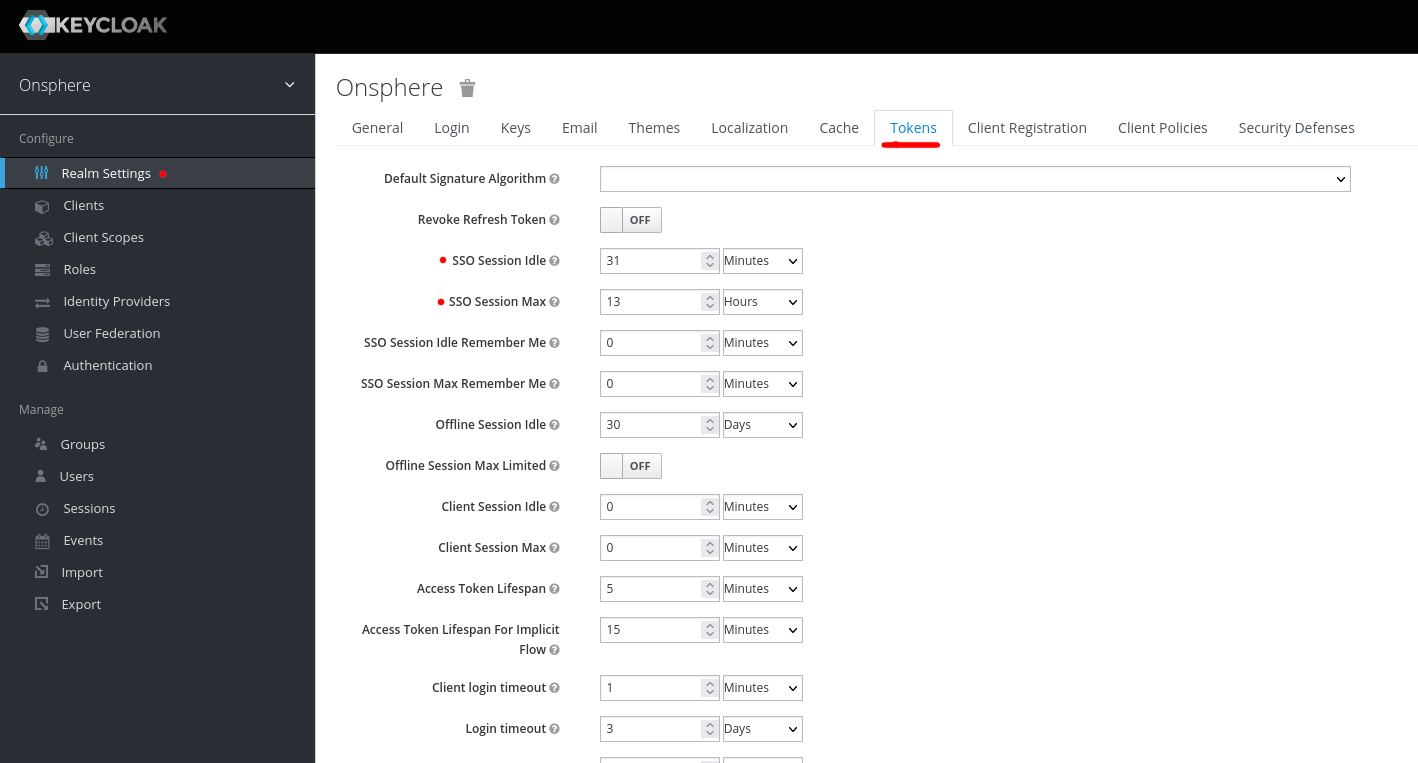
Change token validity duration
The token generated upon user connection have a limited validity to avoid them being used by an unauthorized user if stolen.
Note
If you need to have a token valid for more than 12 hours, you need to add the “offline-access” for the user and use the /monitor endpoint when accessing OnSphere. This endpoint is designed for wallboard/monitoring screen access.
Tip
We recommended that user using the offline-access cannot make any action on the stack.
The token needs to be refreshed at most every 30 minutes otherwise the user will need to reconnect. In any case when a user is connected for more than 12 hours, they will need to reconnect.
These parameters are managed inside the realm.json.
Name |
Front-end name |
Description |
Default |
|---|---|---|---|
ssoSessionIdleTimeout |
SSO Session Idle |
The maximum validity token time without any activity |
1800 |
ssoSessionMaxLifespan |
SSO Session Max |
The absolute maximum token lifespan |
43200 |
Note
For testing, you can directly edit these parameters on the admin page “/auth/admin” but changes made this way will be reset when a new Keycloak configuration is applied.