Templating Generation
Warning
 This feature is currently in beta. It may change in a future version without prior notice. See the Beta Features page for the full list of beta features and their planned release. If you’re using this feature, we encourage you to share your feedback to help with the evaluation process.
Capabilities
Capability |
Supported |
Description |
|---|---|---|
File inheritance |
|
Known as single-file templating. See Configuration inheritance for more information. |
Create multiple playbooks and execute them in order |
|
Each playbook has a priority number (lower means higher priority). See Playbook Usage to define execution order. |
Multi-environment support |
|
A single playbook can handle multiple environments, enabling behavior customization while maintaining one configuration across contexts (e.g., Quality, Production). |
Protect against invalid template environment generation push |
|
Allows setting an environment (e.g., prod) on templates. If the template configuration does not match the defined environment, the push is rejected, helping prevent errors. See link |
Generate files using multiple CSV sources associated with the same task (CSV inventory) |
|
When the CSV inventory is a directory, each file and subdirectory will be processed separately |
Generate files conditionally or from variable content |
|
Uses the Nunjucks engine to enable loops, conditions, variables, and advanced filters. See Nunjucks Usage for details. |
Generate files with or without Nunjucks interpretation Source destination mirroring task |
|
Allows generating OnSphere items from each CSV line. |
Generate files from each line in a CSV inventory |
|
Enables OnSphere items generation line-by-line. |
Alternative inventory formats (other than CSV) |
|
This feature is currently not supported. In case of interest please contact us at info@sdn.ch |
Generate multiple items from a single CSV line |
|
A single row can produce multiple configuration rules. See CSV Inventory Task. |
Define inclusion/exclusion rules for configuration trees |
|
Enables adding/removing configuration parts based on variables. Useful when devices differ slightly (e.g., with or without a dashboard), allowing shared templates with optional subparts. |
Use variables to define source and destination paths |
|
|
Conditional evaluation of template subparts |
|
Multi-step execution can be made conditional. See Condition. |
Variable usage |
|
Supports variables from multiple sources. See Variables. |
Complex (JSON) variable support |
|
Variables can store JSON objects with some limitations. See Using Complex Object Types. |
Variable inheritance and overrides |
|
Avoid redundancy by composing variables across files. See Variables. |
Execute rules based on another CSV |
|
The |
Use inventory CSV files as variable sources |
|
CSV files can be used as dynamic variable sources during task execution. |
Apply patches to template files |
|
Not supported, as Nunjucks files are not parsable by the system. Manual updates are required. See Patch. |


Concept
In OnSphere, configurations often follow recurring patterns, especially when deploying to many similar devices. Template playbooks let you define reusable configuration logic once, then generate final configurations using a centralized inventory.
Templates are interpreted and executed by the osp-composer plugin only, which generates the final files in the directories (root, modules, …) . The aim is to efficiently create complex, large-scale configurations using shared logic. If configurations are entirely unique, templating adds little value.
A file generated by templates and included in osp-configuration will contain "isTemplateGeneratedByOspComposer": [name of the template] and will be marked as read-only. If the file is not JSON or unknown to OnSphere, a hidden sidecar file will be created to enforce the read-only status.
Hint
This flag indicates whether files generated by the template should be cleaned. If the flag is removed from the file, the file will no longer be deleted.”
Use cases:
Managing environment differences - Handle multiple environments (e.g., Production vs. Quality) using simple rules.
Declare list of same devices - From a inventory of devices (CSV), generate a bunch of items with less error as the only difference between device is a bunch of variable. This leverage flexibility, less error prone, easily check of configuration and fast migration (adding, removing devices)
Declare a list of identical devices - Generate multiple device entries from an inventory (e.g., CSV) where the only differences are captured through variables. This approach increases flexibility, reduces errors, simplifies configuration review, and speeds up tasks like adding or removing devices.
Use FAKE devices for testing environments - For example, declare dashboards that simulate devices in the
TESTenvironment.
Supported Directories
Template generation can be executed in any directory. The only restrictions are that the cleaning process will not operate in directories starting with a . or in the templates/ directory. Running template generation in unsupported directories may create orphaned files, as the system does not automatically remove them.
Associated Files
Filename |
Purpose |
|---|---|
|
The playbook serves as the primary source of actions and the main entry point for configuration generation. It defines the workflow, the sequences of tasks, and references to templates and variables, similar in concept to other automation playbooks like ansible. See Playbook Usage. |
|
Files ending with |
|
Inventories in CSV format for simplicity and Excel compatibility. See CSV Inventory Task. |
Command Summary
Execute a single playbook: template.playbook.execute
Execute all playbooks: template.playbook.execute.all (includes a clean generated file at first)
Clean generated files: template.playbook.clean
Glossary
- Inventory
CSV-based datasets acting as structured configuration sources.
- Nunjucks
A JavaScript templating engine similar to Python’s Jinja2. Supports variables, loops, conditions, and inheritance.
- Task
A unit of work inside a template environment. Types include Source destination mirroring task, CSV Inventory Task.
- TemplateEnvironment
Defines the environment to use when executing a playbook (e.g., Quality, Production). Only one environment can be selected per run. It is recommended to group templates with a common purpose in the same environment so that a full configuration can be generated with a single “run all” execution (note that “run all” performs a clean before processing).
Before Using Template Playbooks
Security Considerations
Warning
Nunjucks templates are not sandboxed. Malicious templates can access sensitive data or execute unintended operations, including remote code execution. Never use templates from untrusted sources. In OnSphere, configurations are typically managed by trusted users, which reduces the risk. However, always inspect unfamiliar rules before running them.
Templating actions can copy, alter, or delete files. Since paths are dynamically constructed, they may escape the repository boundaries. Only execute trusted configurations.
Deployment Caution
Templates are handled by osp-composer (they are ignored by osp-configuration-dispatcher). Inventory changes are not detected automatically. If the inventory has been updated, it is strongly recommended and required to run the template.execute.all command.
Recommended steps:
Run Clean templates
Then run Execute all templates
Patch
Patches cannot be applied directly to template files, as they are not always valid sources (templates often use loosely connected items or conditional/variable-based partial configurations). The update process should follow these steps:
Execute the template.all command
Apply patch
Check for differences
Adjust templates accordingly
Return to step 1
Performance
Templates support large-scale configurations, but processing happens on the client side. Avoid using CSV files with more than 1,000,000 rows. For optimal performance, stay under 100,000 rows.
Several playbook tasks are inherently slow, for instance:
Using a CSV as a variable in every rule causes full CSV parsing for each line
Generating each file with Nunjucks triggers a context evaluation per file, which can be slow
Large CSV files as variables increase context evaluation load
Conditions activate JEXL_EXPR contexts, which consume time and resources
Rules like addNodes, excludeNodes, etc., are resource-intensive — use them carefully
Tip
Keep it simple. Avoid overly complex configurations—they’re harder to read and degrade performance. Resist configuring everything conditionally; overuse leads to overly complex and hard-to-maintain setups. Sometimes, repeating similar logic is better than intricate rules that no one can understand or manage.
Hints
Define template environment correctly
A template environment must group all playbooks used in the same environment. Don’t use templateEnvironment for different purposes as the run-all command does a clean before running.
A run-all template must generate in one command a fully compatible configuration.
Avoid too many variable usages
Defining and overriding variables can be useful, but this usage leads to difficult to understand configurations.
Avoid using the same source across multiple playbooks
It is recommended to maintain a clear and simple folder structure. Avoid referencing the same source from multiple playbooks, as this makes unit testing harder and changes more difficult to debug.
/templates/
  /playbooks/
    /001-deploy-web.playbook
  /sources/
    /001-deploy-web/modules/web/module.web.nunjucks
Use ``iterateOn`` for multiple values on the same device
When a list of devices is defined in a CSV file, the set of values to read for each device can be generated from another CSV file, similar to a nested loop in programming. This approach makes the configuration easier to read, modify, and test.
Environment Protection
Warning
This feature is currently in beta. It may change in a future version without prior notice. See the Beta Features page for the full list of beta features and their planned release. If you’re using this feature, we encourage you to share your feedback to help with the evaluation process.
To setup the environment protection you need to setup a secret containing JSON Object as described in stack-configuration
This secret is used by the osp-configuration-dispatcher. The value of this secret must match the environment name specified in /run/secrets/stack-configuration. When running a template generation, the composer will generate a file named .onsphere/template-status that contains information about the generation and allows comparison with the stack configuration.
If the values do not match, the push is rejected, preventing potential human errors.
Playbook Usage
Concept
Playbooks are the fundamental unit of templating. Multiple playbooks can coexist, each assigned a specific priority (lower value = higher priority). Additionally, each playbook can define environments to support selective execution (e.g., separate environments for production and staging). The selection is presented during the execution of each playbook.
Hint
If the configuration is small, prefer a single playbook with multiple environments. For large or slow configurations, split the inventory by concern and create a dedicated playbook for each part. This allows for more efficient and manageable execution.
Examples
Environment
An environment defines a set of tasks, variables, and conditions. Using environments within templates is the recommended way to maintain separate PROD and QA environments, easing the management of variable differences.
Variables
Local variable for CSV inventory
Variable |
Description |
Can be used in condition step |
Can be used in path evaluation step |
Can be used in nunjucks file |
|---|---|---|---|---|
|
The currently active environment for the playbook execution. Its value is taken from the corresponding entry in playbook.environments.names (e.g., “prod” or “test”). |
|
|
|
|
Represent the name of the actual file parent folder that is being processed by the task. |
|
|
|
|
Represent the name of the actual file that is being processed by the task. |
|
|
|
|
Represent the name of the actual file that is being processed by the task. |
|
|
|
|
Represent actual lineNumber of a given task when parsing a file. Only used in CSV inventory task. |
|
|
|
Variable Naming Rules
Avoid dashes (-) in variable names. In Nunjucks, - is interpreted as subtraction. Use underscores (_) instead.
Hint
Dashes in CSV headers are automatically replaced with underscores by default.
Supported Types
Type |
Supported |
Notes |
|---|---|---|
boolean |
|
Use |
text |
|
|
number |
|
Use |
object |
|
JSON objects are supported and properly rendered (see Using Complex Object Types) |
Variable Evaluation Order
Warning
Avoid variable name conflicts between inventories and other sources. Conflicts may result in unexpected behavior.

Using Inventories as Variable Sources
Inventories (CSV) can be imported as reusable variables in templates. Useful for iterating with loops in Nunjucks:
{% for entry in deviceModbus %}
    {{ entry["devices"] }}
{% endfor %}
Condition
Conditions control whether specific parts of the playbook are executed. Supported condition types include:
Task-level conditions (see Condition)
Line-level conditions for each rule in a CSV Inventory Task
Variable inclusion conditions
As a general rule, a condition always has access to variables at its respective level. For example, in a CSV processed line-by-line, each line has access to its own variables.
JEXL
Conditions use the JEXL (JavaScript Expression Language) engine. Refer to the official documentation.
Expressions support dynamic evaluation based on runtime context variables. Variables can be used directly (without quotes), and nested fields are accessed via dot notation. Any parsing or evaluation error will raise a runtime exception.
Example
The expression must evaluate to a boolean (true or false):
"evaluation": "user.age > 18 && user.active == true"
This condition returns true only if the user is over 18 and active.
Tasks
A task represents a group of operations performed during generation. Using multiple tasks enables generation overrides. A typical use case is generating devices via inventory, then adding a Source destination mirroring task to generate a dashboard linking all values.
Source destination mirroring task
Concept
Root directory that will be scanned recursively. All regular files beneath this point are treated exactly like this :
Files ending in .nunjucks are rendered / generated
Others are simply copied
For example:
└── root
    └── example
        └── prod
            └── config.yaml.nunjucks
            └── value.ospp
becomes :
└── root
    └── example
        └── prod
            └── config.yaml
            └── value.ospp
Hint
Source destination mirroring task rules can be used in combination with inventory as variables.
Example
CSV Inventory Task
Concept
This task is list-based: each line of the inventory generates one or multiple files according to complex rules. Only CSV files are supported as inventory.
The CSV file must include a header line, which can be located anywhere in the file. This header defines variable names for each column.
The evaluation process follows these steps:
Preserve all variables defined in the environment
Add variables from the current task
Add each column of the current line as variables named after the header
For each line, execute all Rules by-line
Ignore any rule whose condition is not met
If Rules is defined, modify (exclude, include, etc.) the files to generate per line
Create the destination files and folders
Examples
Rules by-line
Rules by line can be conditionally executed using Condition. Multiple rules may be defined per line, executed in declaration order. Each rule specifies:
The source (see Iterate on another CSV)
The destination (see Iterate on another CSV)
The Condition
The specific Rules to apply for this line
Iterate on another CSV
The IterateOn option (available for the Task type csv_inventory) enables two-level iteration. A common use case is having one CSV with an inventory of devices and another CSV containing registers or values to apply. This allows generating standard objects efficiently and with minimal effort.
The pseudo-code is :
For each line of CSV inventory
  For each line of inner-loop
    Execute the rule
Path provider
Path provider defines how to link the source file and destination path for generated files. Several methods are supported.
Relative PATH
The most common method: a relative path uses / as a separator, rooted at the workspace path (e.g., root/) to place files at the destination root.
CELL PICKER
Uses the value of a specific cell from the current line by zero-based column index. For complex values (e.g., using variables inside the path), use the EVALUATION method.
EVALUATION
A Nunjucks expression. This method has access to all currently defined variables. For example, combining a CSV column value with a fixed path:
"root/{{site_name}}/dashboard"
Rules
Rules provide control over the inclusion or exclusion of configuration paths, either from the source or destination. Two main rule types exist:
Add a file or path to the list of generated files—for instance, include simulated device values when the environment is set to TEST.
Remove a file or path—for example, avoid pushing real commands in a TEST environment.
Check Inventory with Rules for usage examples.
Rule Types
Type |
Description |
Parameters |
|---|---|---|
|
Removes an item from the configuration |
|
|
Adds an item to the configuration |
|
|
Removes a file from the configuration |
|
|
Adds a file to the configuration |
|
Note
All paths are relative to the root of the OnSphere repository (Unix-style).
Nunjucks Usage
Builtin-functions
This project adds several additional functionalities that extend the default capabilities of Nunjucks. These extra features are available not only within Nunjucks templates (.nunjucks files) but also in the evaluate paths used for dynamic string rendering. They allow you to manipulate strings, format identifiers, and apply common case conversions directly in your templates or when evaluating expressions programmatically, providing a consistent and flexible way to handle string transformations across your project.
Filter |
Description |
Example Input |
Example Output |
|---|---|---|---|
|
Keeps only letters, numbers, underscores, and dashes; spaces become dashes; multiple dashes are consolidated and trimmed; all lowercase; accents removed. |
“My Super_Product 2024!!!” |
“my-super_product-2024” |
|
Converts string to |
“My Super Product 2024” |
“my_super_product_2024” |
|
Converts string to |
“My Super Product 2024” |
“mySuperProduct2024” |
|
Converts string to |
“My Super Product 2024” |
“MySuperProduct2024” |
|
Converts string to |
“My Super Product 2024” |
“my-super-product-2024” |
|
Convert ItemId format to relative path (the first path separator is removed) |
“root/devices/my-device” |
“root.devices.my-device” |
|
Convert relative path to ItemId format |
“My Super Product 2024” |
“my-super-product-2024” |
Usage Examples
{{ "#$My Super Product 2024" | onlyAlphaAndNumberDash | snakeCase }}
{# → my_super_product_2024 #}
Using Complex Object Types
To render JSON objects in templates, use filters. For example:
Input JSON:
{
  "variables": {
    "key": "my-key",
    "value": {
      "key-1": "complex-type"
    }
  }
}
Template usage:
"value": {{ key | stringify | safe }}
Inner Join
This custom filter joins rows from two inventories using a shared key (foreignKey). It returns an array of values from the specified property.
Warning
The foreignKey must be named identically in both inventories.
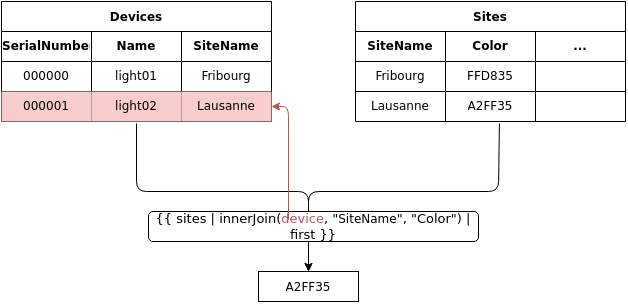
Custom Filters
Filter |
Arguments |
Description |
Example |
|---|---|---|---|
innerJoin |
inventory, entry, foreignKey, property |
Join values between two inventories and returns an array of matching properties. |
See Inventory with Rules. |
Note
Filters use pipe syntax. Example: arg1 | filterName(arg2, arg3, ...)