Show row buttons in a CollectionTable

🟡 Intermediate

collection dashboard script

This example shows menu entries as buttons on every row of a CollectionTable, with an ACTIONS column.

  • Create a menu with entries that depend on the row: Connect or Disconnect after the device status, and Merge into on the ticked rows.

  • Group entries in a submenu, shown as a button with an arrow.

  • Add an ACTIONS column to the collection view, referencing the menu.

git checkout origin/osp-web-configuration .
git checkout origin/osp-collections-configuration .
git checkout origin/osp-scripts-configuration .
git checkout origin/example-dashboard-collections-row-actions .

Steps

1. Create the collection and a dashboard with a CollectionTable

This example uses the collection from this example as a base, and a dashboard with a CollectionTable linked to it, as in this other example. The widget doesn’t reference the menu of the row buttons, so its right-click menu stays empty.

Add a form on the same schema, so that devices can be added from the + button of the table toolbar.

root/collections/device/form/form.web

{
  "moduleId": [
    "modules.web.web-1"
  ],
  "name": "IP Devices",
  "description": "",
  "bindings": {},
  "rights": [],
  "schema": "root.collections.device",
  "ui": {
    "type": "VerticalLayout",
    "elements": [
      {
        "type": "HorizontalLayout",
        "elements": [
          {
            "type": "Control",
            "scope": "#/properties/no",
            "label": "Device No."
          },
          {
            "type": "Control",
            "scope": "#/properties/description",
            "label": "Description"
          },
          {
            "type": "Control",
            "scope": "#/properties/status",
            "label": "Status"
          }
        ]
      },
      {
        "type": "HorizontalLayout",
        "elements": [
          {
            "type": "Control",
            "scope": "#/properties/serial",
            "label": "Serial"
          },
          {
            "type": "Control",
            "scope": "#/properties/ip_address",
            "label": "IP Address"
          }
        ]
      }
    ]
  },
  "initialValue": {
    "status": "Connected"
  },
  "submit": {
    "destination": "Request",
    "type": "Deferred"
  }
}

2. Create the menu

Row buttons use the contexts with the Click scope or with no scope, and receive the right-click context: rows.clicked is the row of the button, rows.selected is the table selection.

  • Connect and Disconnect read rows.clicked, so each row shows only one of them.

  • Merge into shows on the ticked rows when at least two rows are ticked. The row of the button is the target, the other ticked rows are merged into it and deleted. A button click doesn’t change the selection, so rows.selected still holds every ticked row.

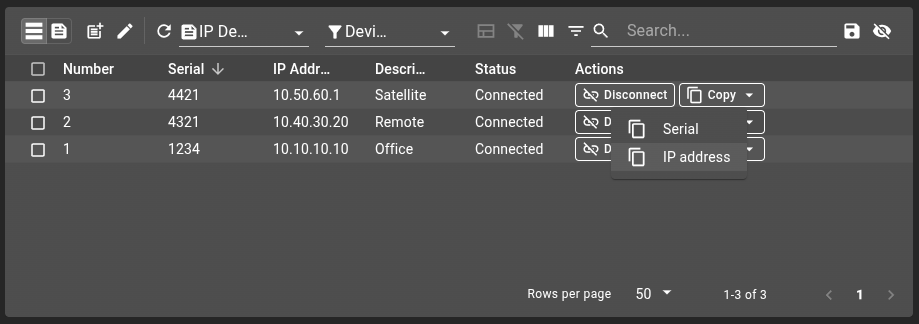
  • Copy has a subMenu. Its own context has no action: it only makes the button show.

root/collections/row-actions/menu.web

{
    "moduleId": [
        "modules.web.web-1"
    ],
    "name": "Device row actions",
    "description": "Actions shown as buttons on every device row",
    "menus": [
        {
            "label": "Connect",
            "icon": "link",
            "context": [
                {
                    "type": "CollectionTable",
                    "scopes": [
                        "Click"
                    ],
                    "condition": "${rows.clicked}.status !== 'Connected'",
                    "action": "root.collections.row-actions.run-script",
                    "input": {
                        "scriptId": "root.collections.row-actions.set-status",
                        "schema": {
                            "extract": "schema",
                            "as": "string"
                        },
                        "documentId": {
                            "extract": "rows.clicked._id",
                            "as": "string"
                        },
                        "status": "Connected"
                    }
                }
            ]
        },
        {
            "label": "Disconnect",
            "icon": "link_off",
            "context": [
                {
                    "type": "CollectionTable",
                    "scopes": [
                        "Click"
                    ],
                    "condition": "${rows.clicked}.status === 'Connected'",
                    "action": "root.collections.row-actions.run-script",
                    "input": {
                        "scriptId": "root.collections.row-actions.set-status",
                        "schema": {
                            "extract": "schema",
                            "as": "string"
                        },
                        "documentId": {
                            "extract": "rows.clicked._id",
                            "as": "string"
                        },
                        "status": "Disconnect"
                    }
                }
            ]
        },
        {
            "label": "Merge into",
            "icon": "merge",
            "context": [
                {
                    "type": "CollectionTable",
                    "scopes": [
                        "Click"
                    ],
                    "condition": "${rows.selected}.length > 1 && ${rows.selected}.some(row => row._id === ${rows.clicked._id})",
                    "action": "root.collections.row-actions.run-script",
                    "input": {
                        "scriptId": "root.collections.row-actions.merge",
                        "schema": {
                            "extract": "schema",
                            "as": "string"
                        },
                        "target": {
                            "extract": "rows.clicked",
                            "as": "object"
                        },
                        "selected": {
                            "extract": "rows.selected[*]"
                        },
                        "validation": {
                            "prompt": {
                                "type": "INPUT",
                                "inputType": "confirmation",
                                "labels": {
                                    "title": "Merge devices",
                                    "message": "Merge the other ticked devices into this one? They will be deleted.",
                                    "save": "Merge",
                                    "cancel": "Cancel"
                                }
                            }
                        }
                    }
                }
            ]
        },
        {
            "label": "Copy",
            "icon": "content_copy",
            "context": [
                {
                    "type": "CollectionTable",
                    "scopes": [
                        "Click"
                    ]
                }
            ],
            "subMenu": [
                {
                    "label": "Serial",
                    "icon": "content_copy",
                    "context": [
                        {
                            "type": "CollectionTable",
                            "scopes": [
                                "Click"
                            ],
                            "output": [
                                {
                                    "operation": "copy",
                                    "input": {
                                        "content": {
                                            "extract": "rows.clicked.serial",
                                            "as": "string"
                                        }
                                    }
                                }
                            ]
                        }
                    ]
                },
                {
                    "label": "IP address",
                    "icon": "content_copy",
                    "context": [
                        {
                            "type": "CollectionTable",
                            "scopes": [
                                "Click"
                            ],
                            "output": [
                                {
                                    "operation": "copy",
                                    "input": {
                                        "content": {
                                            "extract": "rows.clicked.ip_address",
                                            "as": "string"
                                        }
                                    }
                                }
                            ]
                        }
                    ]
                }
            ]
        }
    ]
}

3. Create the RUN_SCRIPT action and the scripts

Both entries with an action go through one RUN_SCRIPT action. The menu input gives the id of the script to run in scriptId, and the action passes the other inputs to the script as one object, trigger.parameters[0].

root/collections/row-actions/run-script/action.ospp

{
    "moduleId": [
        "modules.web.web-1"
    ],
    "type": "RUN_SCRIPT"
}

The first script sets the status of the device.

root/collections/row-actions/set-status/detached.scripts

{
    "moduleId": "modules.scripts.scripts-1",
    "accessedValues": [],
    "scheduledExecutions": [],
    "sourceFile": "root/collections/row-actions/set-status/set-status.js"
}

root/collections/row-actions/set-status/set-status.js

main()

function main() {
    const parameters = trigger.parameters[0];
    collections.update(parameters.schema, parameters.documentId, [{field: "status", operation: "SET", content: parameters.status}]);
}

The second script writes the merged description on the target and deletes the other ticked rows. The confirmation prompt adds its result to the inputs under validation, which the script doesn’t read.

root/collections/row-actions/merge/detached.scripts

{
    "moduleId": "modules.scripts.scripts-1",
    "accessedValues": [],
    "scheduledExecutions": [],
    "sourceFile": "root/collections/row-actions/merge/merge.js"
}

root/collections/row-actions/merge/merge.js

main()

function main() {
    const parameters = trigger.parameters[0];
    const target = parameters.target;
    const sources = parameters.selected.filter(row => row._id !== target._id);
    const description = [target, ...sources].map(row => row.description).filter(description => !!description).join(" / ");
    collections.update(parameters.schema, target._id, [{field: "description", operation: "SET", content: description}]);
    sources.forEach(source => collections.delete(parameters.schema, source._id));
}

4. Add the ACTIONS column to the view

The Actions column references the menu in options.menuReferences. It has no field, and it is neither sortable nor filterable. Buttons that don’t fit in its width go behind a trailing arrow.

root/collections/device/schema.web

{
    "moduleId": "modules.web.web-1",
    "name": "IP Devices",
    "displayedProperty": "serial",
    "views": [
        {
            "id": "1",
            "name": "Default",
            "reorderable": true,
            "sort": [
                {
                    "field": "serial",
                    "direction": "desc"
                }
            ],
            "columns": [
                {
                    "name": "Number",
                    "field": "no",
                    "position": 0,
                    "render": "STRING"
                },
                {
                    "name": "Serial",
                    "field": "serial",
                    "position": 1,
                    "render": "STRING"
                },
                {
                    "name": "IP Address",
                    "field": "ip_address",
                    "position": 2,
                    "render": "STRING"
                },
                {
                    "name": "Description",
                    "field": "description",
                    "position": 3,
                    "render": "STRING"
                },
                {
                    "name": "Status",
                    "field": "status",
                    "position": 4,
                    "render": "STRING"
                },
                {
                    "name": "Actions",
                    "render": "ACTIONS",
                    "position": 5,
                    "width": "300 px",
                    "options": {
                        "menuReferences": [
                            "root.collections.row-actions"
                        ]
                    }
                }
            ]
        }
    ]
}

Refer to row buttons for the rules on which entries show and the context they receive.

5. Visualize the table

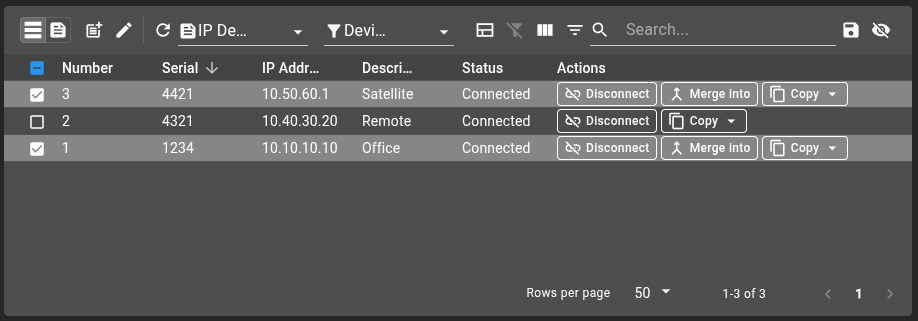
Load the dashboard and add a few devices with the + button. Each row shows Connect or Disconnect after its status, and Merge into shows on the ticked rows once at least two rows are ticked.
../_images/row-actions-table.png

Press Copy to open its submenu, then pick the value to copy.
../_images/row-actions-copy-submenu.png